👤 Users
Users are individual accounts in C360.
Each user is associated with a Group, which defines their access rights, permissions, and responsibilities within the system.
To access Users:
- Click Settings in the header.
- Navigate to Account Settings → Users. (The Groups tab is selected by default).
🖥️ User Views
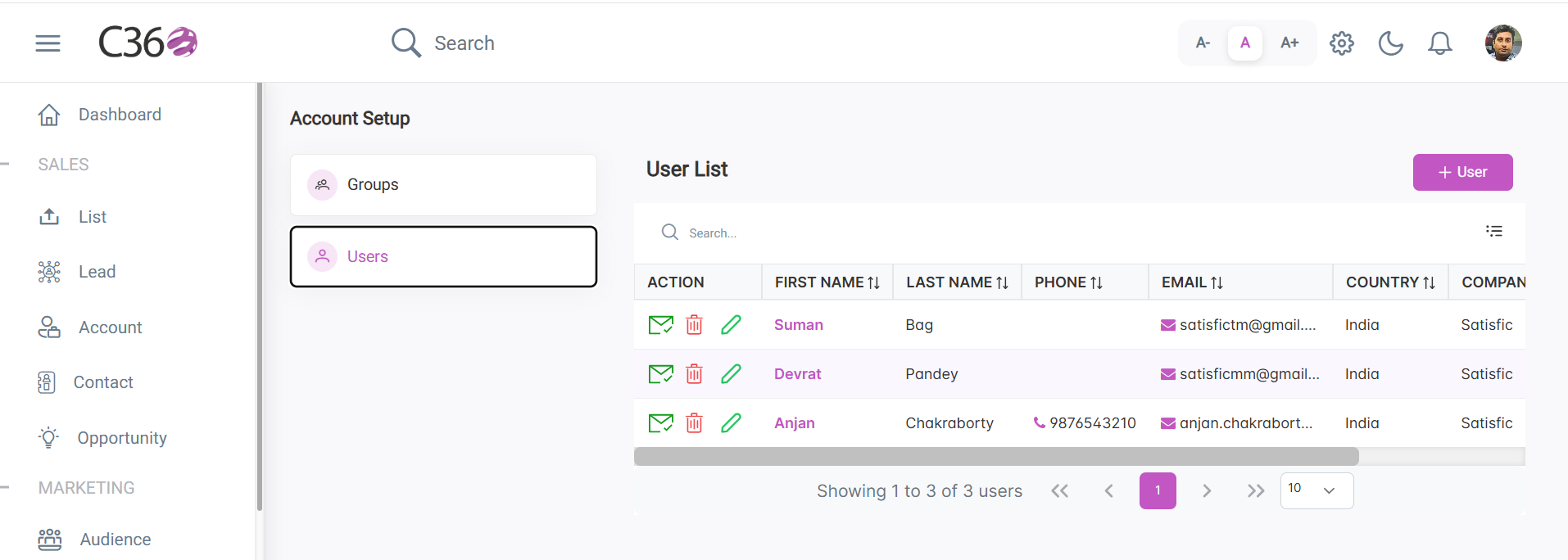
- 📋 List View
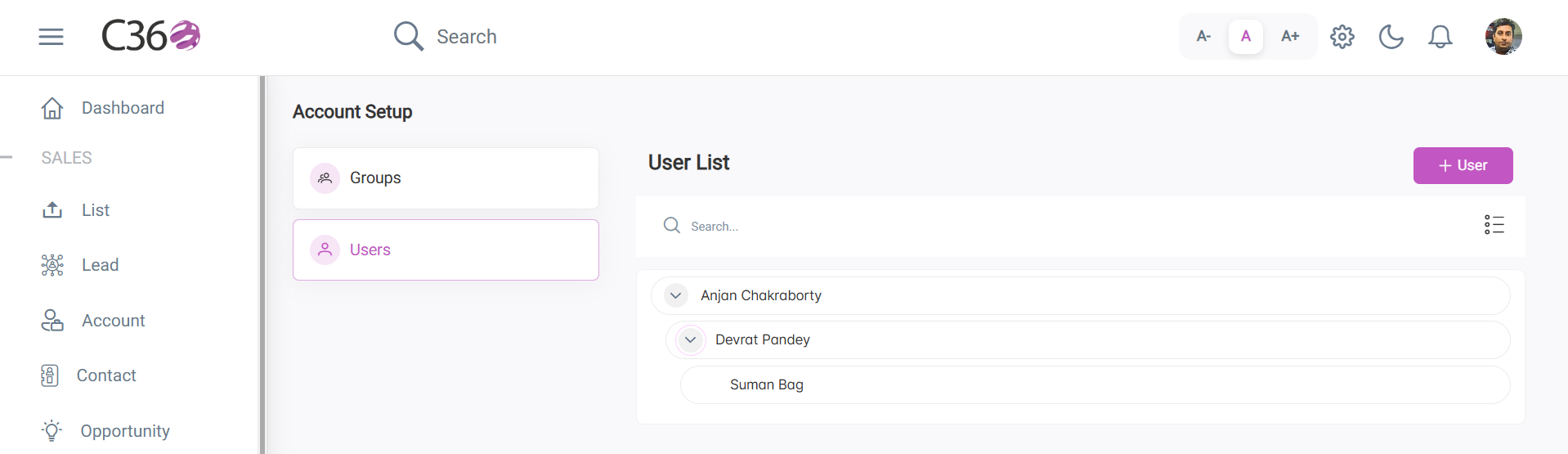
- 🌳 Tree View
- Columns: First Name, Last Name, Email, Email Verified, Assigned Group, Actions (Edit/Delete).
- Sorting: Click any column header to sort users.
- Top Features:
- Search bar → Quickly locate users.
- Add button → Create a new user.
- Toggle button → Switch between List / Tree views
- Pencil Icon → Edit and update the existing user.
- Trash Icon → Remove user.
- Envelope Icon → Verify user.
- Displays users in a hierarchical structure (Parent → Child, if applicable).
- Edit → Pencil icon or Edit button in the sidebar
- Delete → Trash icon under Actions
➕ Add / Edit a User
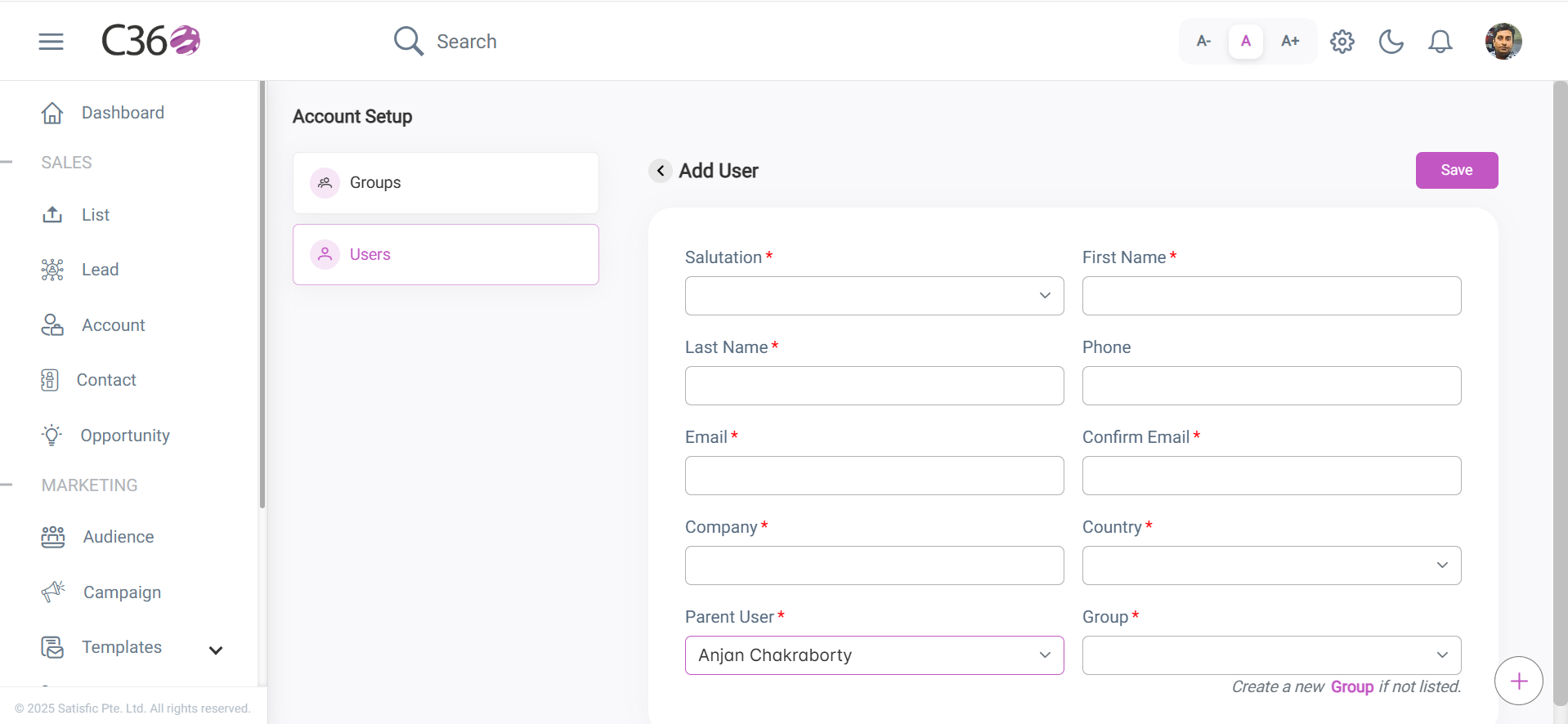
Steps to Add a User
- Click Add User.
- Enter the following details:
- First Name
- Last Name
- Phone
- Group Assignment
- Provide the associated roles to the user.
- Click Save to complete user creation.
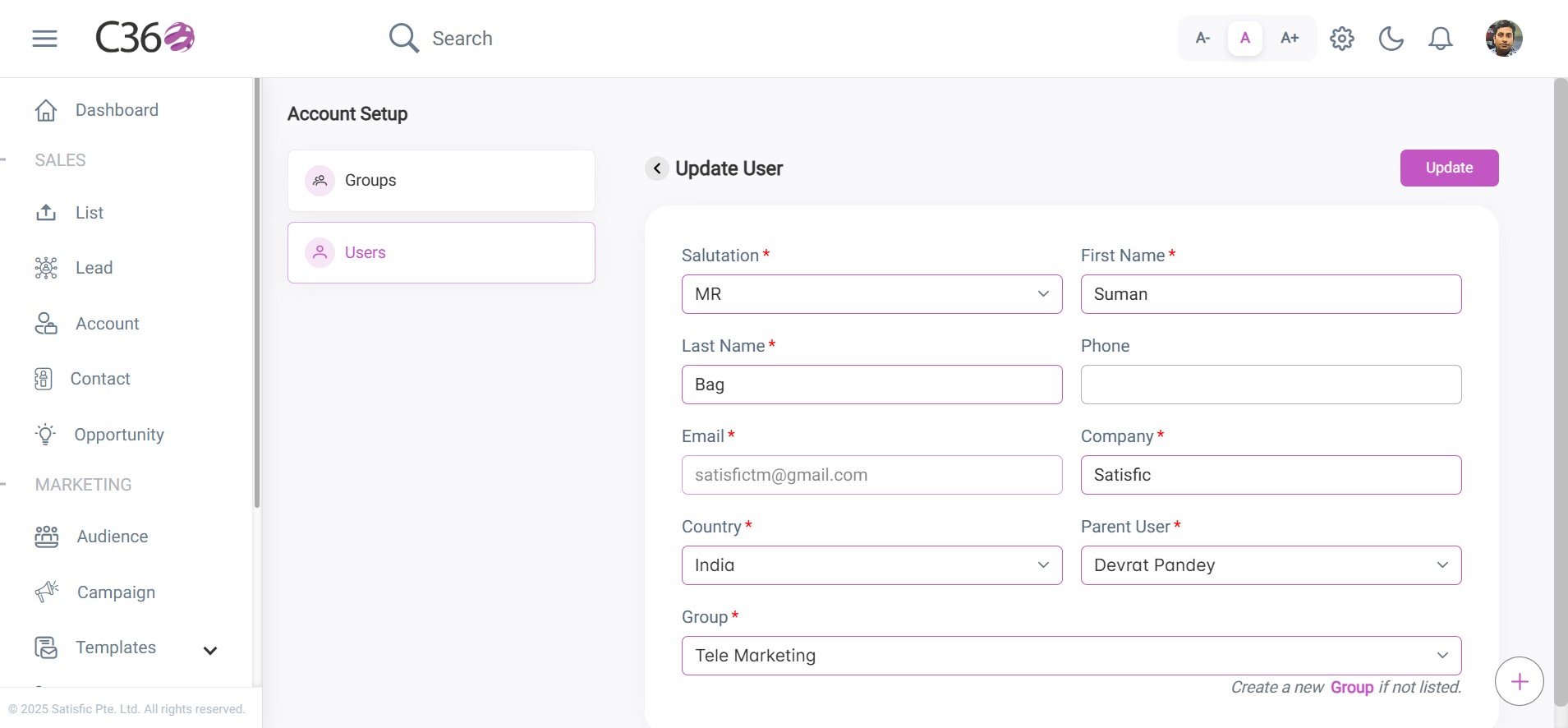
Steps to Edit a User
- Click the pencil icon in the user list, or
- Use the Edit button on the user’s details page.
🔐 Assign a Role to a User
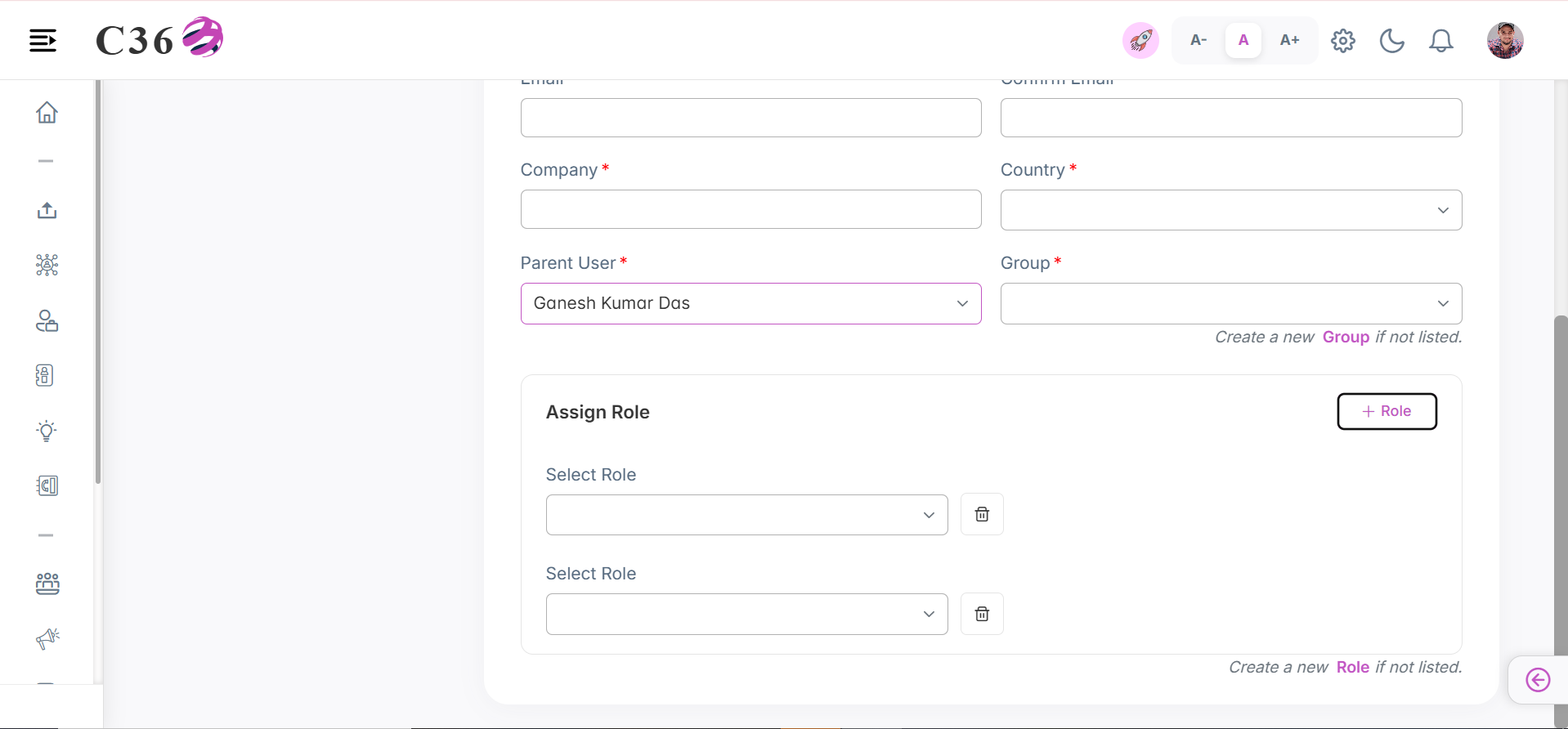
Assign a predefined role to a user to control their access to specific modules, features, and actions within the CRM system.
- Go to the Add/Edit User page.
- Click on Add Role.
- Select the role from the dropdown.
- Save / Update the user.
note
- You can add up to 10 roles for a user.
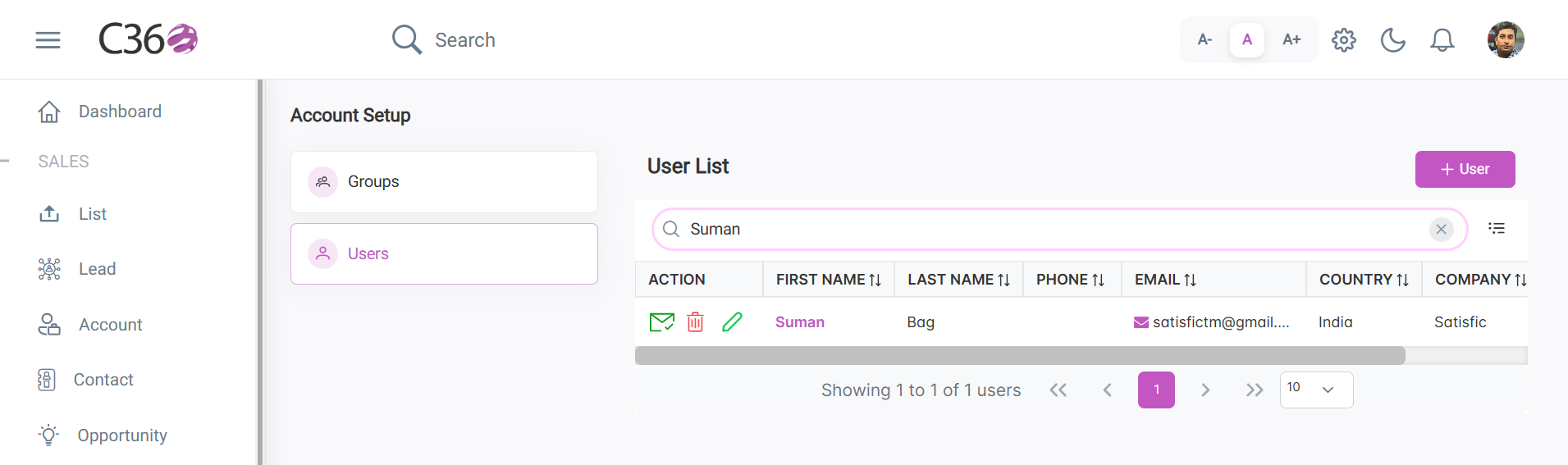
🔍 Search Users
- Enter a name or keyword in the search bar.
- Press Enter to instantly filter results.
🗑️ Delete User
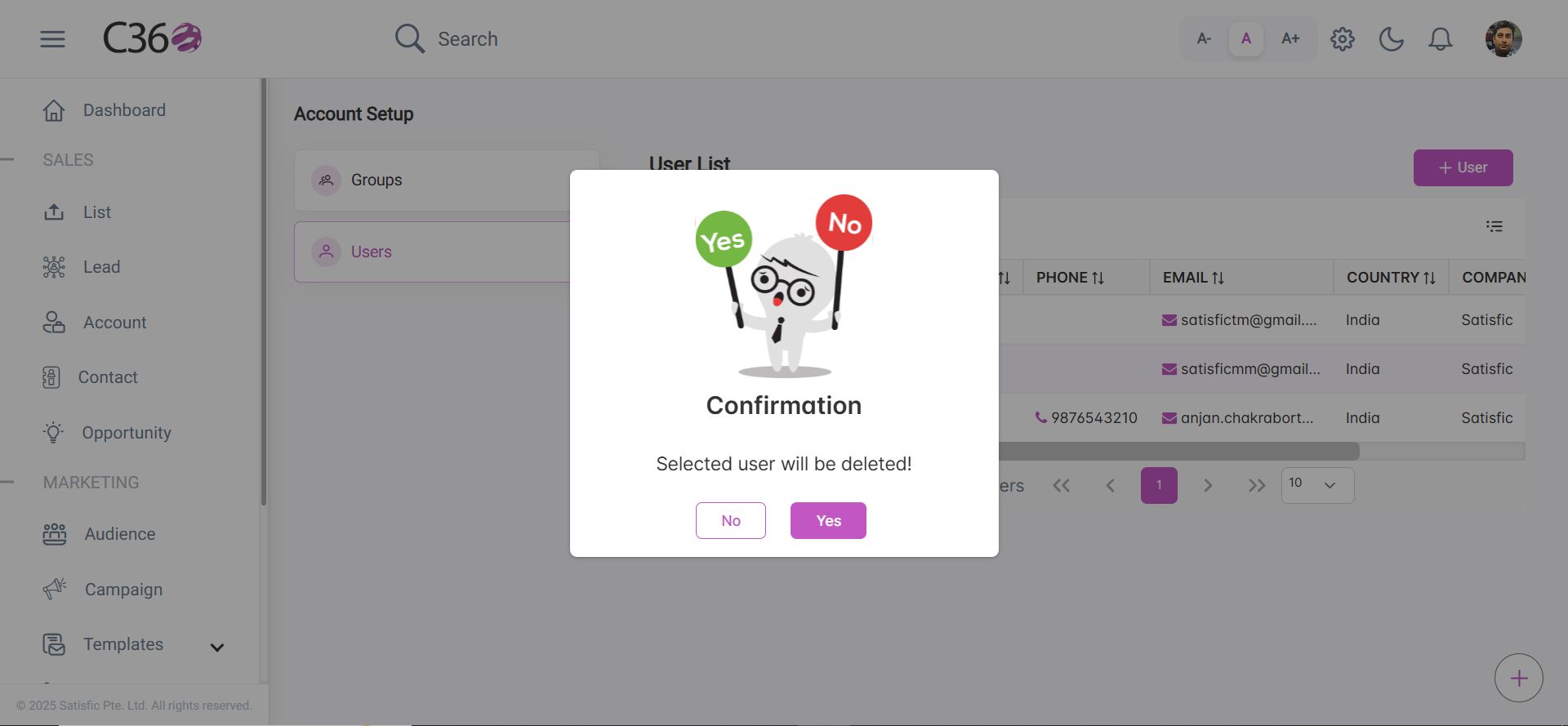
- Click the Delete icon for the user you want to delete.
- Click Yes in the confirmation pop-up if you want to delete it.
📄 View User Details
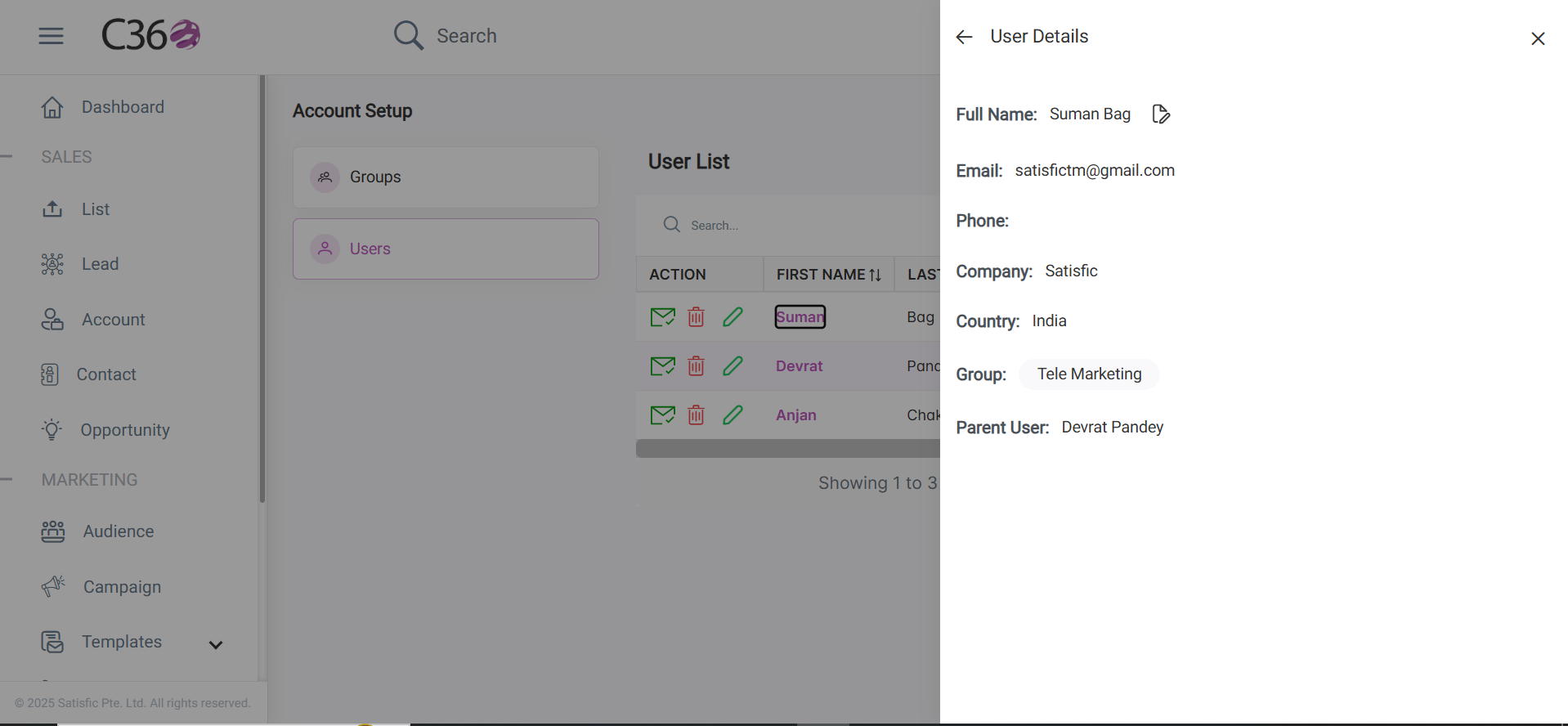
Click a user’s name to open the details sidebar.
Here you can review:
- Assigned Group
- Email Verification Status
- Access Permissions
🔄 User Life Cycle
💡 Best Practices
tip
Always assign users to the appropriate group to ensure correct access levels and permissions.
warning
Deleting a user is permanent. Confirm before proceeding to avoid accidental data loss.