📞🧙 Script Wizard Management
The Script Wizard is a guided CRM tool that streamlines the creation of call scripts by allowing users to define questions, responses, and script flow in a structured, step-by-step process. It enables teams to build consistent, effective scripts for optimized lead engagement.
To access it:
➡️ Go to Sales → Script Wizard from the left-hand menu.
📜 Script Wizard Overview
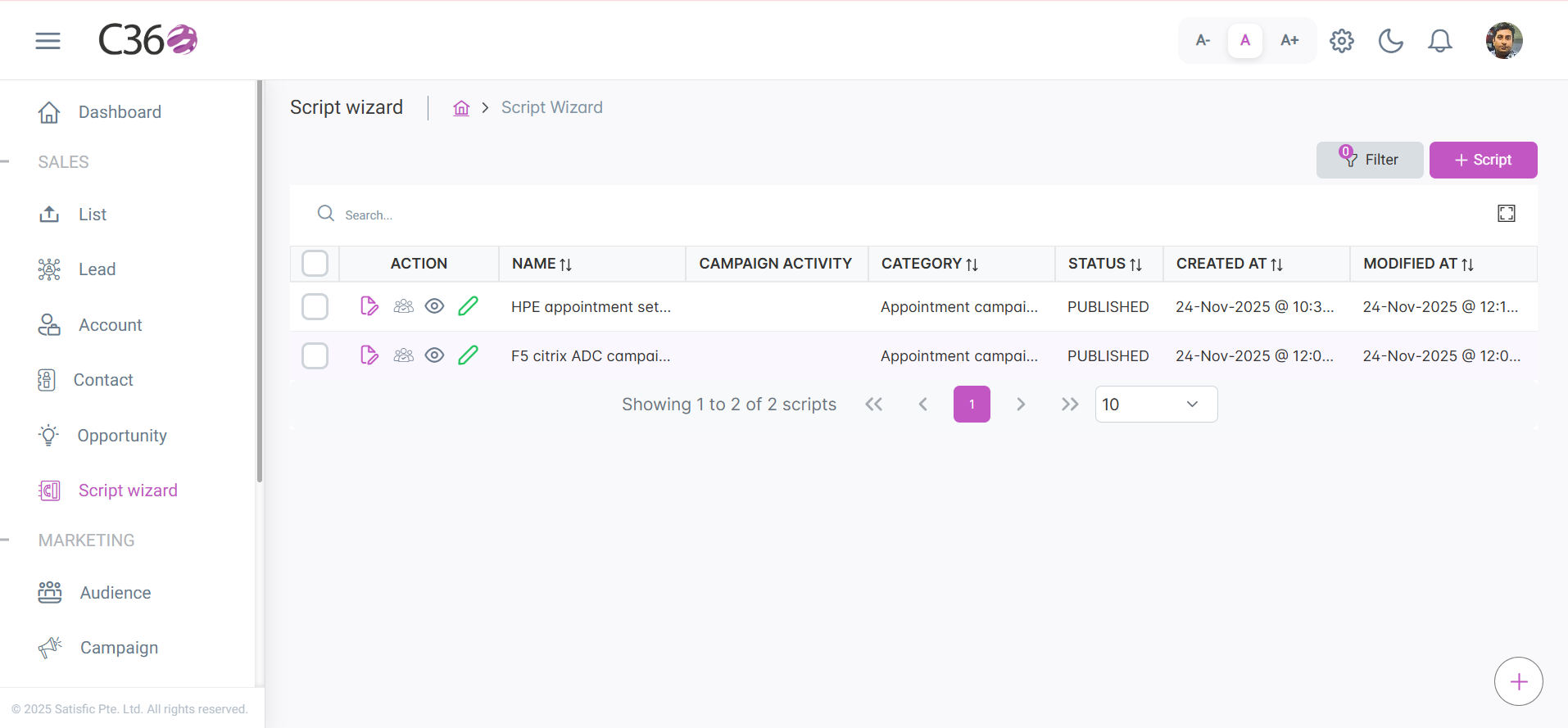
The Script Wizard List provides a complete overview of all Scripts that exist in the system.
Columns in the List
| Field | Description |
|---|---|
| Action | Represents available operations such as preview, edit, inline edit or assign to campaign. |
| Name | Displays the title or identifier of the script. |
| Campaign Activity | Indicates the associated campaign task or call activity. |
| Category | Defines the classification or type of the script. |
| Status | Shows the current state, such as Active, Inactive, or Draft. |
| Created At | Timestamp showing when the record was originally created. |
| Modified At | Timestamp showing the latest update made to the record. |
You can sort columns (ascending/descending) to organize the list as needed.
🔄 Script Creation Flow
The Script Wizard allows you to build dynamic scripts with branching logic.
🔍 Searching for Scripts
- Enter keywords in fields such as Name.
- Press Enter to run the search.
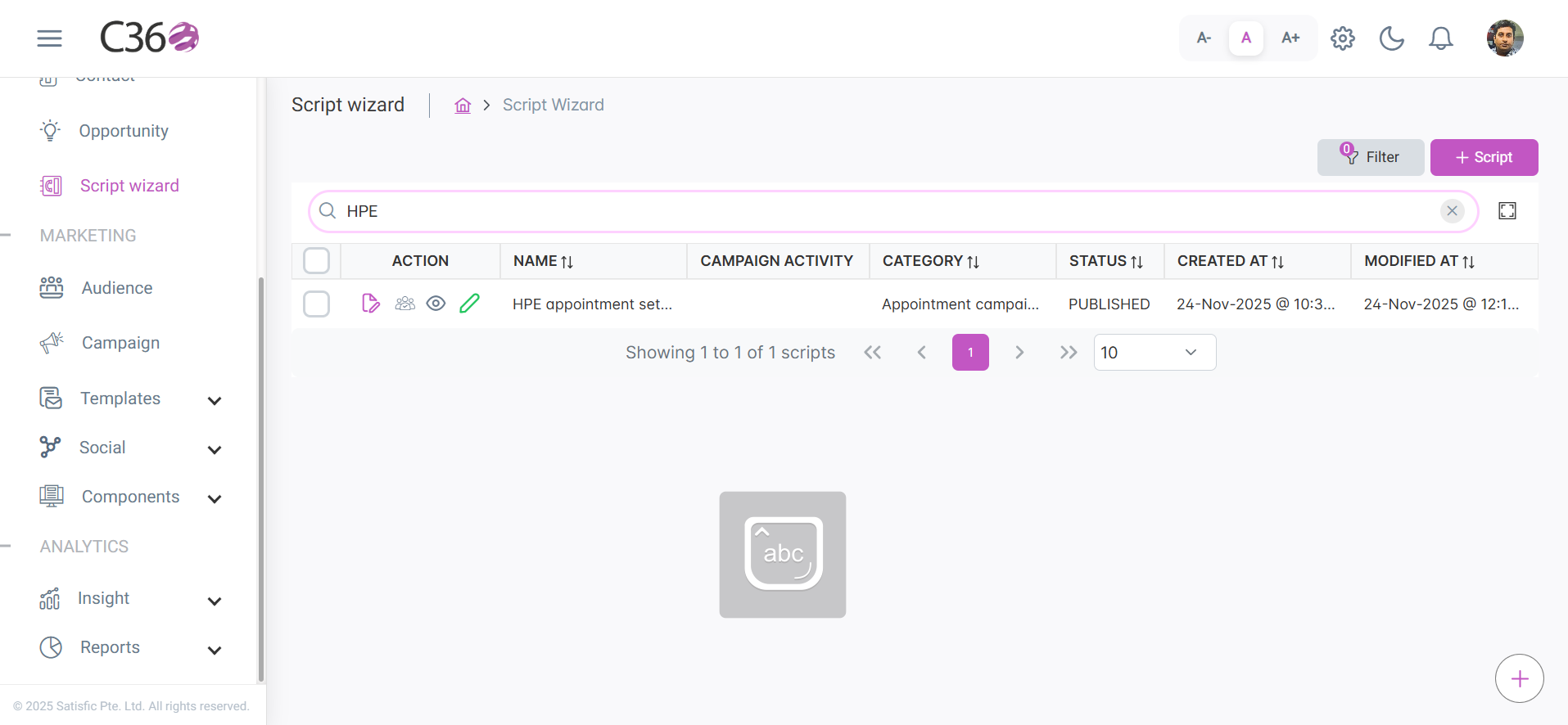
Search scripts
🎛️ Filtering Scripts
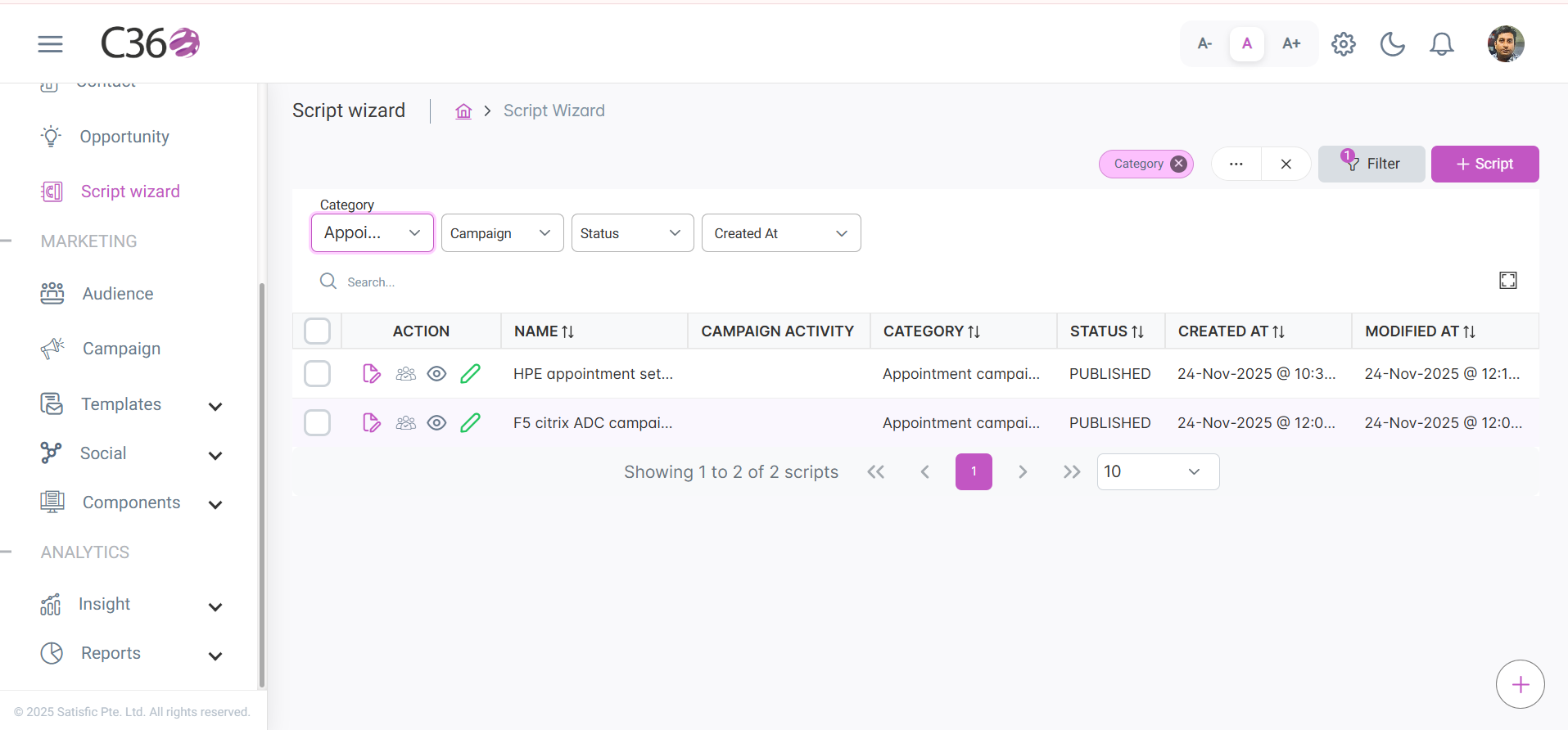
You can filter scripts to quickly find relevant records.
Click to view available filters
- Category → Filter by script type. - Status → View Active, Inactive, or Draft scripts. - Campaign Activity → Filter by associated campaign. - Created Date → Filter by creation timeframe.
➕ Add Scripts
To Create New Script follow these steps:
- Configure
- Build
- Preview
Configure your project settings, environment variables, and dependencies before proceeding to the build process.
- Fill all the mandatory fields (Script Name, Category, Status, Campaign and Campaign Activity).
Campaign Activity will appear only when you select a campaign in which at least one activity exist.
Provide the description if needed and click on next.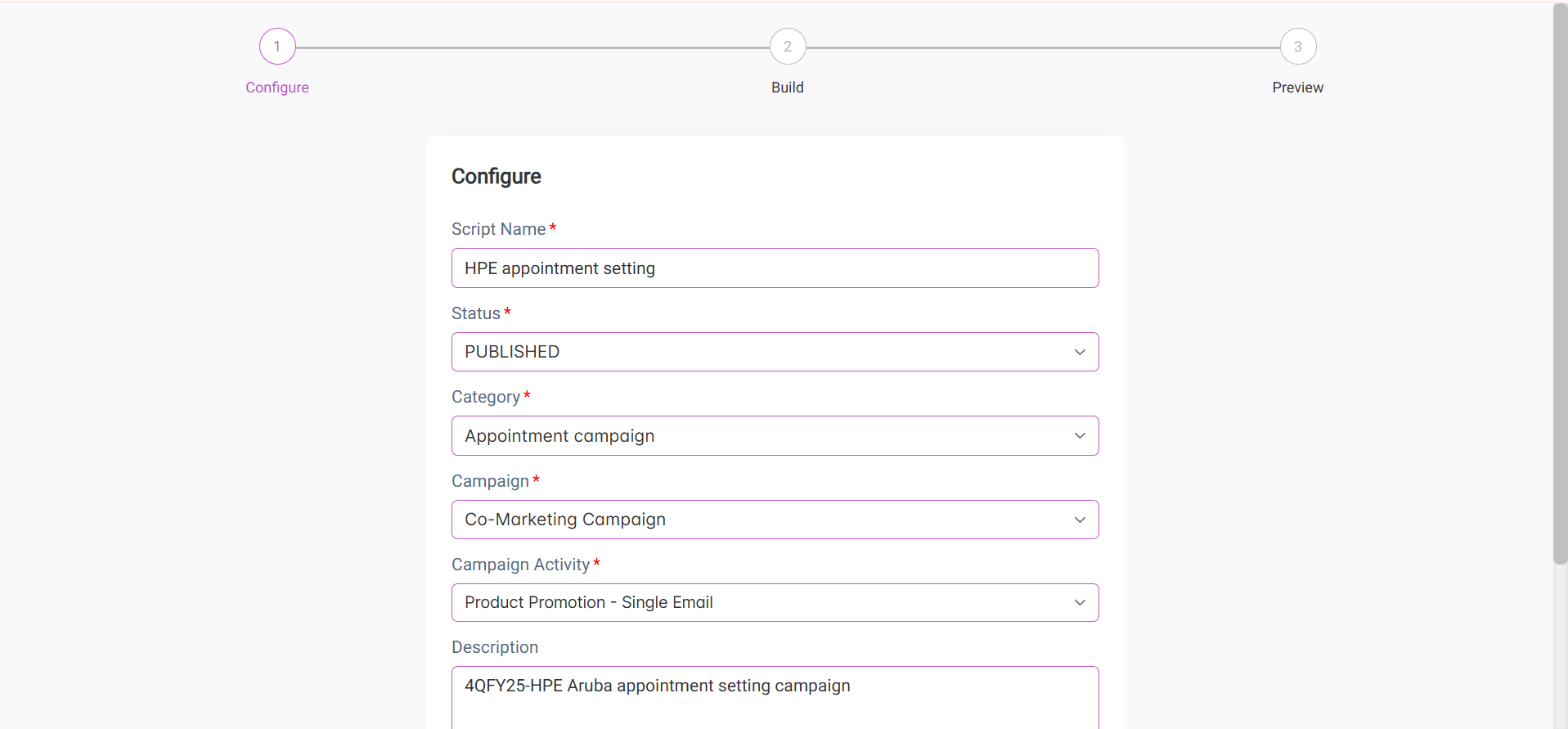
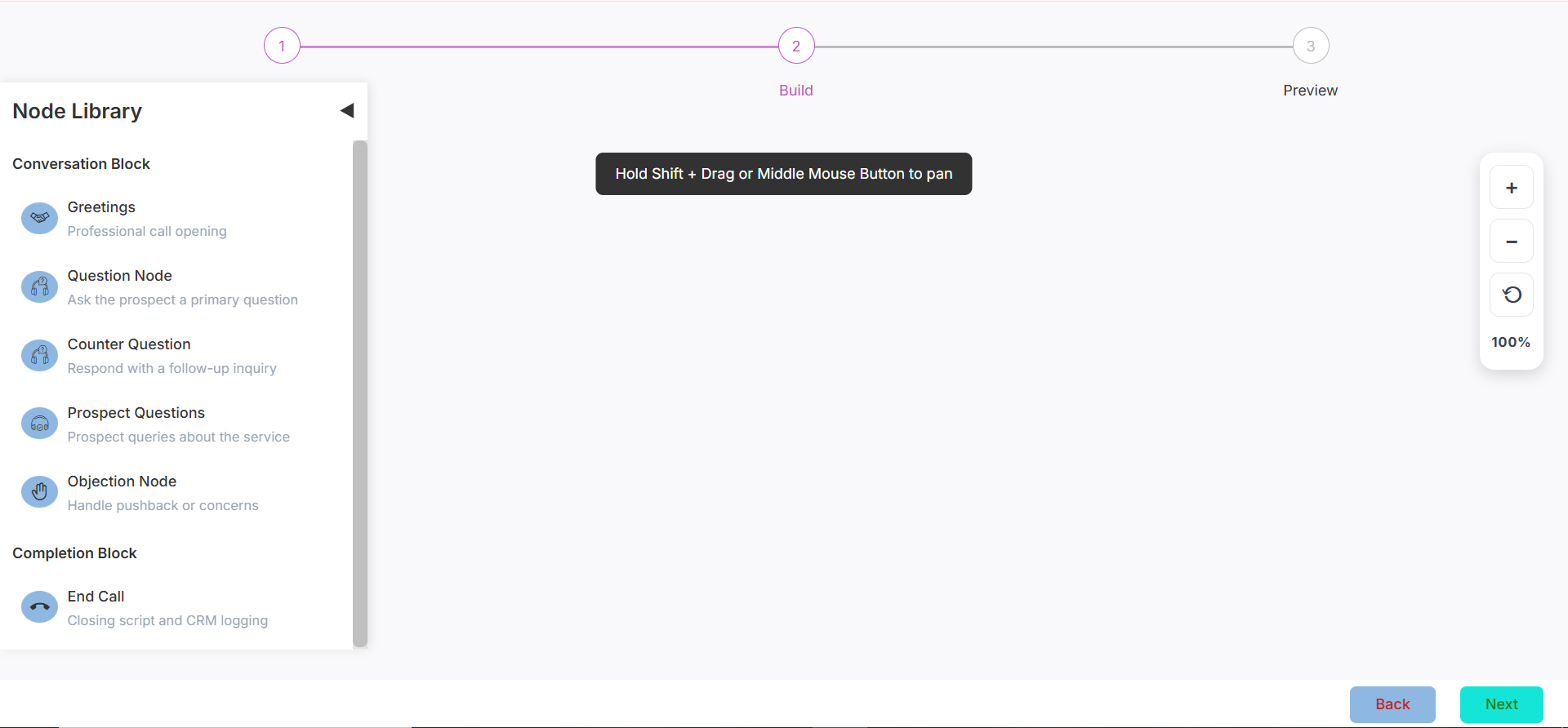
Find the Conversation and completion block under node library to build the script.
Conversion Block :
- Greetings : Professional call opening.
- Question Node : Ask the prospect a primary question.
- Counter Question : Response with a follow - up enquiry.
- Prospect Question : Prospect queries about the service.
- Objection Node : Handle pushback or concerns.
Completion Block :
- End Call : Closing script and CRM logging.
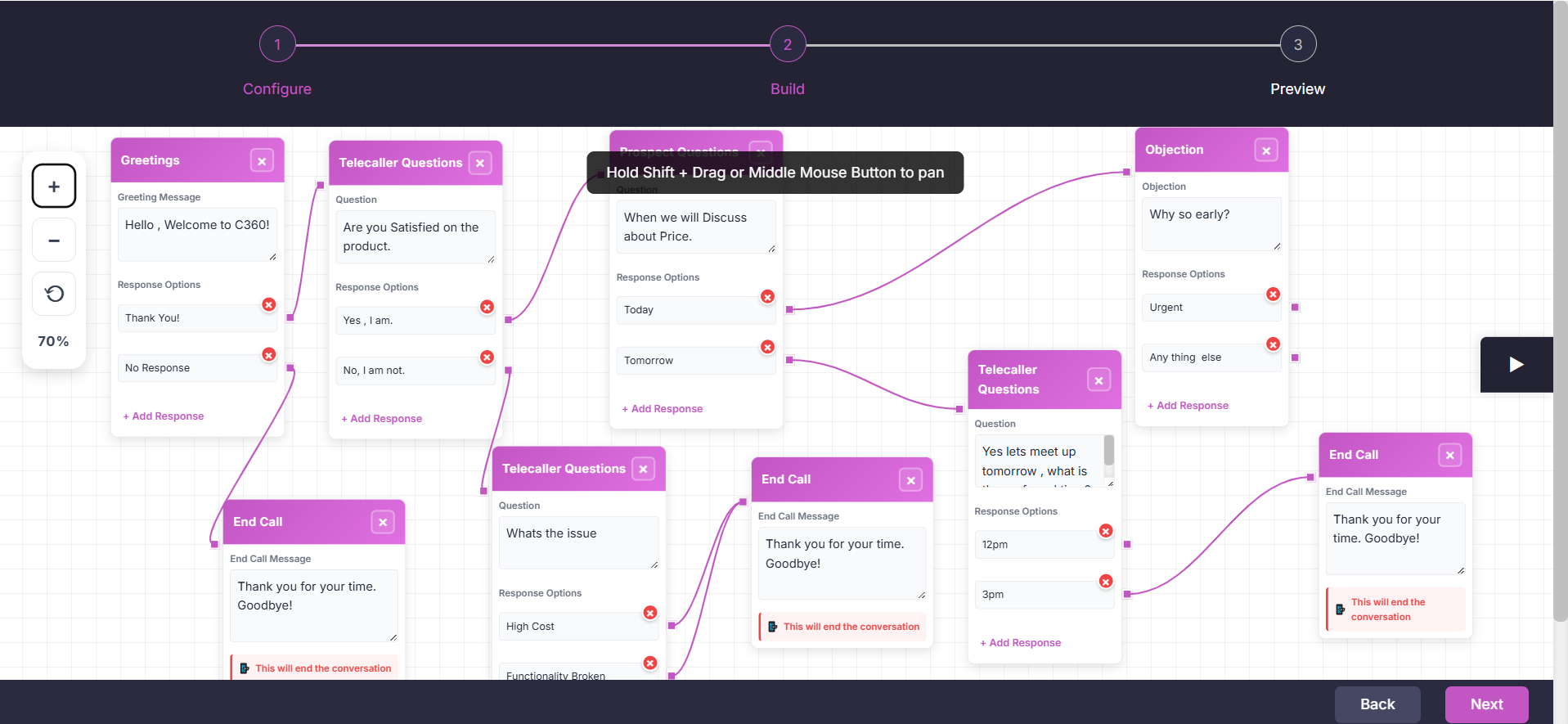
Instruction :
- Start with greetings.
You can add only one greeting in a script.
Arrange the questions and responses according to your preference.
You can not connect nodes from an objection block.
Click on Next.Click to view additional actions you can perform
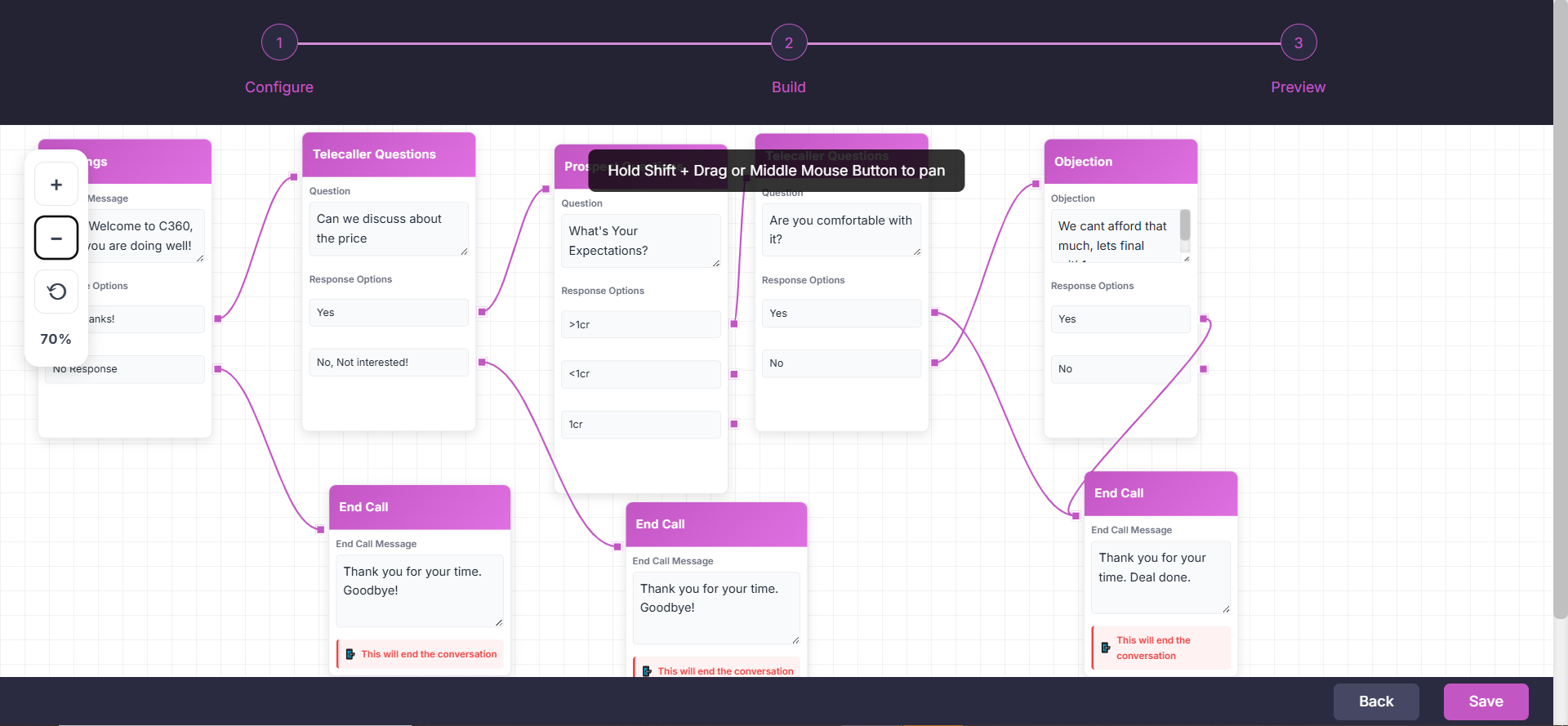
- Preview and Finalize the call script you have created.
- Click on Save.
✏️ Edit Scripts
Modify existing Scripts to keep your communication strategies up to date.
Follow these steps:
- Click on pencil icon under action column for the script you want to edit.
- Make necessary changes if needed in Configure and click on Next.
- Make necessary changes if needed in Build for the questions and responses and click on Next.
- Finally Preview the changes and click on Update button.
Click to see additional action
- Additionally you can perform inline edit for the script you want.
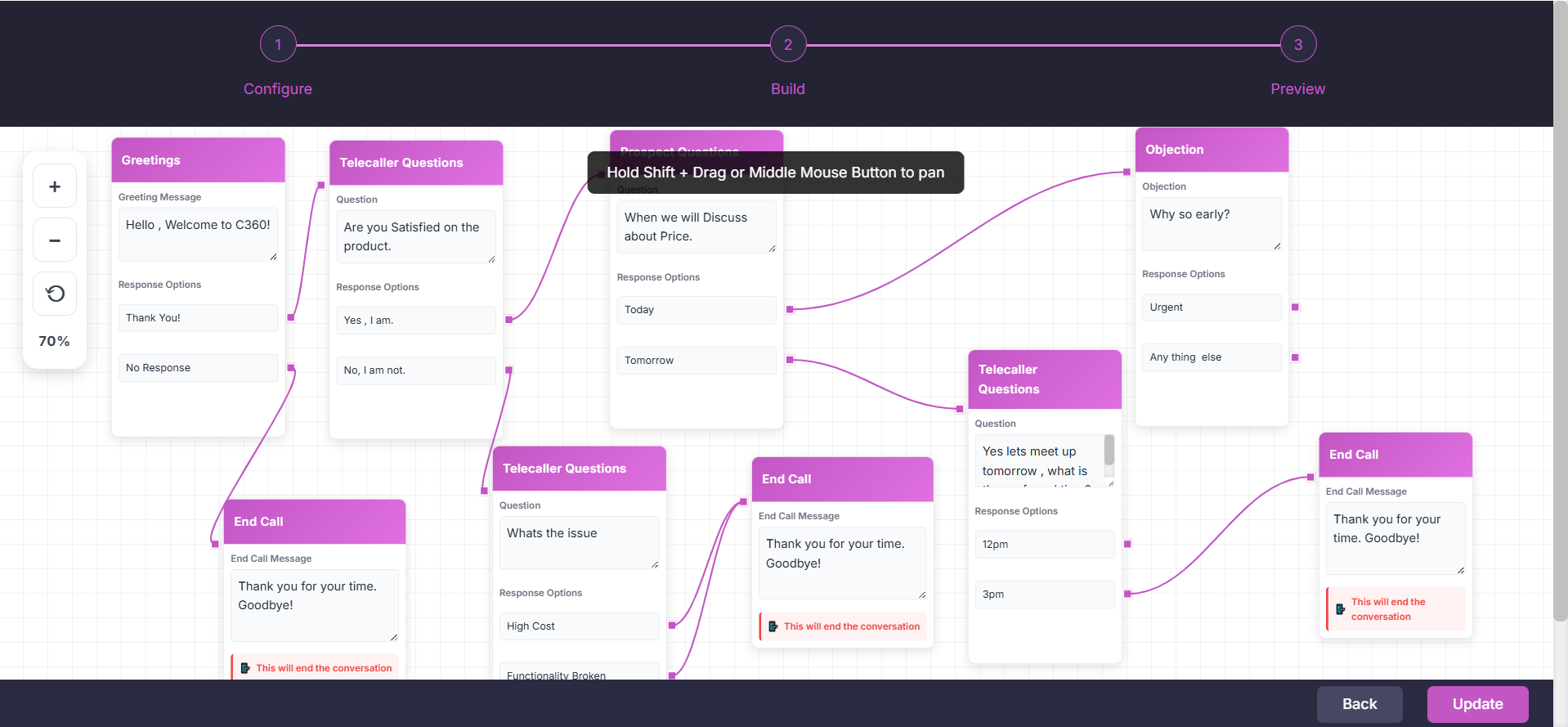
Edit Script
👁️ Previewing Scripts
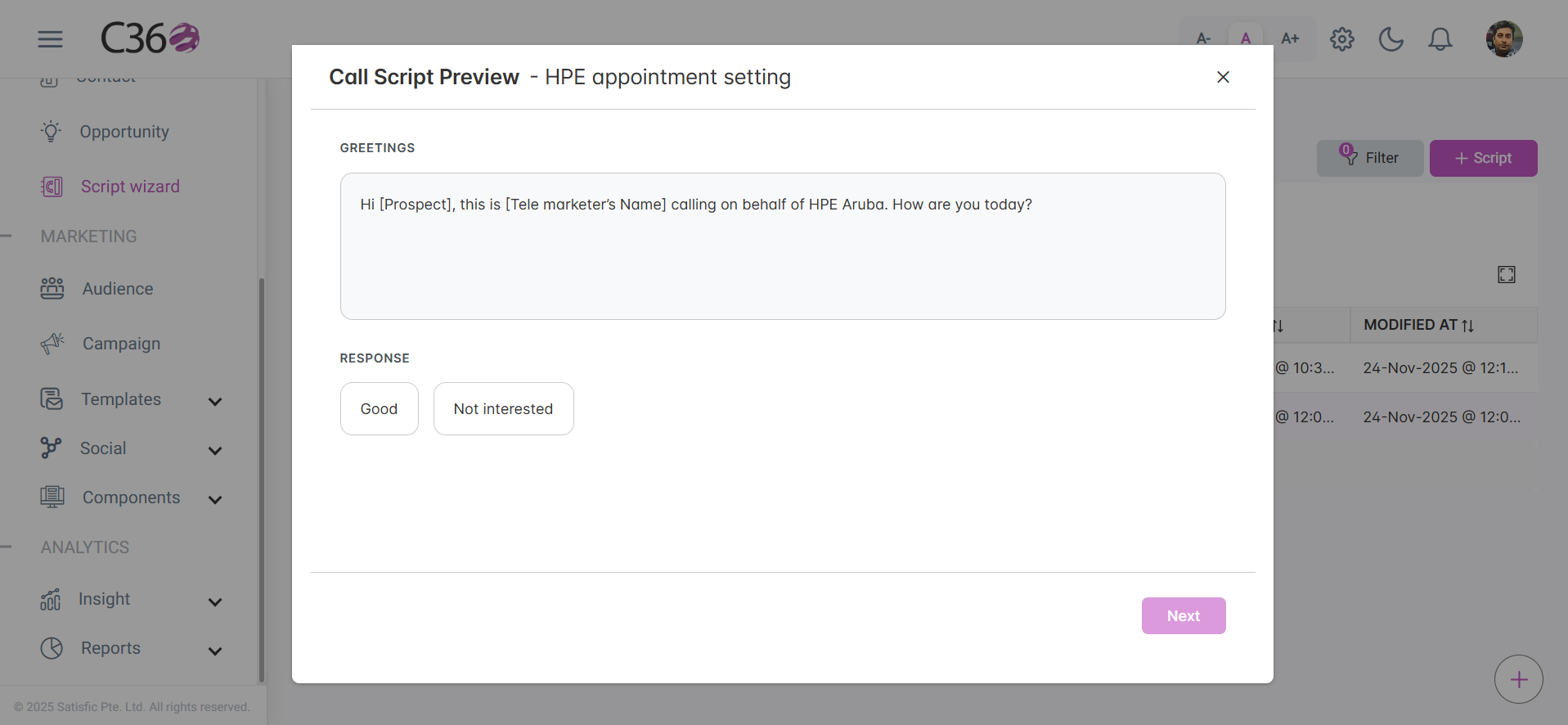
Before finalizing a script, you can preview it to ensure the flow works as intended.
- Locate the script in the list.
- Click the Preview action.
- Walk through the questions and responses as an agent would.
🔗 Assigning Scripts
Scripts can be assigned to specific campaigns or leads to ensure agents use the right messaging.
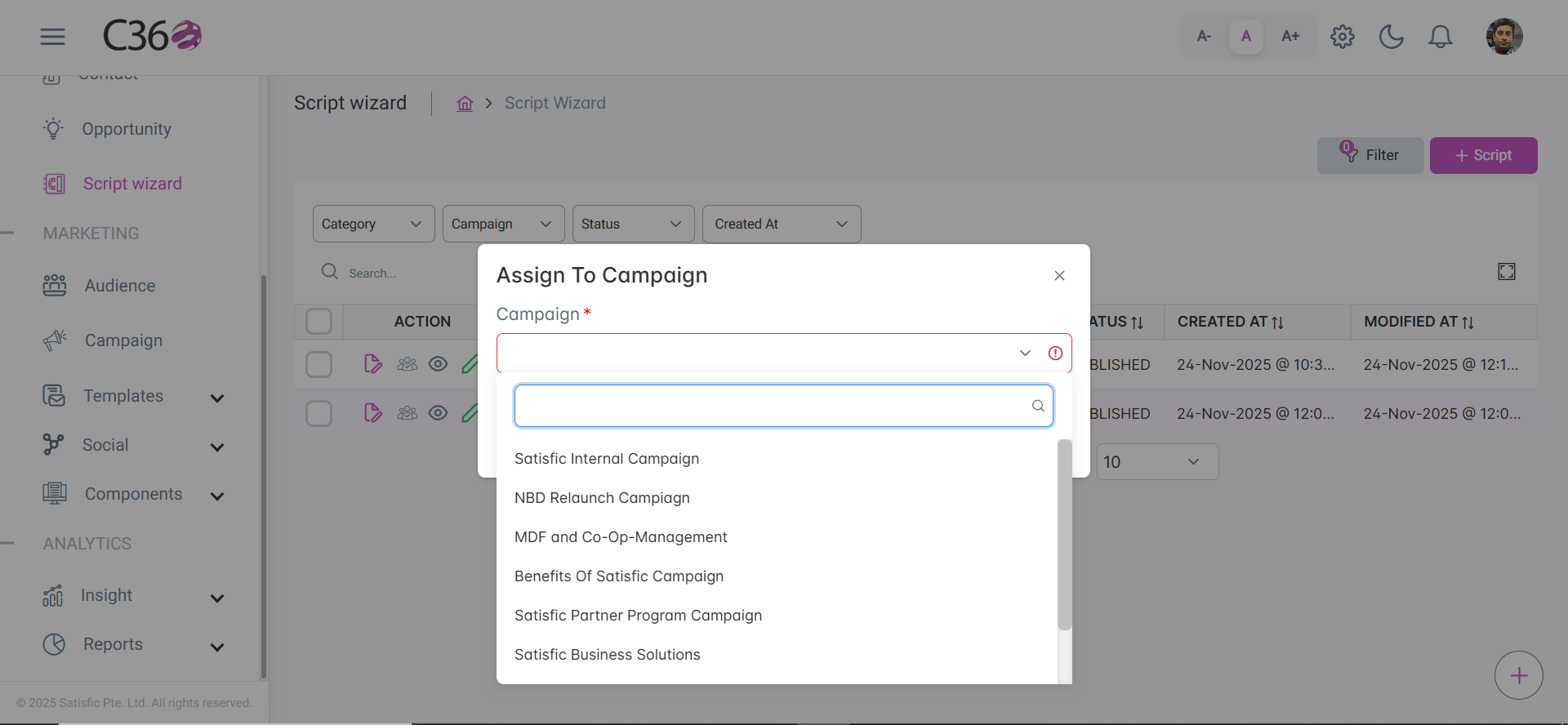
📢 Assign to Campaign
- Select the script(s) from the list.
- Click Assign to Campaign icon.
- Select the target campaign and confirm.
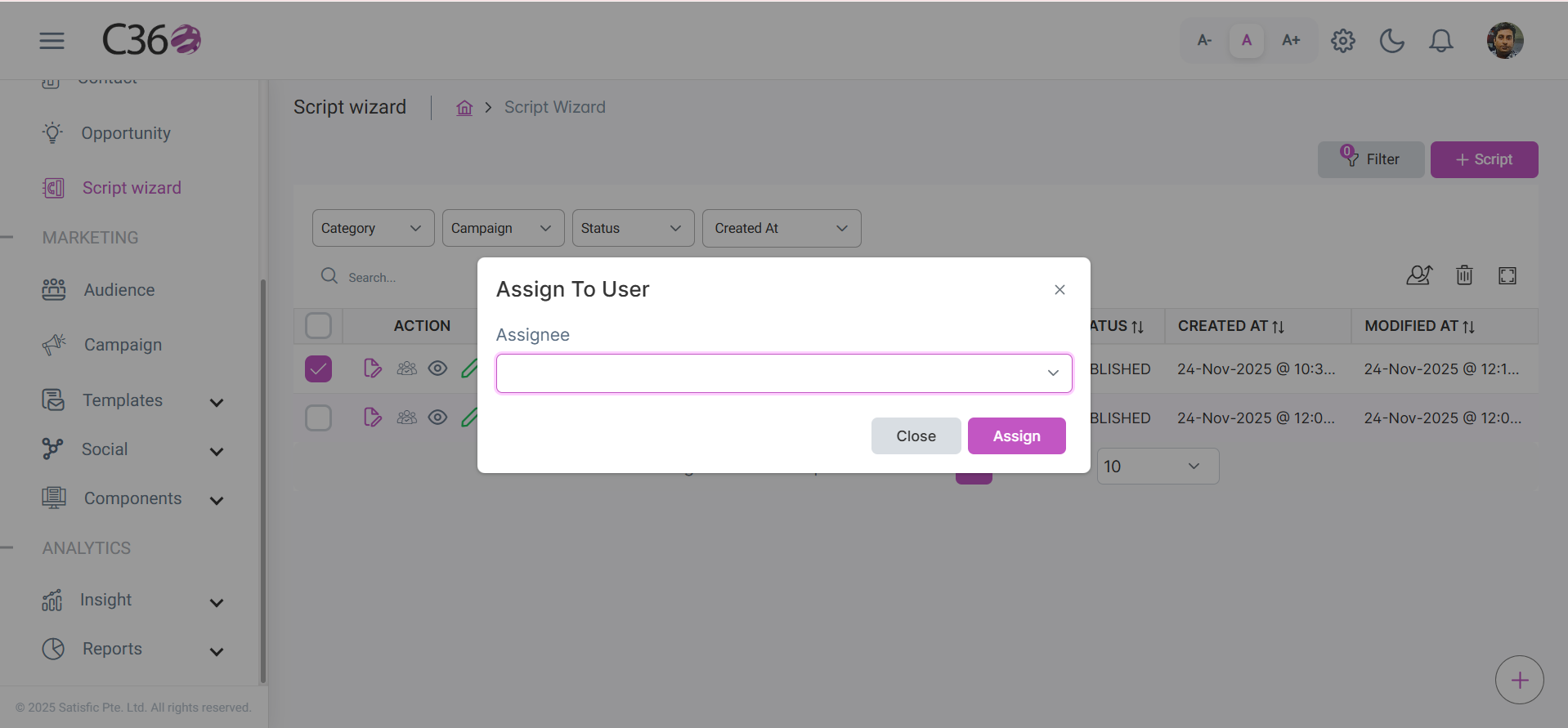
👤 Assign to User
- Select the Script you want to assign to the user using checkbox.
- Click on Assign icon that appears beside the trash icon.
- Select the appropriate user and confirm.
🗑️ Deleting Scripts
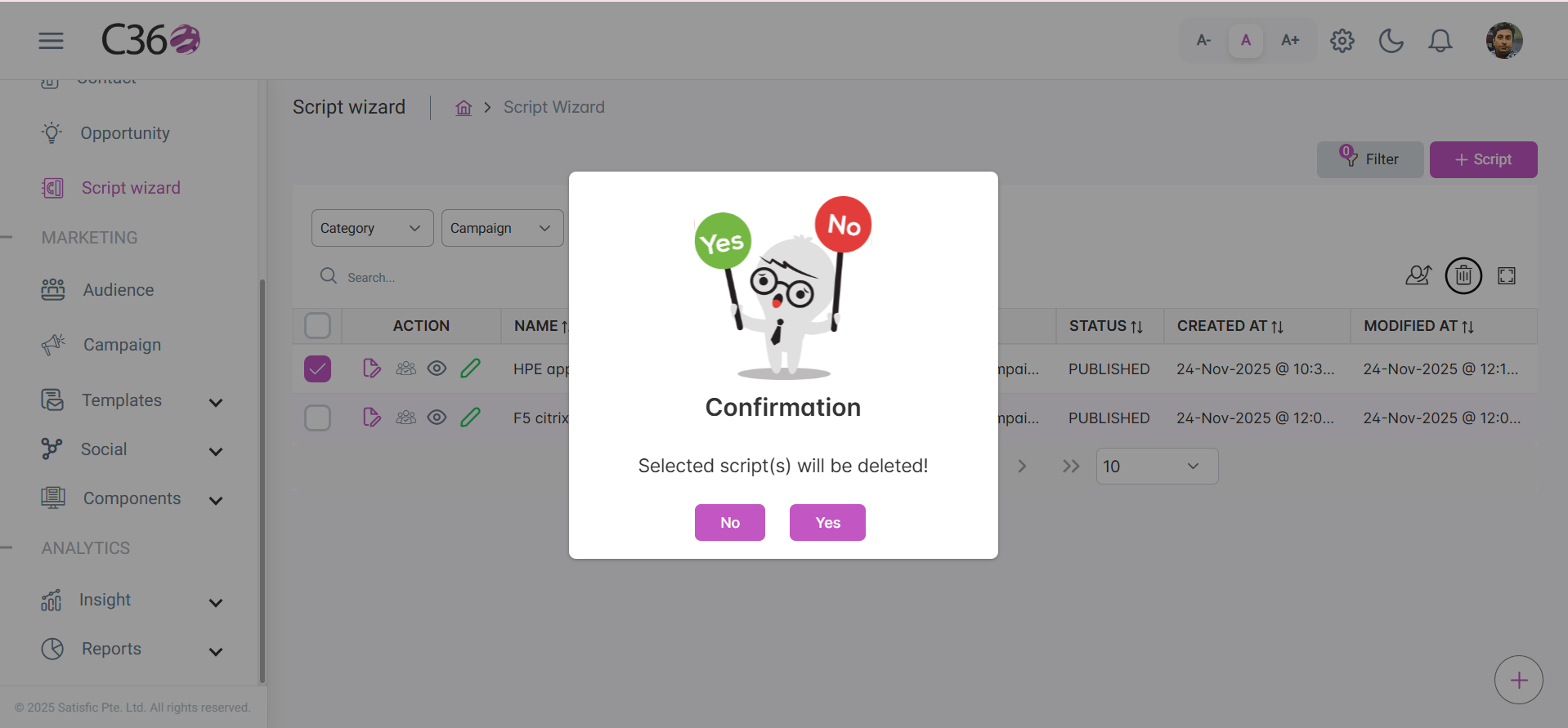
- Select the checkbox(es) beside the scripts you want to remove.
- Click the Delete icon.
- Confirm the action in the pop-up window.
Deleting a script cannot be undone. Ensure the script is not currently active in an important campaign before deleting.