💼🎯 Opportunity Management
The Opportunity Management module in C360 CRM helps you track, manage, and update all sales opportunities in one place.
To access it:
➡️ Go to Sales → Opportunity from the left-hand menu.
📊 Opportunity Overview
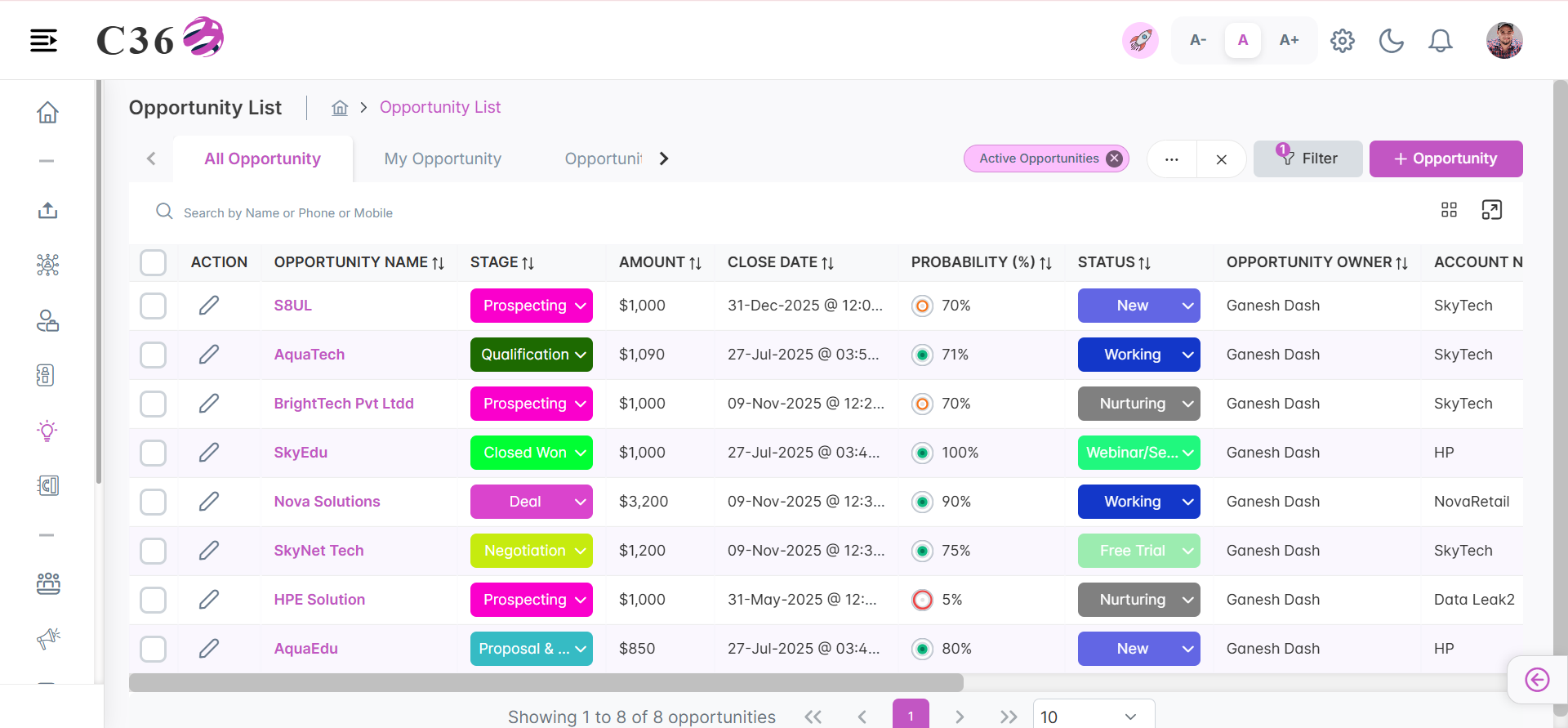
The Opportunity List provides a complete overview of all opportunities in the system.
You can switch between List View and Grid View depending on your preference.
- 📋 List View
- 🗂 Grid View
In List View, opportunities are displayed in a table format with sortable columns.
Columns in List View
| Column | Description |
|---|---|
| Action | Inline editing options (quick update). |
| Opportunity Name | Name of the sales opportunity. |
| Stage | Current phase of the sales process. |
| Amount | Estimated revenue from the opportunity. |
| Close Date | Expected closure date. |
| Probability | Likelihood of closure (set automatically per stage). |
| Account Name | Associated account/customer. |
| Opportunity Type | Classification: New Business, Renewal, Upsell. |
| Opportunity Source | Origin: Referral, Marketing Campaign, Inbound Inquiry. |
| Modified At | Last modification date. |
| Last Activity | Most recent engagement/interaction. |
- You can sort columns in ascending and descending order
- Click on the maximize icon beside the search bar to expand the list to fullscreen.
- You can view upto 200 records at a time in the list view by selecting the Number from pagination dropdown.
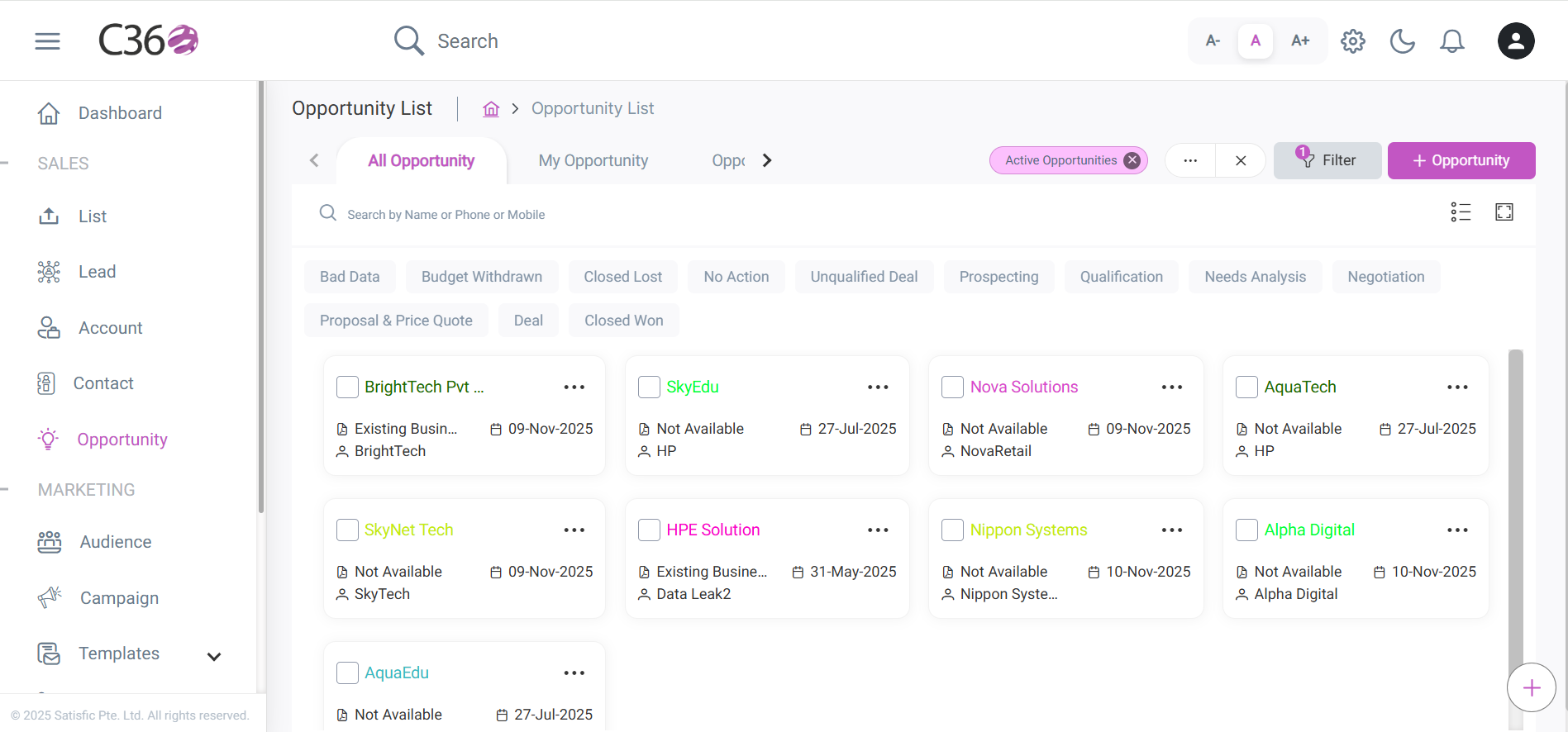
In Grid View, opportunities appear as cards arranged by their stage.
- Each stage is shown as a chip at the top (e.g., Prospecting, Qualification, Negotiation, Closed Won).
- You can filter opportunities by clicking on these stage chips.
- Each card displays quick info such as Opportunity Name, Account, Type, Owner, and Close Date.
- Use the ellipsis (⋮) on a card for quick actions like Edit, Clone, or Delete.
- You cant revert the opportunity back from archive to active once it is archived.
- You cant perform any action on the archived opportunity except download.
🔄 Opportunity Lifecycle
⚡ Key Actions on the Opportunity Page
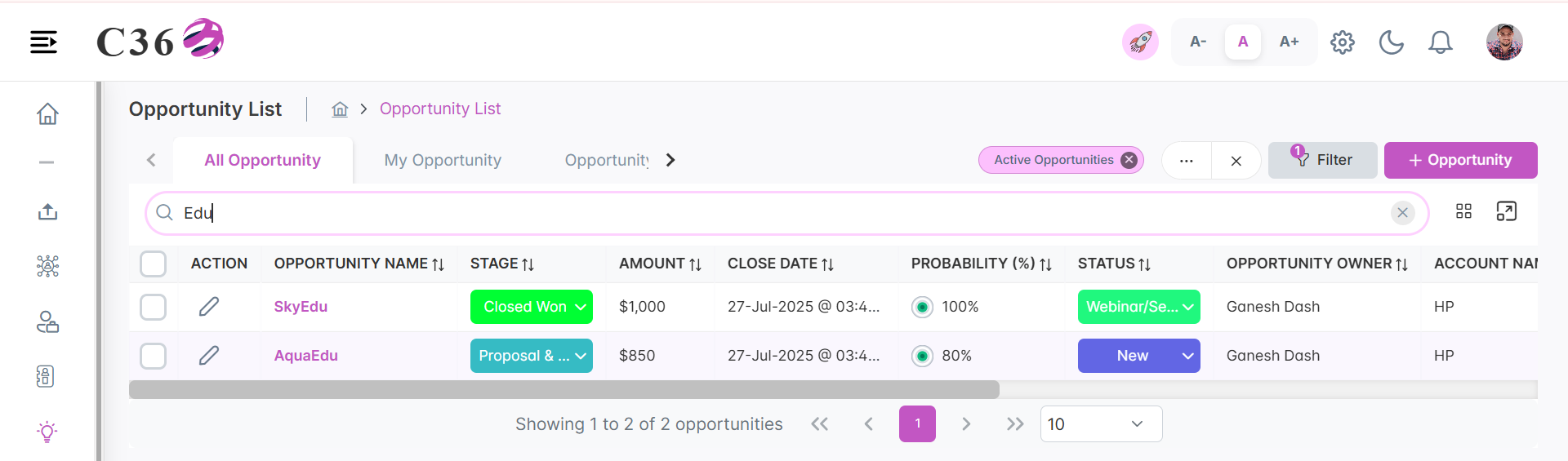
- 🔍 Search Opportunities – Find records by name, phone, or mobile.
- ➕ Add Opportunity – Create new opportunities.
- 🗑 Delete – Select opportunities using checkboxes → click Delete.
- 👤 Assign / Change Owner – Reassign opportunities to other users.
- 📥 Import – Upload opportunities via pre-formatted file.
- 📤 Export (Download as Spreadsheet) – Export selected opportunities.
- ✏️ Inline Editing – Update fields directly in the table.
- 🖥 Maximize View – Expand list to full screen.
- 🗂 Grid View – Visualize opportunities with color-coded stages.
🔍 Searching Opportunities
- Enter Name, Phone, or Mobile Number in the search bar.
- Click the Search icon.
🎛️ Filtering Opportunities
Click to view available filters
- Lead Source → Origin of the opportunity (Website, Referral, Campaign, etc.) - Opportunity Type → Business type (New, Renewal, Upsell) - Opportunity Stage → Current sales stage (Prospecting → Negotiation → Closed) - Account Name → Specific account or organization
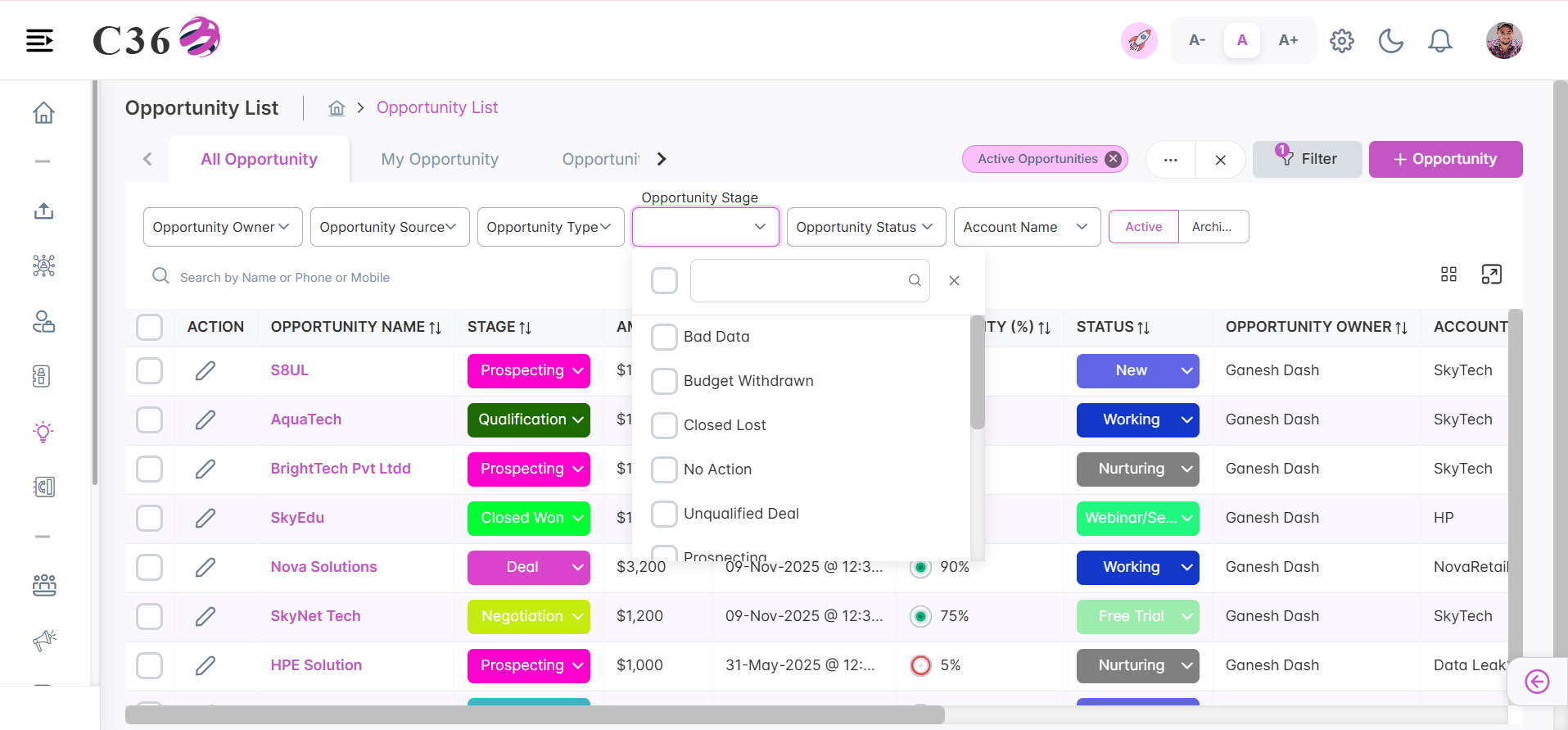
Other filter options include:
- Viewing Active or Archived Opportunities using the toggle switch.
- All Opportunities / My Opportunities / Opportunities Assigned To Me
- All Opportunities: Created By me/Assigned to me/Created By below users.
- My Opportunities: Created By me
- Opportunities Assigned To Me: The Opportunity which were assigned to me by someone.
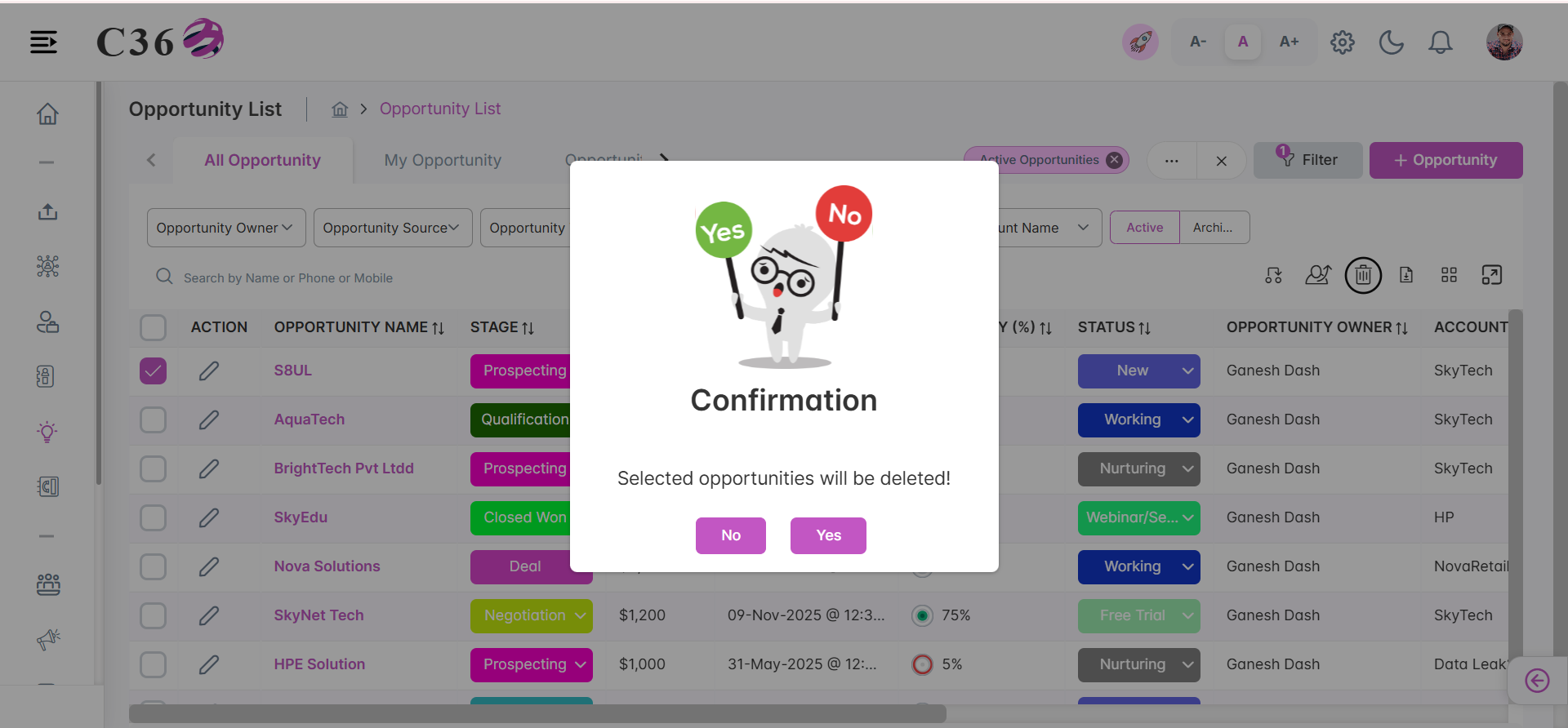
🗑️ Deleting Opportunities
- Select the checkbox(es) beside the Opportunities you want to delete.
- Click the Delete icon .
- Click on Yes from the confirmation pop up if you want to delete.
📂 Downloading Opportunities
- Select the checkboxes for opportunities.
- Click the Download icon.
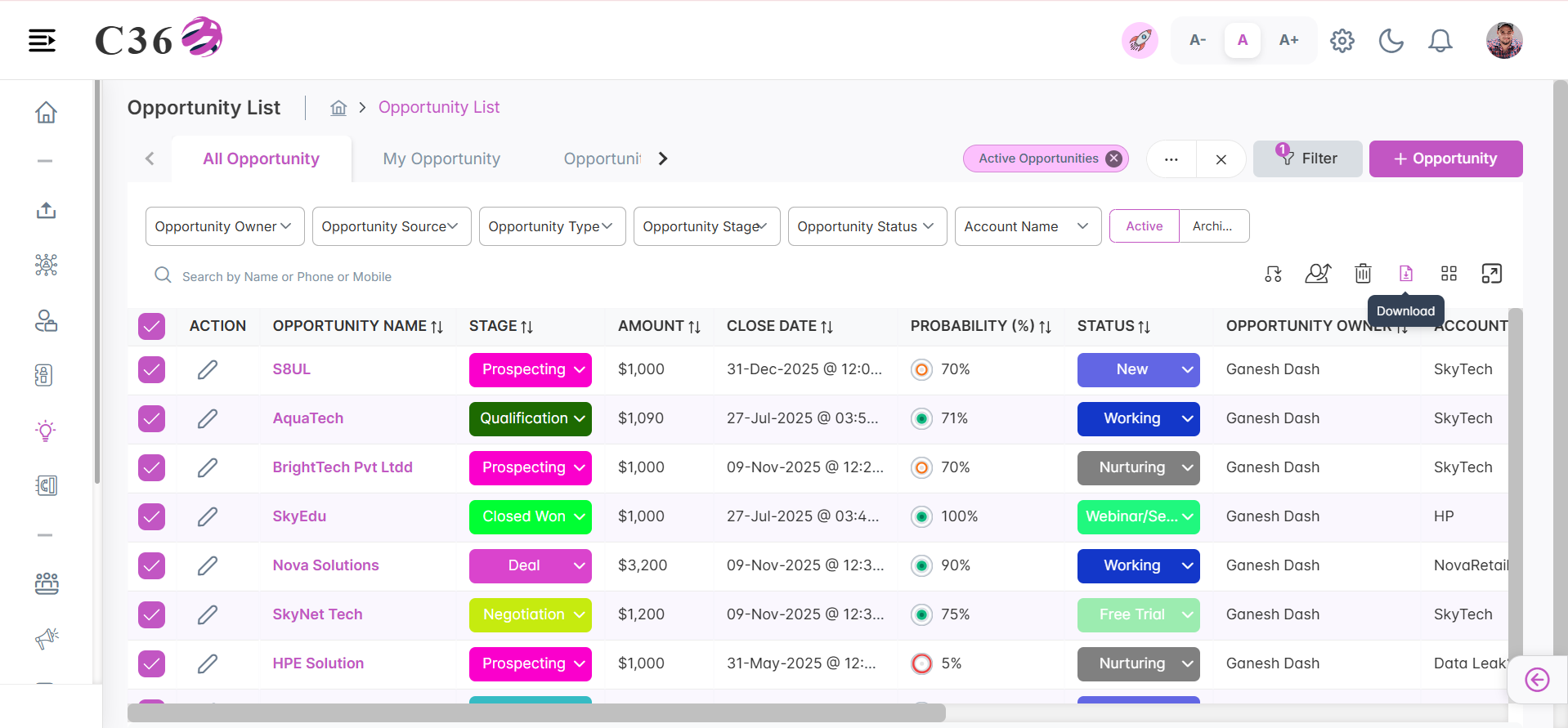
- You can download upto 1000 opportunities at a time.
📝 Viewing & Managing Opportunity Details
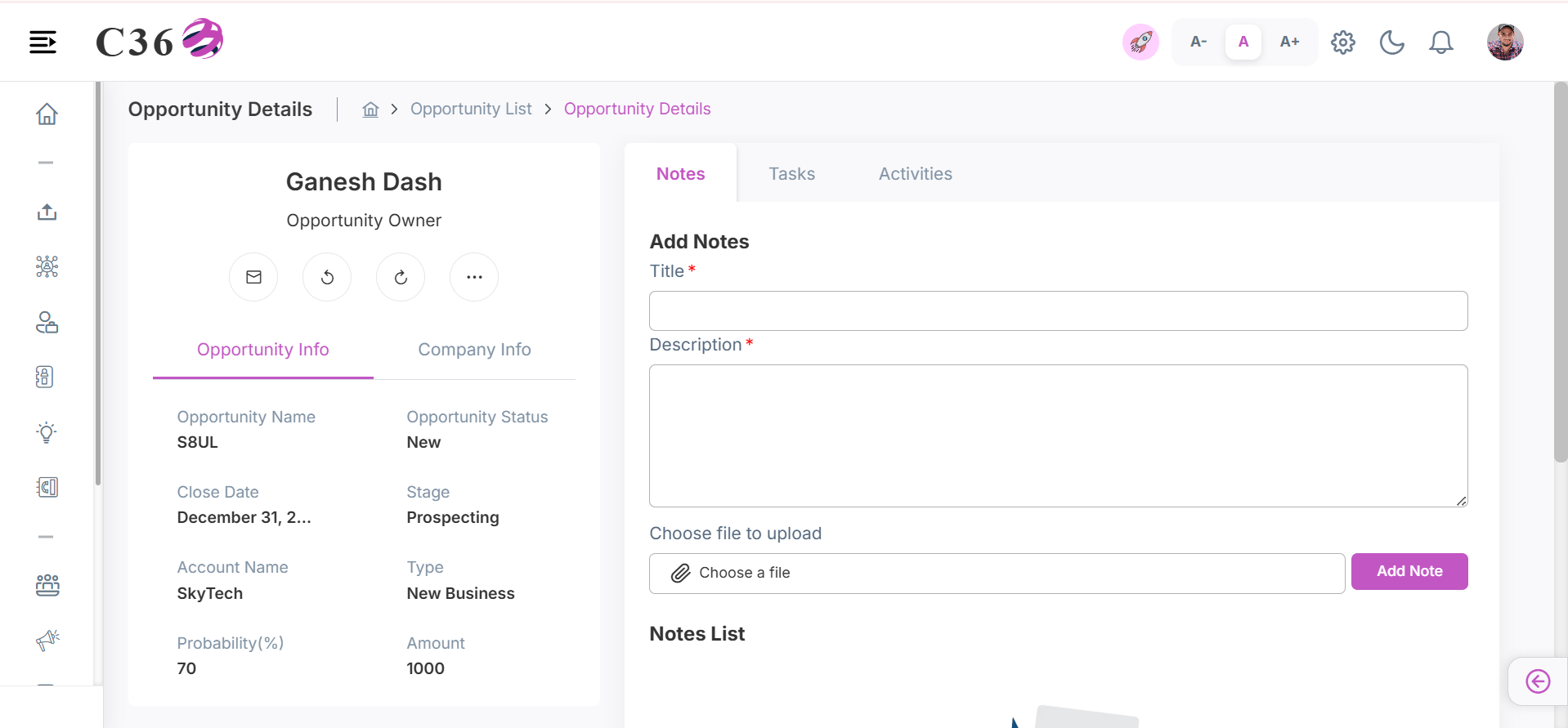
Each opportunity contains a detailed view where you can review and update key information.
Core Details
- Opportunity Owner — who manages the opportunity.
- Opportunity Name — unique identifier/title of the deal.
- Account Name — the customer or account linked to the opportunity.
- Type, Probability, Amount — classification (e.g., New Business), closure likelihood, and deal value.
- Assigned User — the team member responsible.
Actions You Can Perform
- Edit Opportunity: Update details, change the owner, or adjust the stage.
- Reassign: Allocate the opportunity to another user.
- Add Notes & Tasks: Log important updates or schedule follow-up actions.
- Track Activities: Review past engagements and interactions.
Use the Add Note or Add Task buttons in the top-right corner to capture new updates and ensure smooth follow-ups.
👥 Assigning / Changing Opportunity Owner
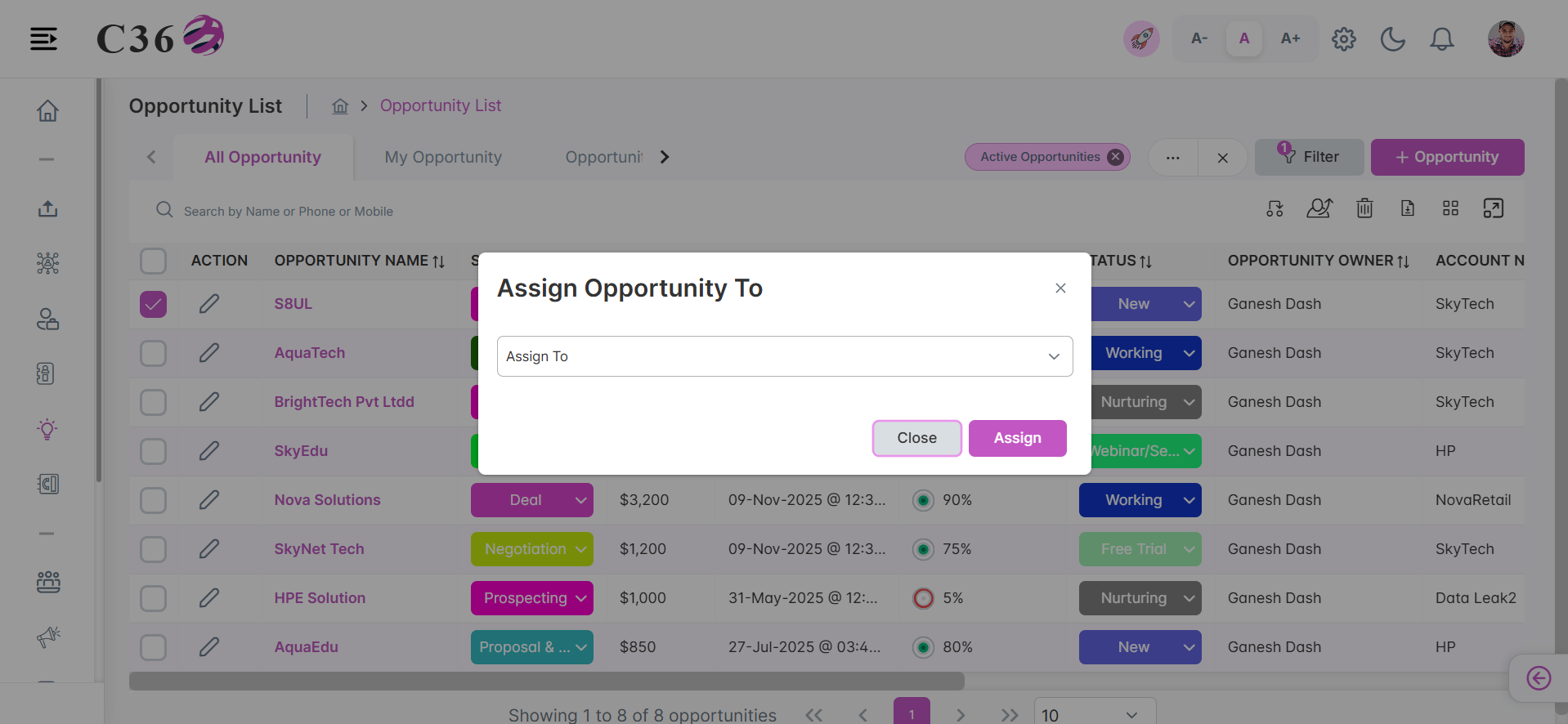
- Assign Opportunity
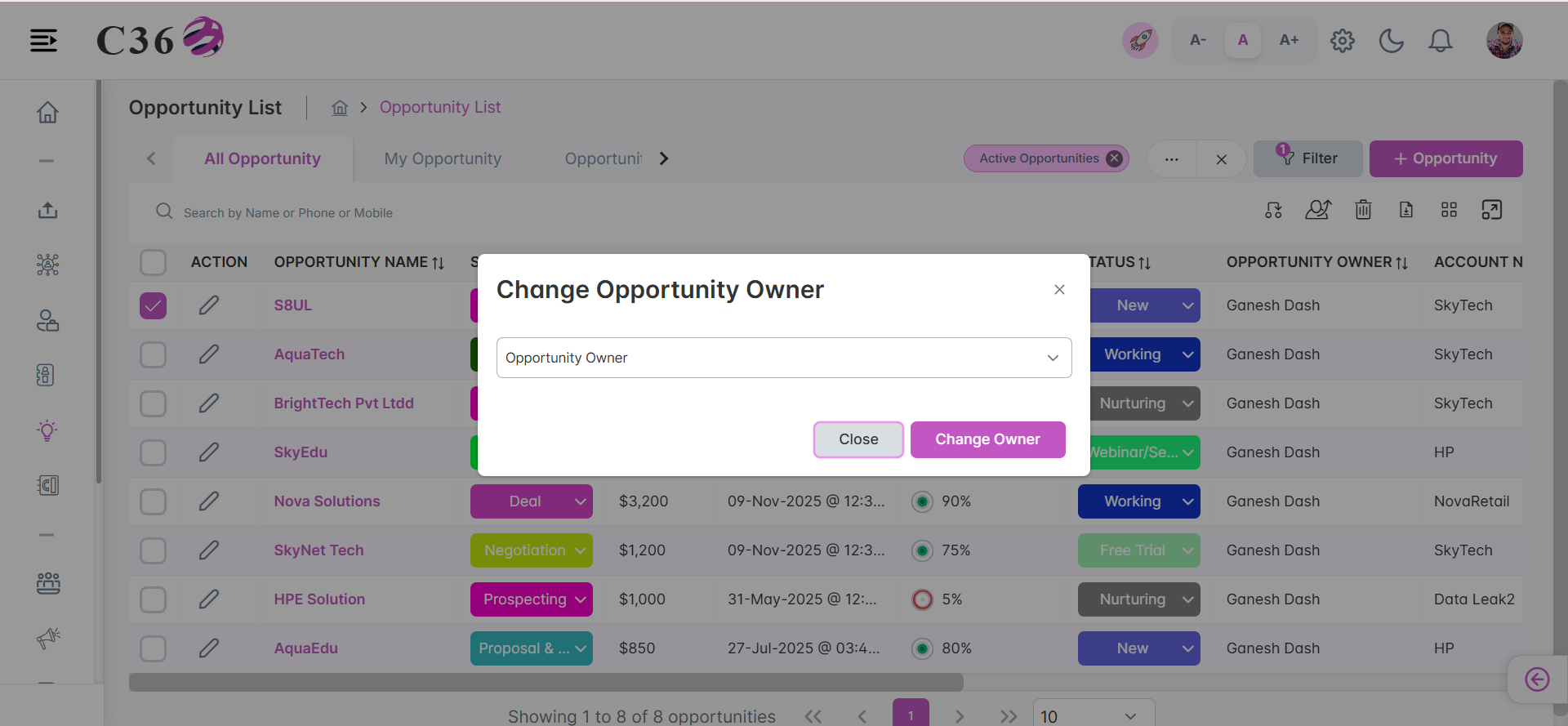
- Change Owner
- Select opportunities from the list.
- Click Assign To → choose a user → click Assign.
- Select opportunities from the list.
- Click Change Owner → select user → click Confirm.
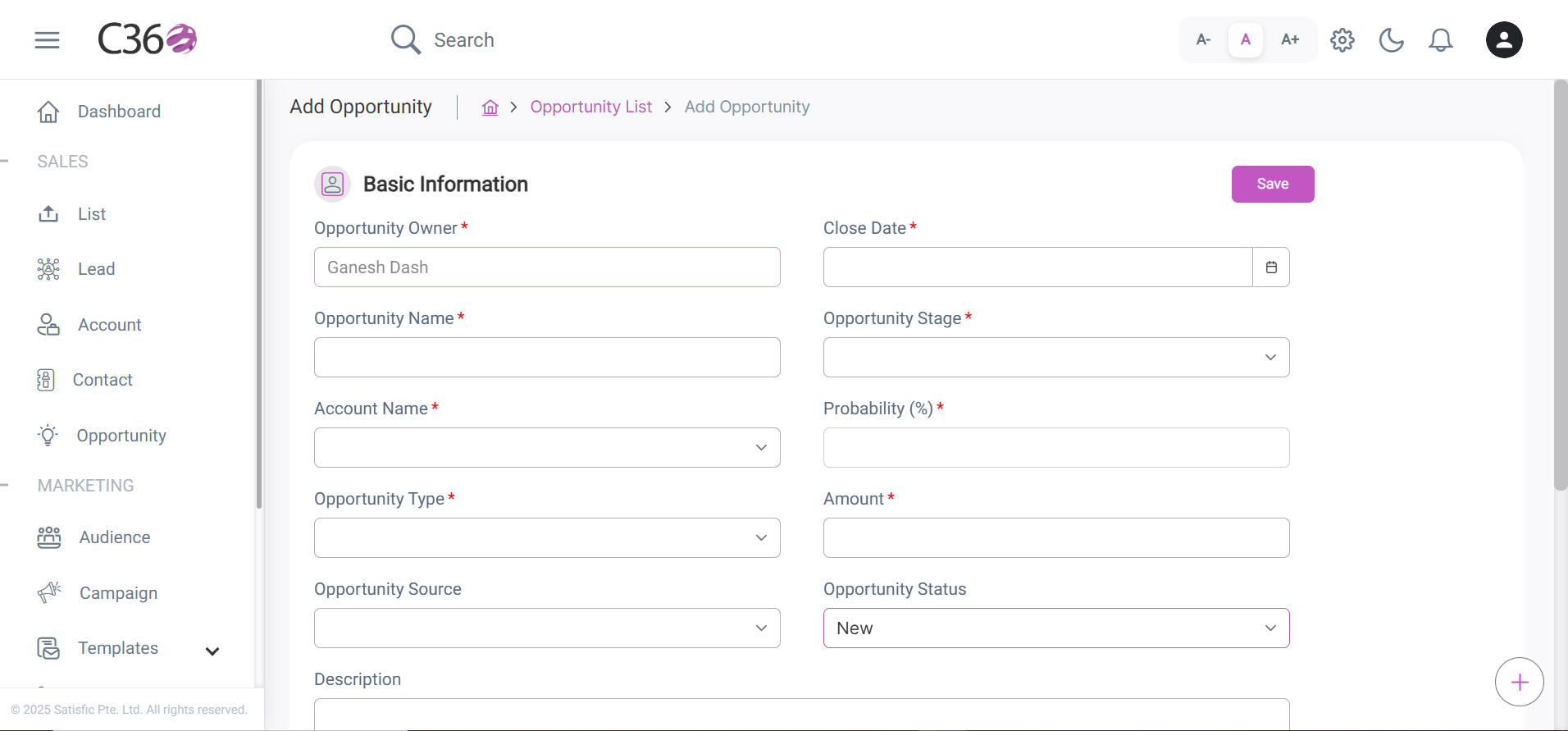
➕ Add & Edit Opportunities
-
Add:
- Click Add Opportunity
- Fill required fields
- Click Save
info
An Opportunity can be generated or created using two ways:
- Normal Addition from list Page.
- From Lead Conversion.
-
Edit:
- Use the inline edit icon in the list, OR
- Open Opportunity Details → click Edit
The Update button activates once you make changes.