👤💬 Contact Management
The Contact Management module in C360 CRM helps you track, manage, and update all sales Contacts in one place.
To access it:
➡️ Go to Sales → Contact from the left-hand menu.
📊 Contact Overview
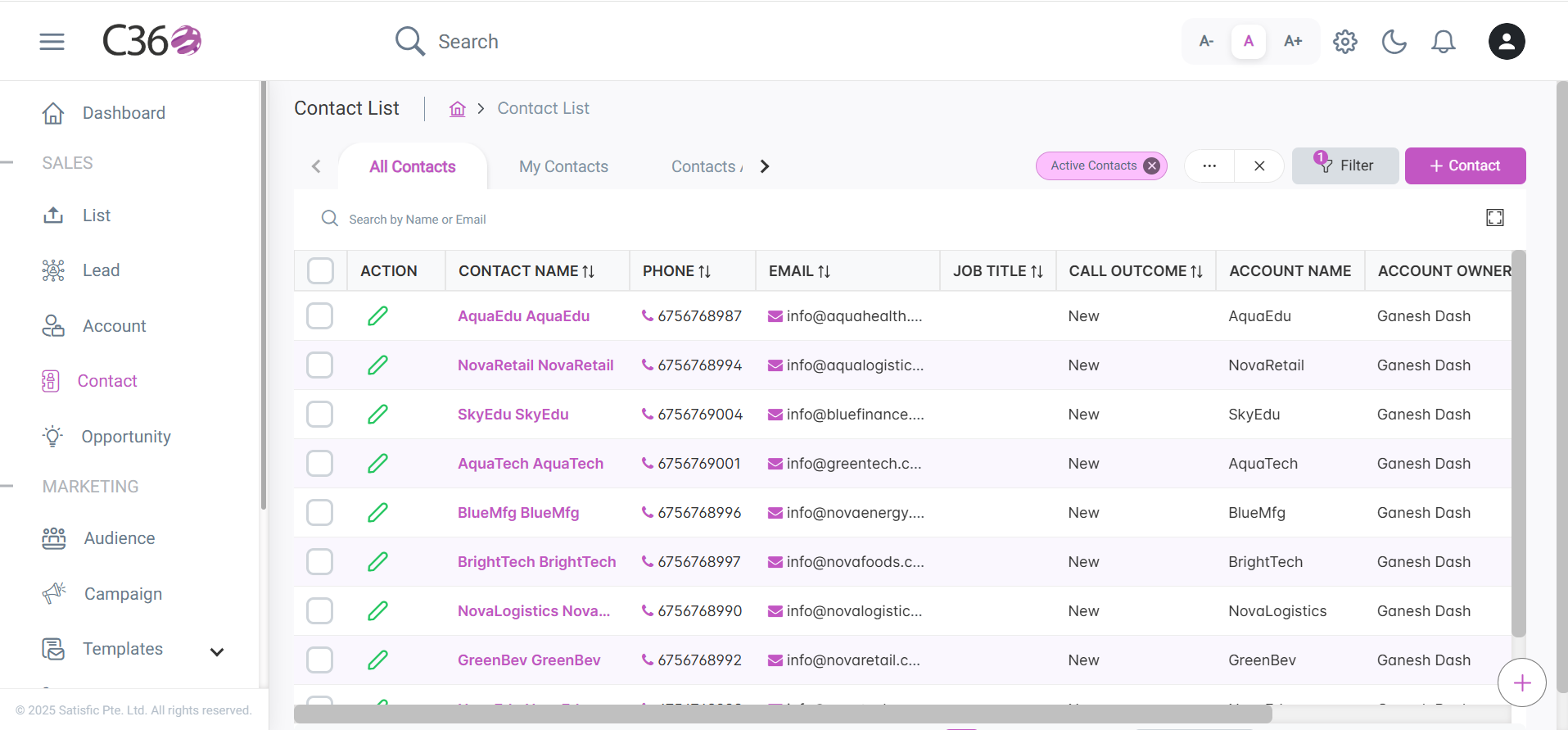
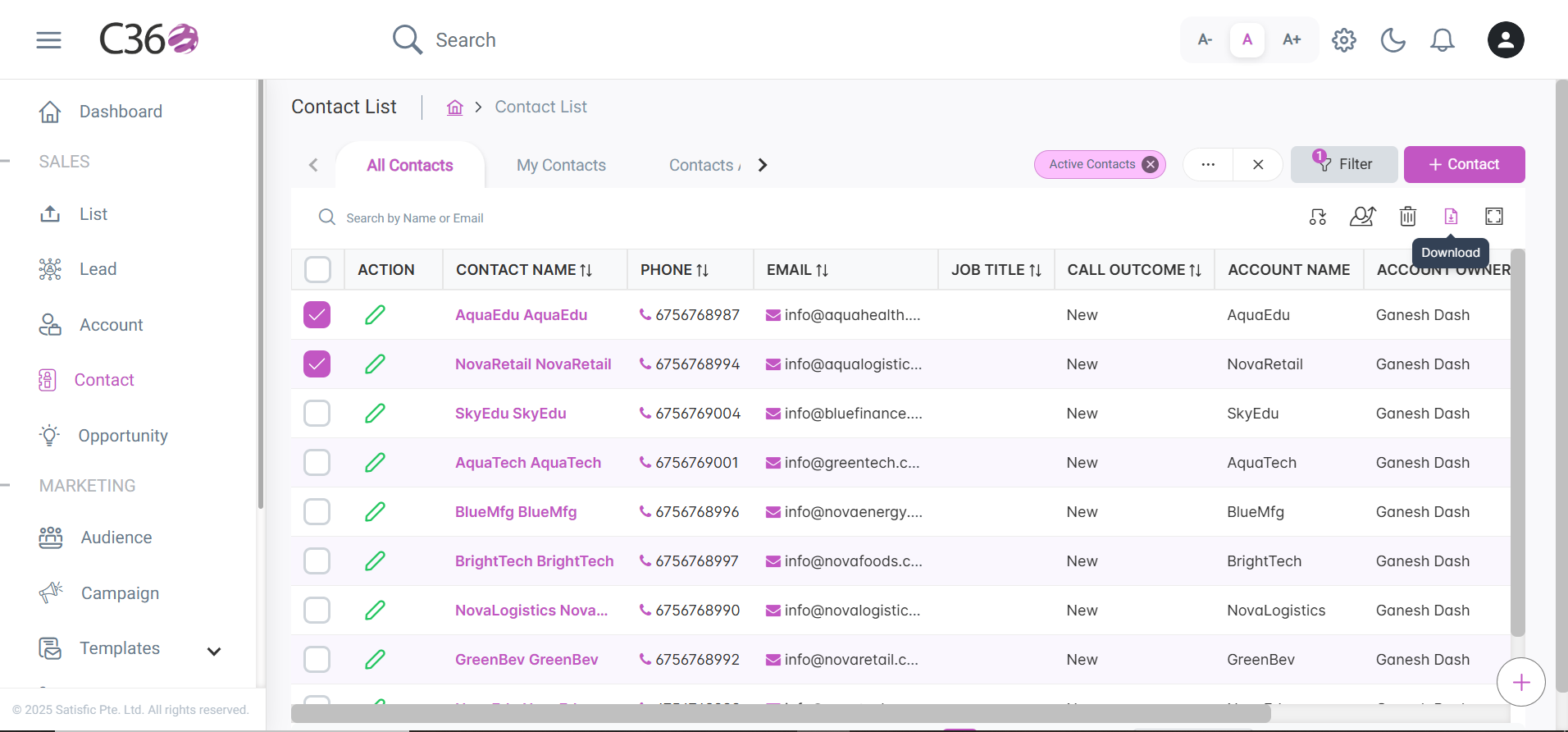
The Contact list provides an overview of all existing contacts.
It includes columns such as:
| Field | Description |
|---|---|
| Action | Inline editing options. |
| Contact Name | Displays the name of the contact. |
| Phone | The contact’s phone number. |
| The contact’s email address. | |
| Job Title | The contact’s job title. |
| Call Outcome | Last call result. |
| Account Name | Associated account name. |
| Account Owner | Owner of the account. |
| Country | The contact’s country. |
| Modified At | Last modification date. |
tip
- You can sort columns in ascending and descending order
- Click on the maximize icon beside the search bar to expand the list to fullscreen.
- You can view upto 200 records at a time in the list view by selecting the Number from pagination dropdown.
info
- You cant revert the contact back from archive to active once it is archived.
- You cant perform any action on the archived contact except download.
🔍 Searching for Contacts
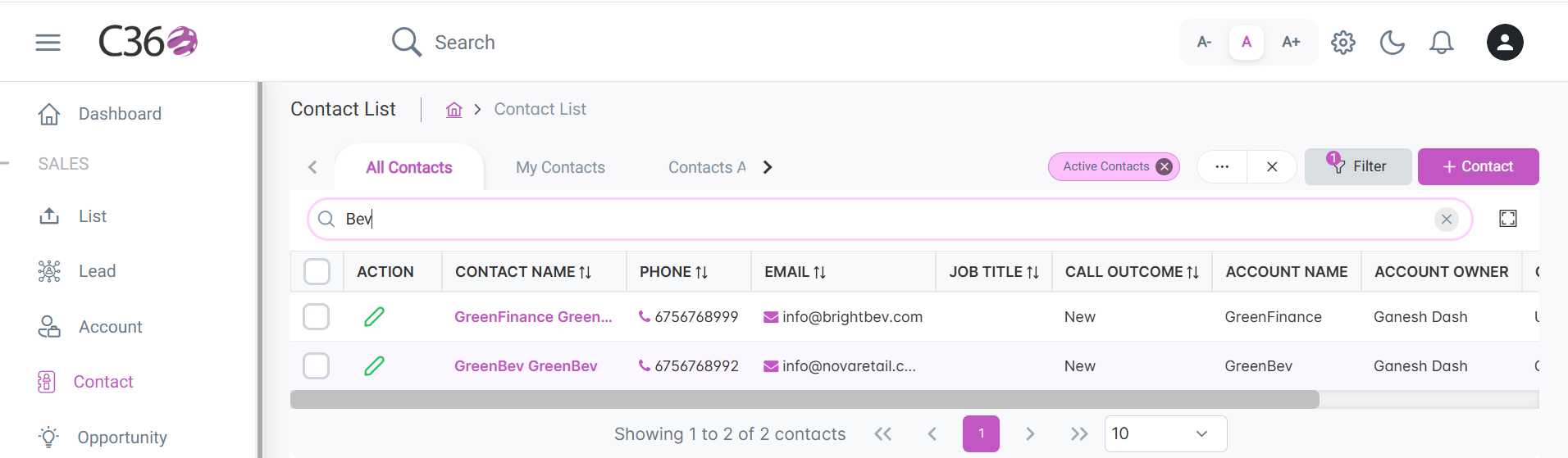
Enter the contact’s name or email in the search bar and click the search icon.
🎛️ Filtering Contacts
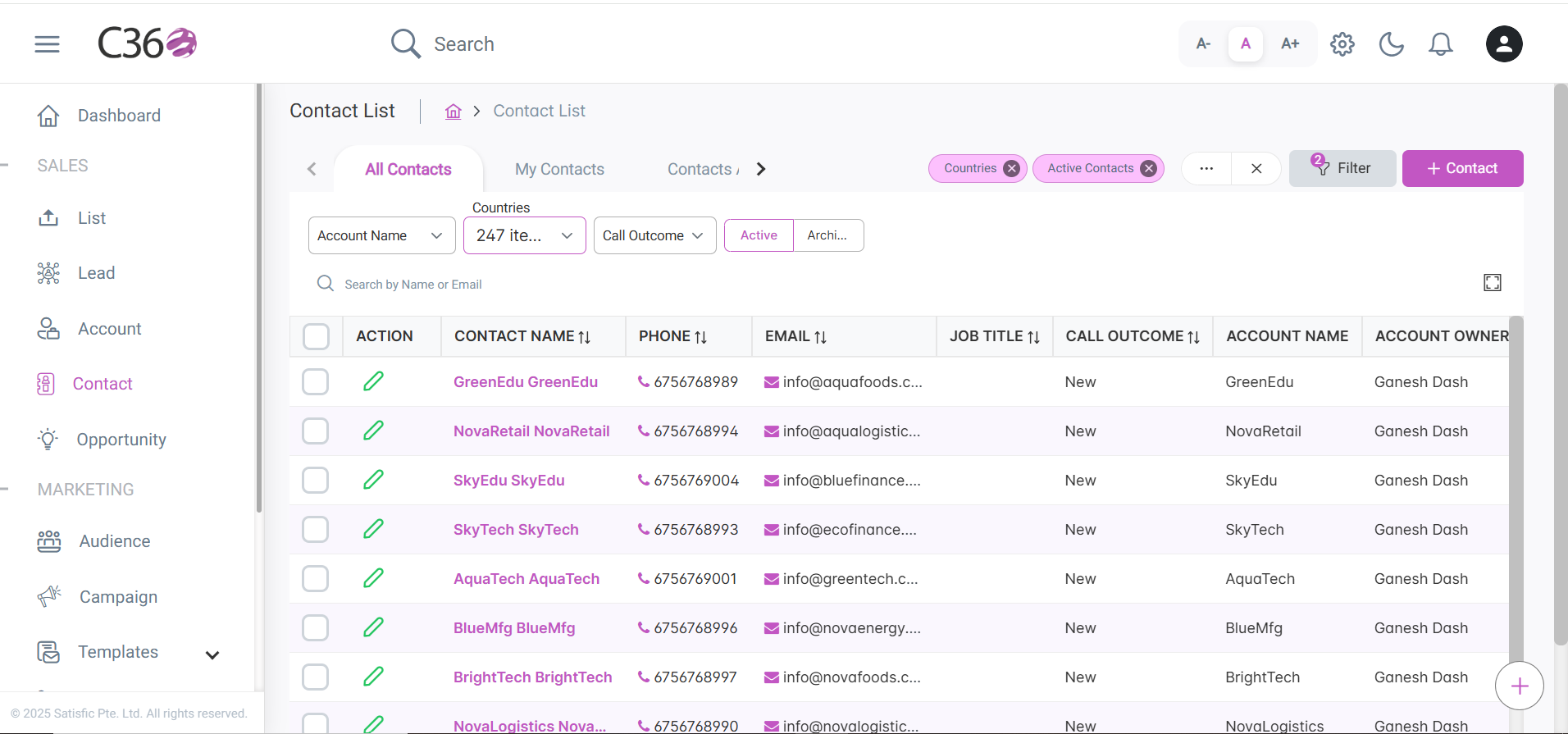
You can filter contacts by:
Click to view available filters
- Account Name - Country - Call Outcome
Other filter options include:
- Viewing Active or Archived contacts using the toggle switch.
- All Contacts/ My Contacts / Contacts Assigned To Me
note
- All Contacts: Created By me/Assigned to me/Created By below users.
- My Contacts: Created By me
- Contacts Assigned To Me: The Contact which were assigned to me by someone.
🗑️ Deleting Contacts
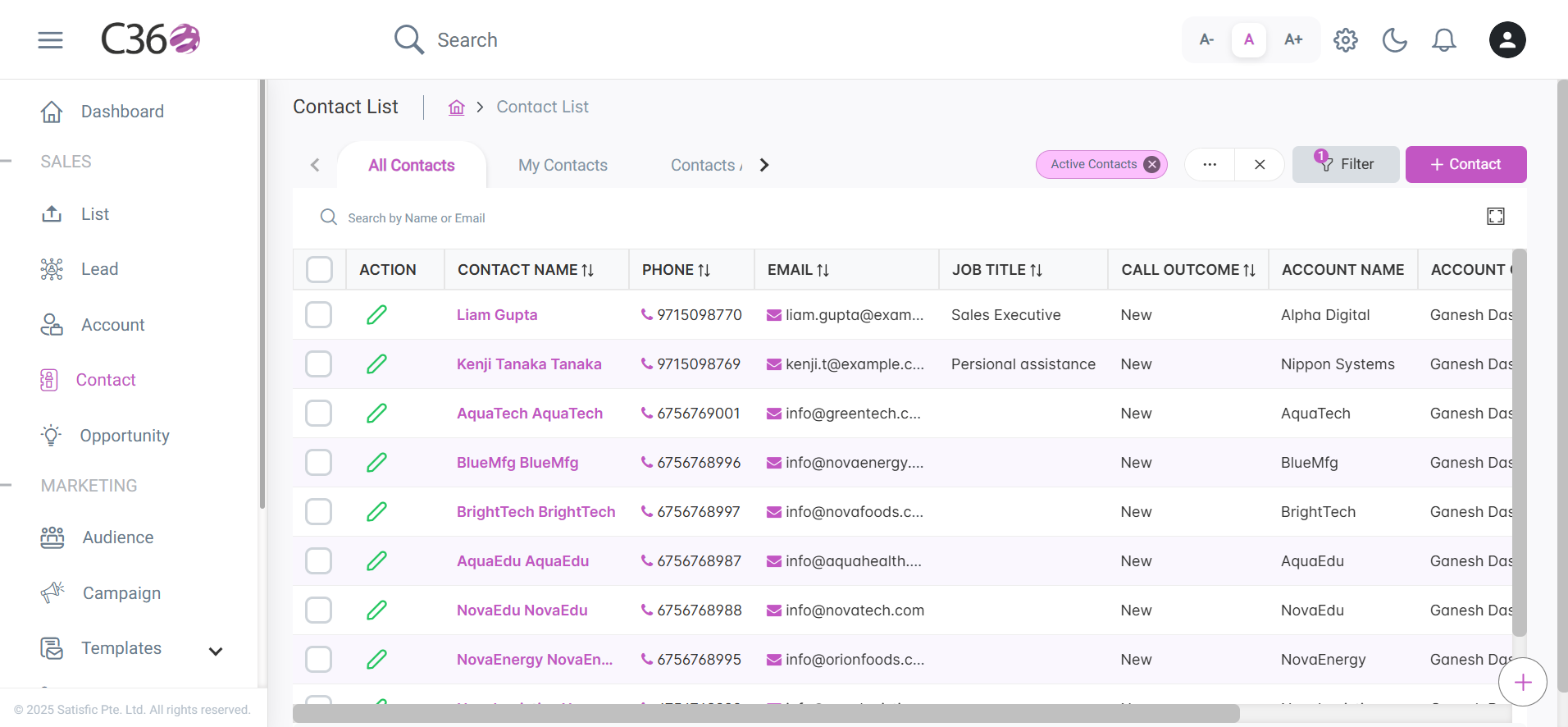
- Select the checkbox(es) beside the Contacts you want to delete.
- Click the Delete icon .
- Click on Yes from the confirmation pop up if you want to delete.
⬇️ Download Contacts
Select the checkboxes for the contacts you want to download. Then, click the Download button in the top-right corner.
info
- You can download upto 1000 contacts at a time.
👁️ Viewing Contact Details
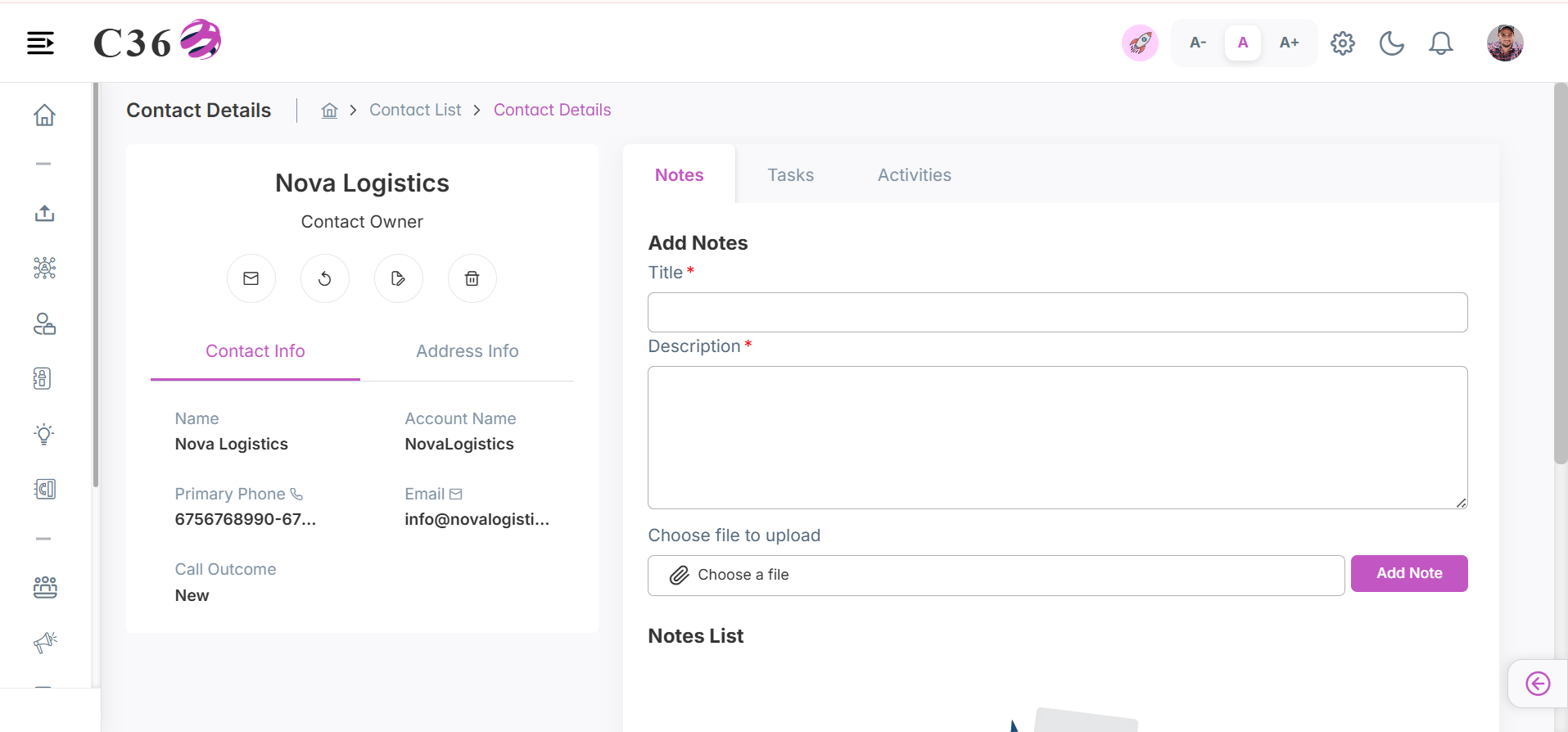
On the Contact Details page, you can:
- Edit contact information.
- Change the owner.
- Assign the contact to another user.
- View address details.
- Access related notes, tasks, and activities.
You can also add new notes or tasks using the Add Note or Add Task buttons.
👥 Assigning / Changing Contact Owner
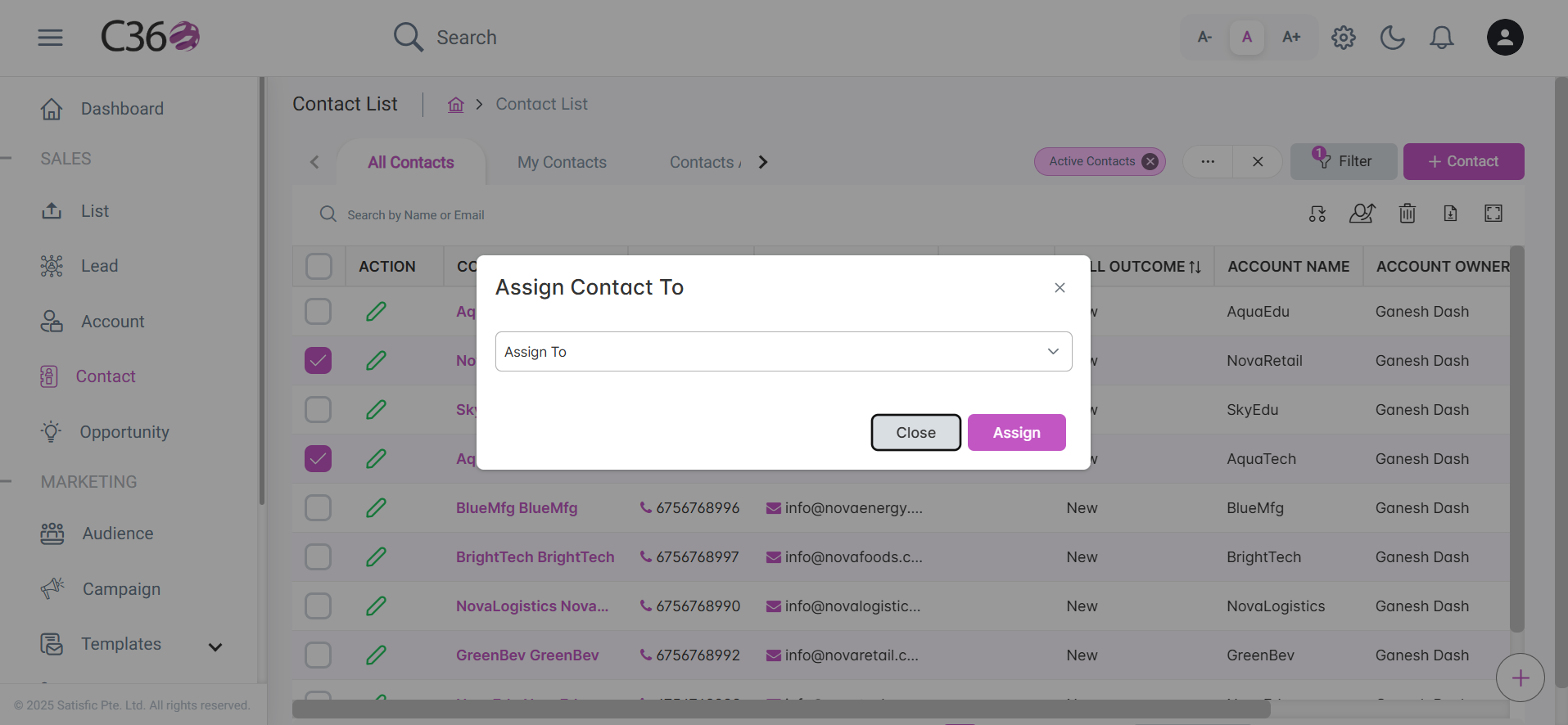
- Assign Contact
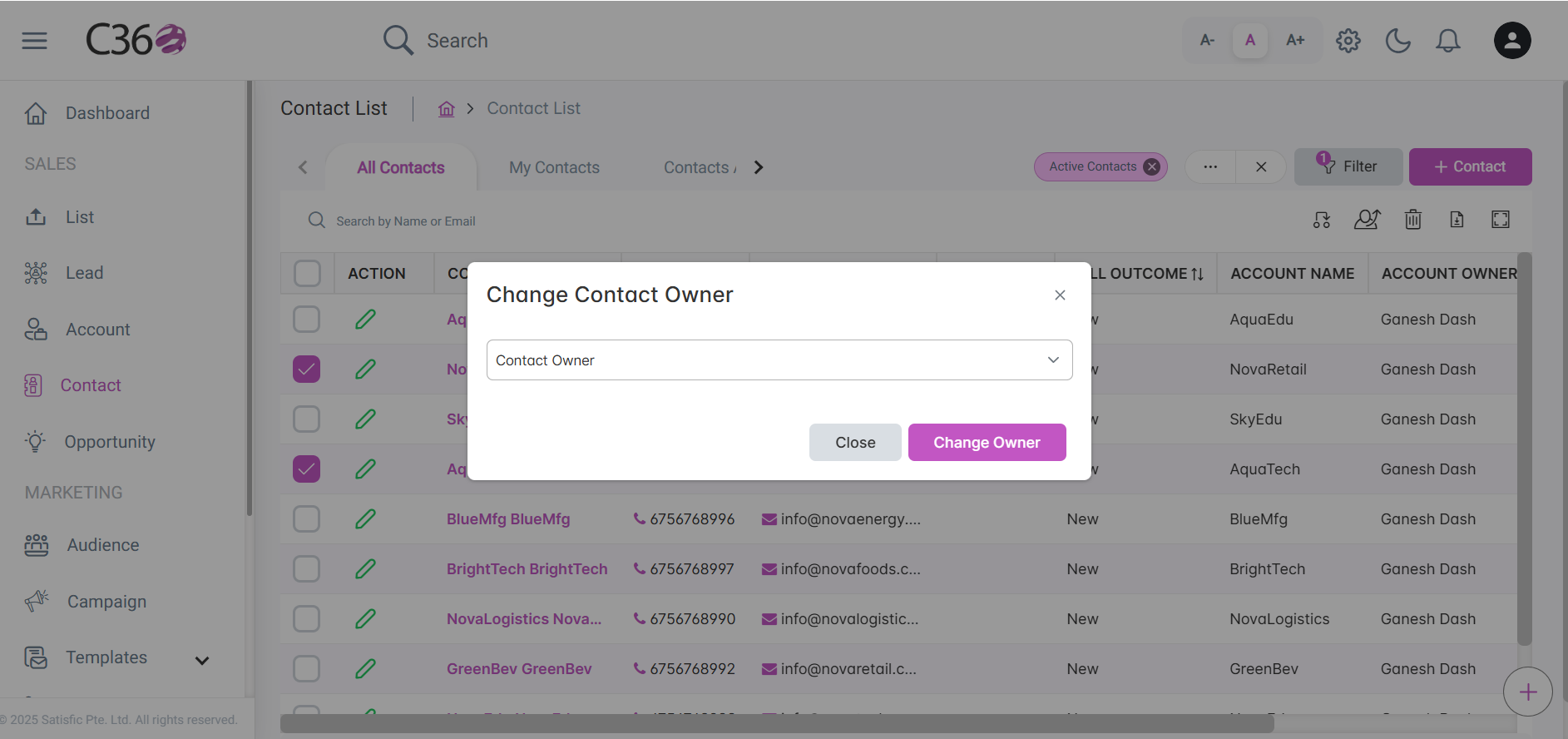
- Change Owner
- Select contacts from the list.
- Click Assign To → choose a user → click Assign.
- Select contacts from the list.
- Click Change Owner → select user → click Confirm.
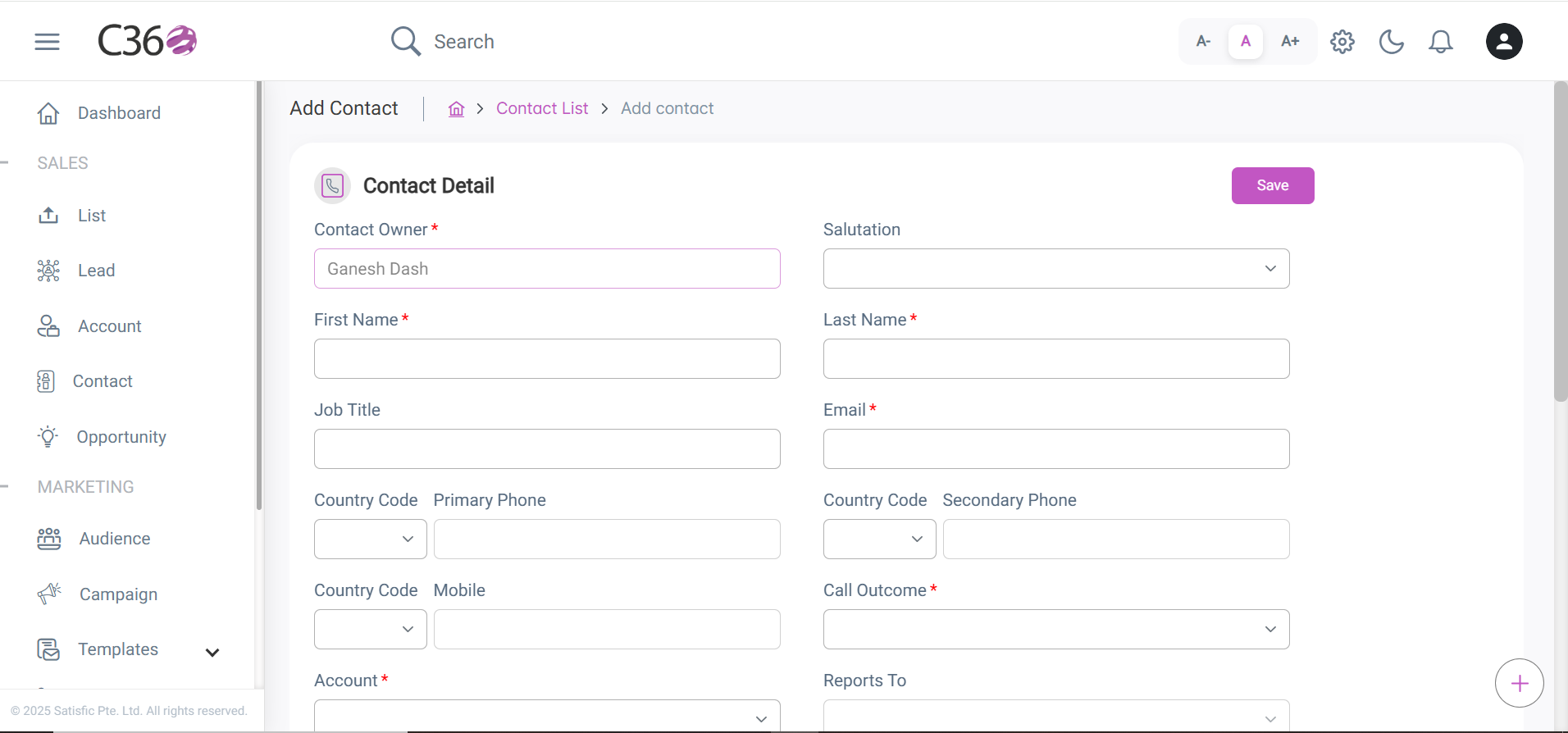
✏️ Add/Edit Contact
To add a contact:
- Click Add Contact.
- Fill in the required fields.
- Click Next for Company Information.
- Click Save when done.
info
Contacts can be generated or added using three ways:
- Normal Addition from list Page.
- Via Import Contact.
- During Lead Conversion(if new).
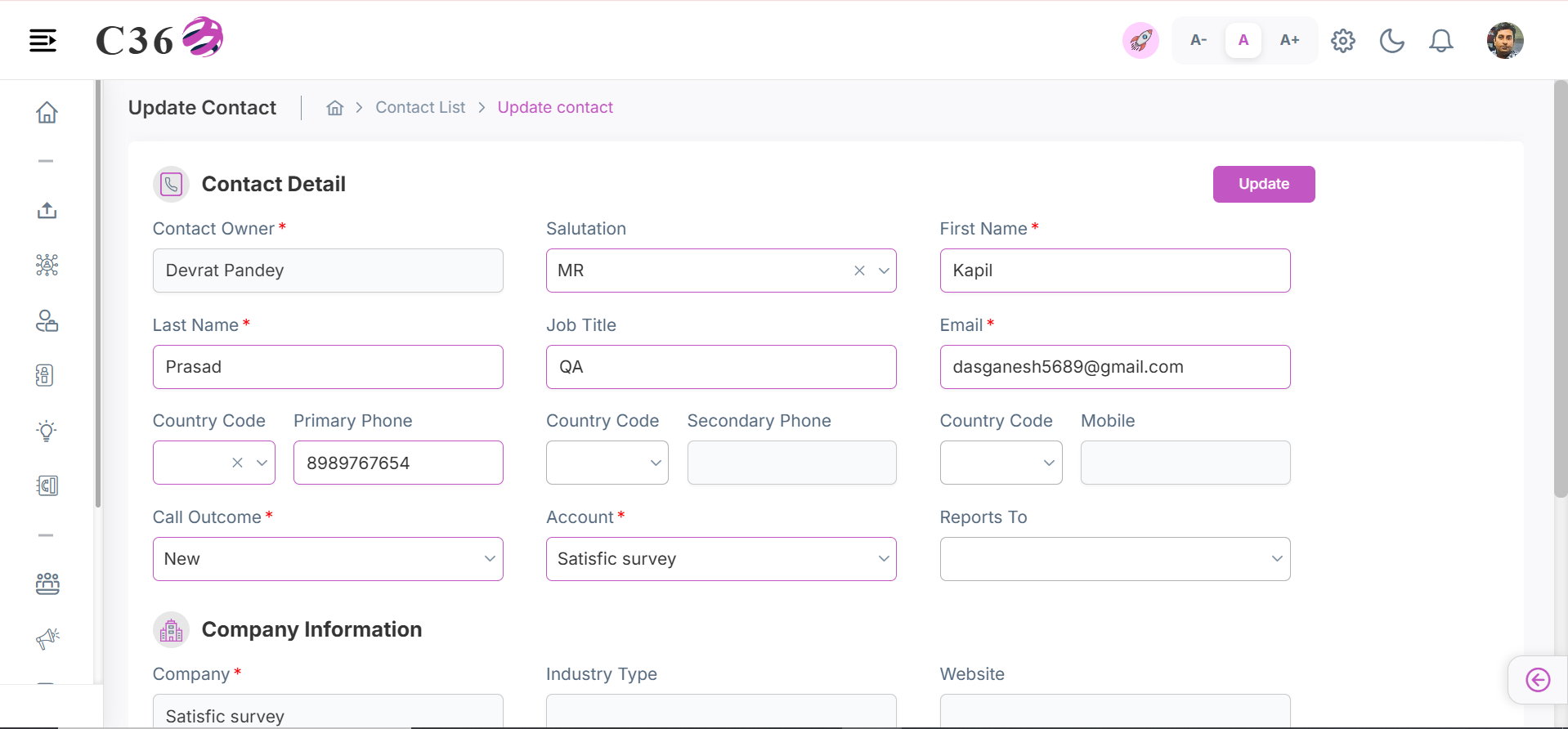
To edit a contact:
- Click the edit icon in the contact list OR open the details page and click the edit icon.
- Modify the fields and click Save.
Click to see Contact Upload
- To upload contacts, click on Contact Upload.