🏢 Account Management
The Account Management module in C360 CRM helps you track, manage, and update all sales Account in one place.
To access it:
➡️ Go to Sales → Account from the left-hand menu.
📊 Accounts Overview
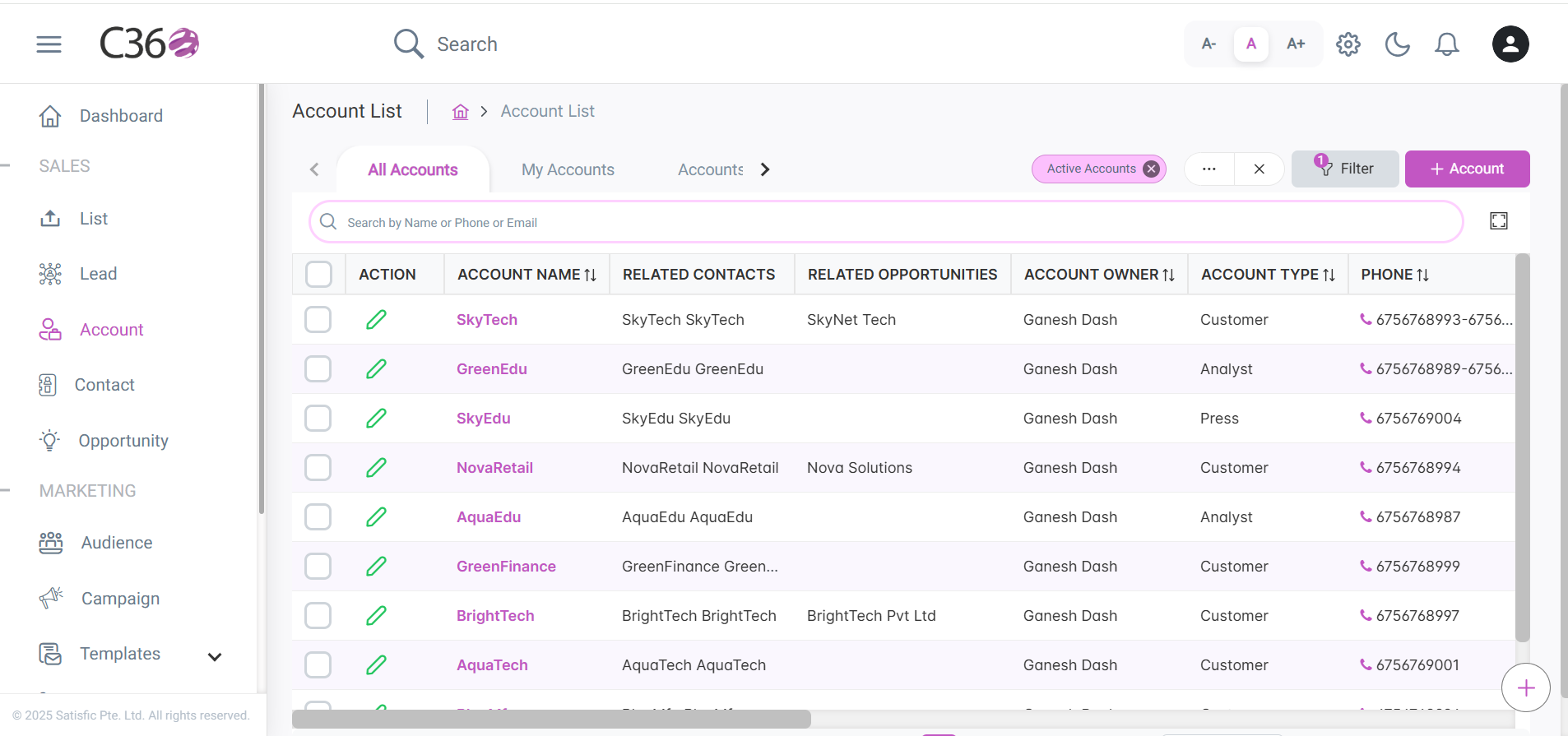
The Account list provides an overview of all existing Account.
It includes columns such as:
| Column | Description |
|---|---|
| Action | Provides options for inline editing. |
| Name | The name of the associated account. |
| Related Contacts | Displays the number of related contacts. Clicking on the count will show all associated contacts |
| Related Opportunities | Displays the number of related opportunities. Clicking on the count will show all associated opportunities. |
| Account Owner | The owner of the account. |
| Account Type | Account Type refers to the category assigned to an account |
| Phone | The primary phone number associated with the account |
| The primary email address associated with the account. | |
| Country | The country associated with the account. |
| Modified At | The last modification date of the account. |
| Last Contracted | The date of the most recent contract or agreement made with the account. |
| Custom Fields | A custom field is an additional field you create to store business-specific information |
- You can sort columns in ascending and descending order
- Click on the maximize icon beside the search bar to expand the list to fullscreen.
- You can view upto 200 records at a time in the list view by selecting the Number from pagination dropdown.
- You cant revert the account back from archive to active once it is archived.
- You cant perform any action on the archived account except download.
🔍 Searching for Accounts
- Enter keywords in fields like Title, Name, Email, Phone, Company Phone.
- Click the Search icon or press Enter to find matching results.
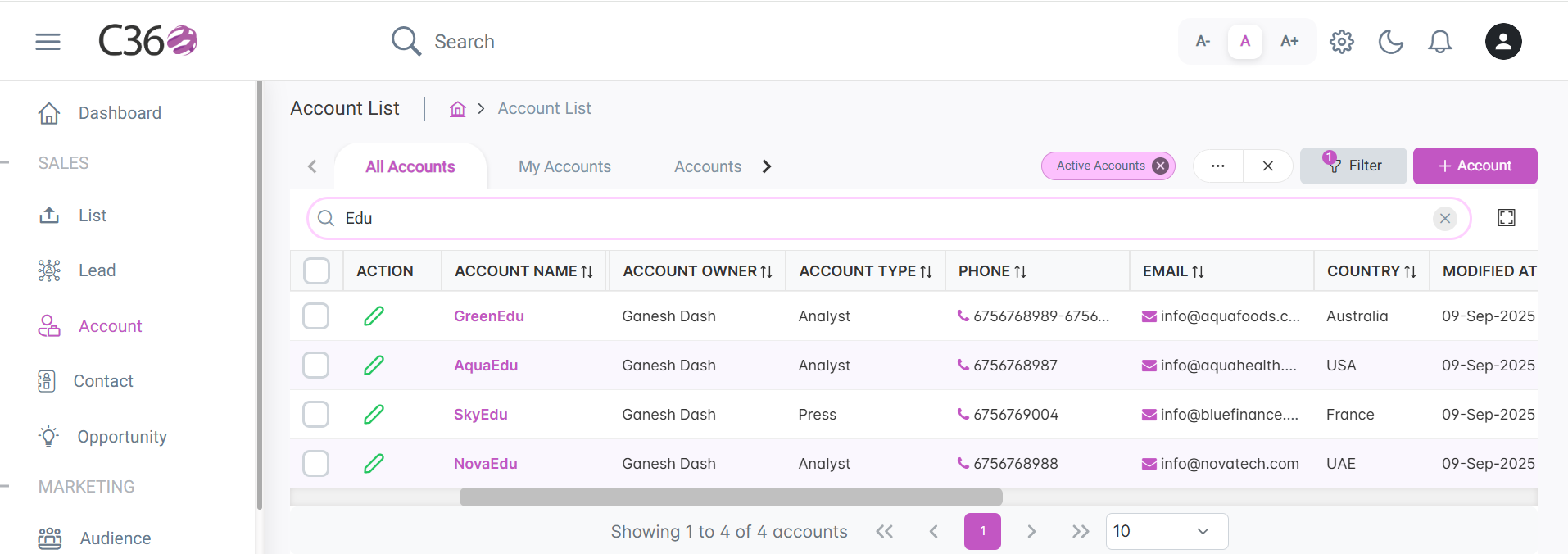
Search Account
🎛️ Filtering Accounts
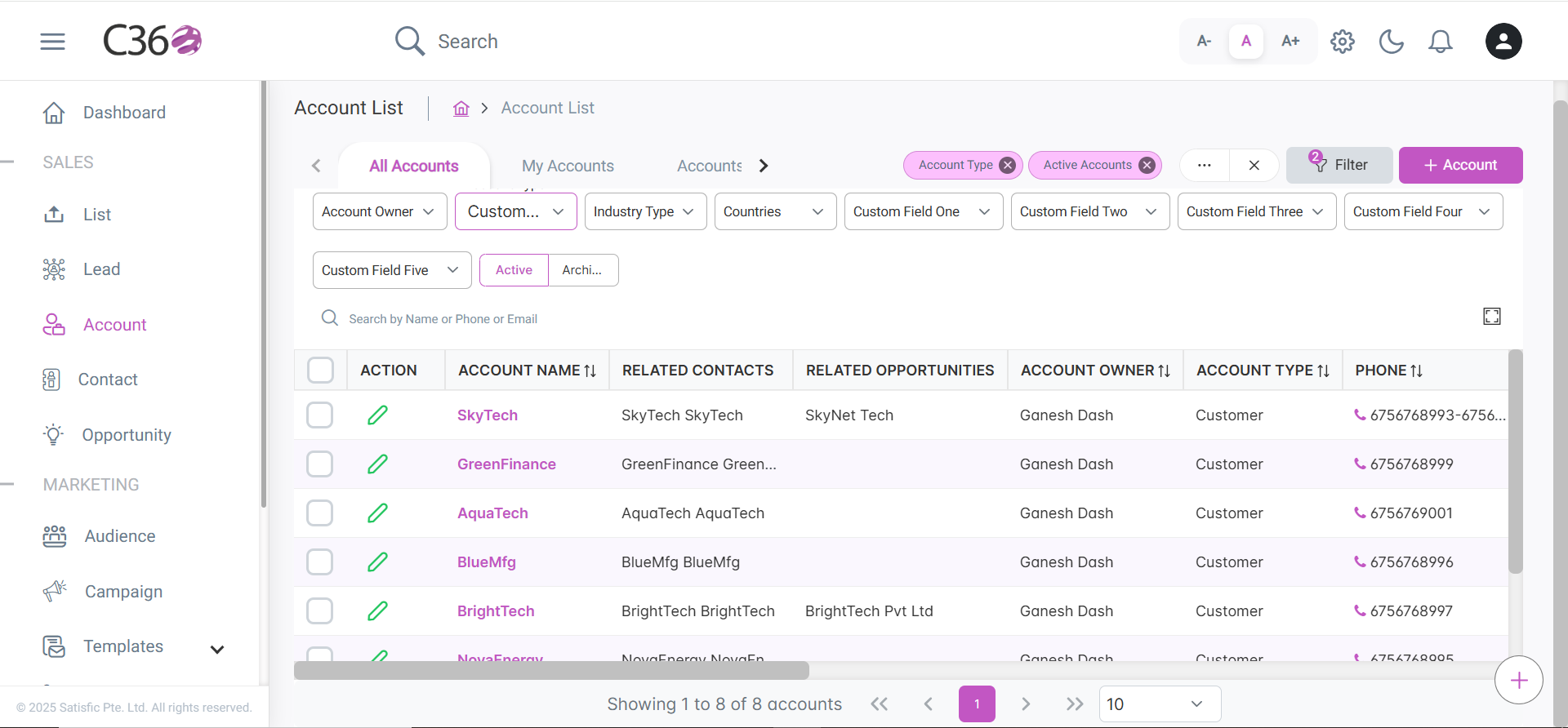
You can filter by:
Click to view available filters
- Account Owner - Account Type - Industry Type - Countries - Custom Field One - Custom Field Two - Custom Field Three - Custom Field Four - Custom Field Five
Other filter options include:
- Viewing Active or Archived Accounts using the toggle switch.
- All Accounts/ My Accounts / Accounts Assigned To Me
- All Accounts: Created By me/Assigned to me/Created By below users.
- My Accounts: Created By me
- Accounts Assigned To Me: The Accounts which were assigned to me by someone.
🗑️ Deleting Accounts
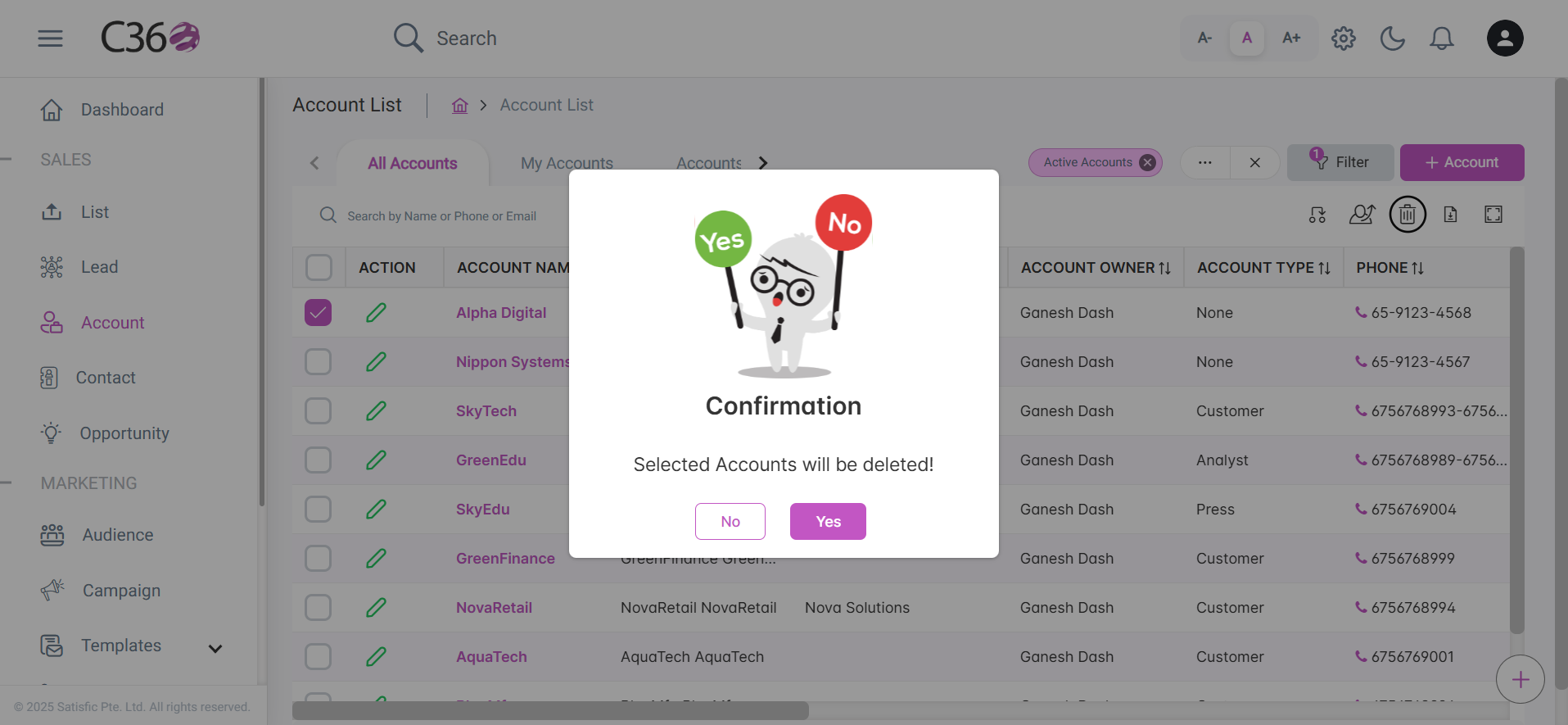
- Select the checkbox(es) beside the Account you want to delete.
- Click the Delete icon .
- Click on Yes from the confirmation pop up if you want to delete.
⬇️ Downloading Accounts
- Select the checkbox(es) for the desired leads.
- Click the Download icon to export them as a spreadsheet.
- You can download upto 1000 accounts at a time.
👁️ Viewing Account Details
Click on an Account's name to open the Account Detail page. From here you can:
- Edit Account info
- Change the Owner
- Assign to a User or Group
- View related Activities
The Account Information section shows important details about an account, such as:
-
Account type
-
Contact information
-
Website address
-
Number of employees
-
Annual revenue
-
Industry
-
Address
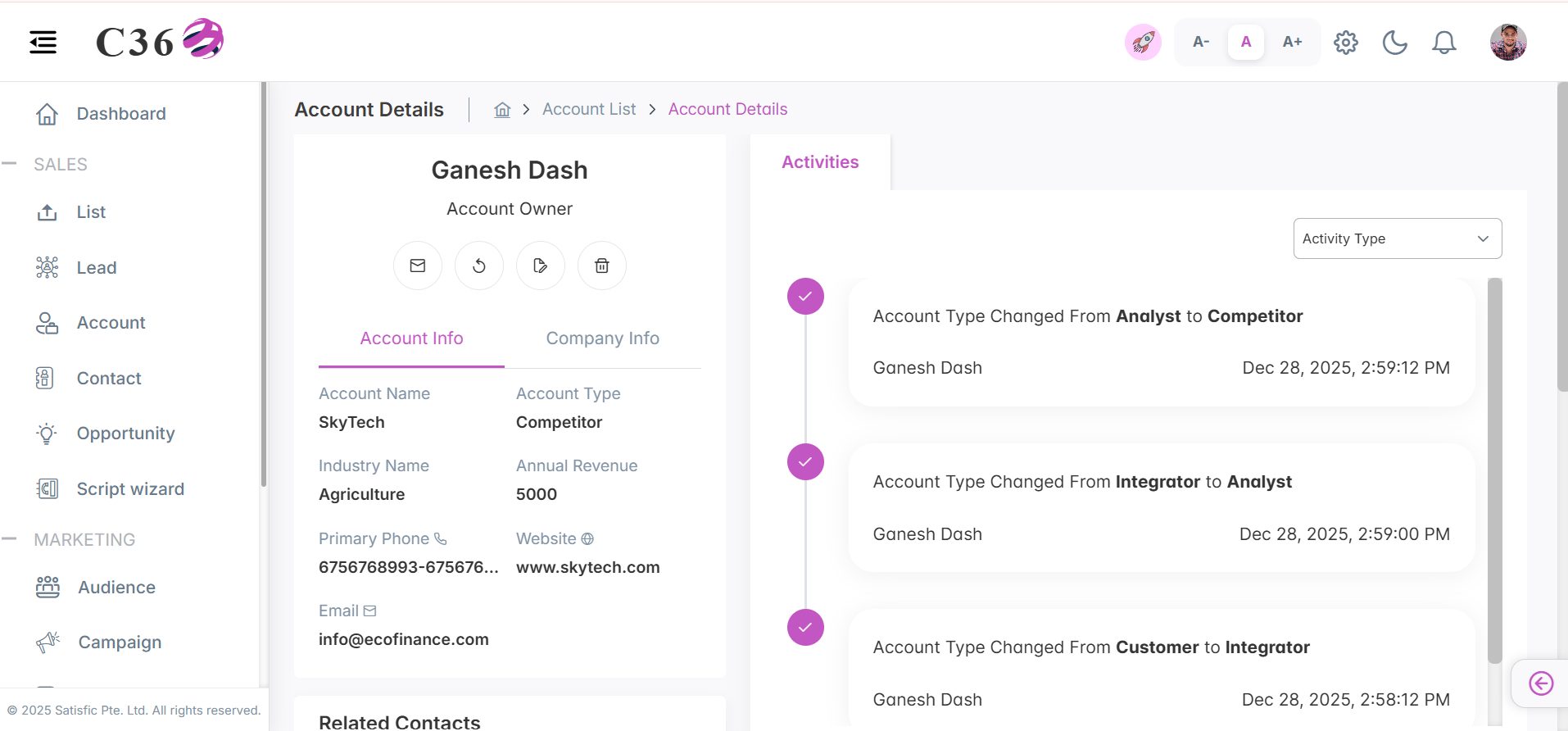
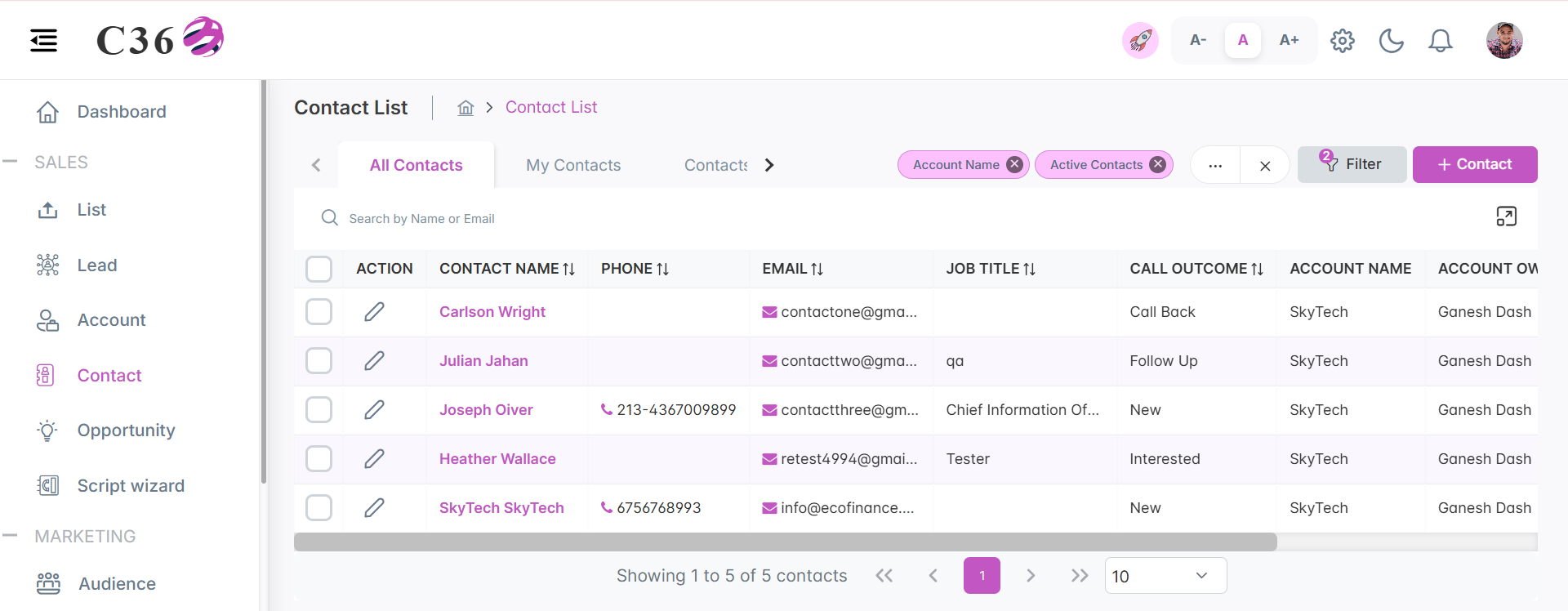
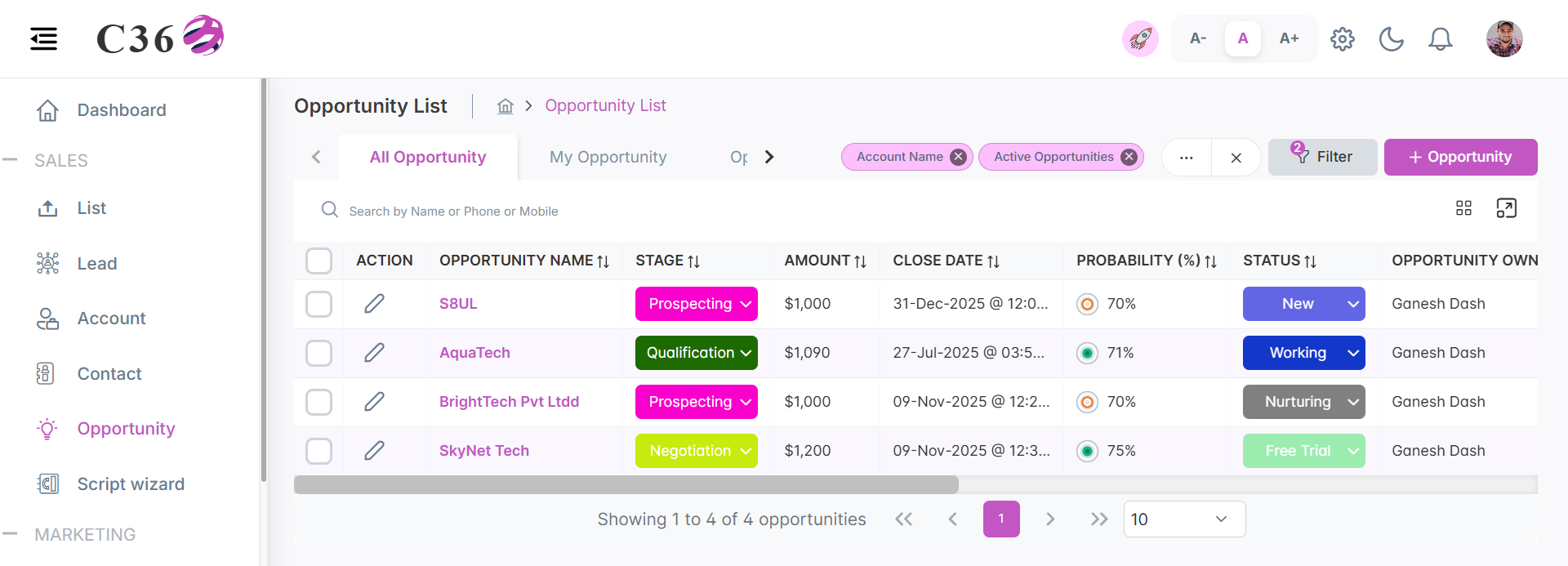
You can view more information about an account—such as related contacts and opportunities by scrolling down the page.
Click on View More to view all related contacts and opportunities with auto filtered by Account Name.
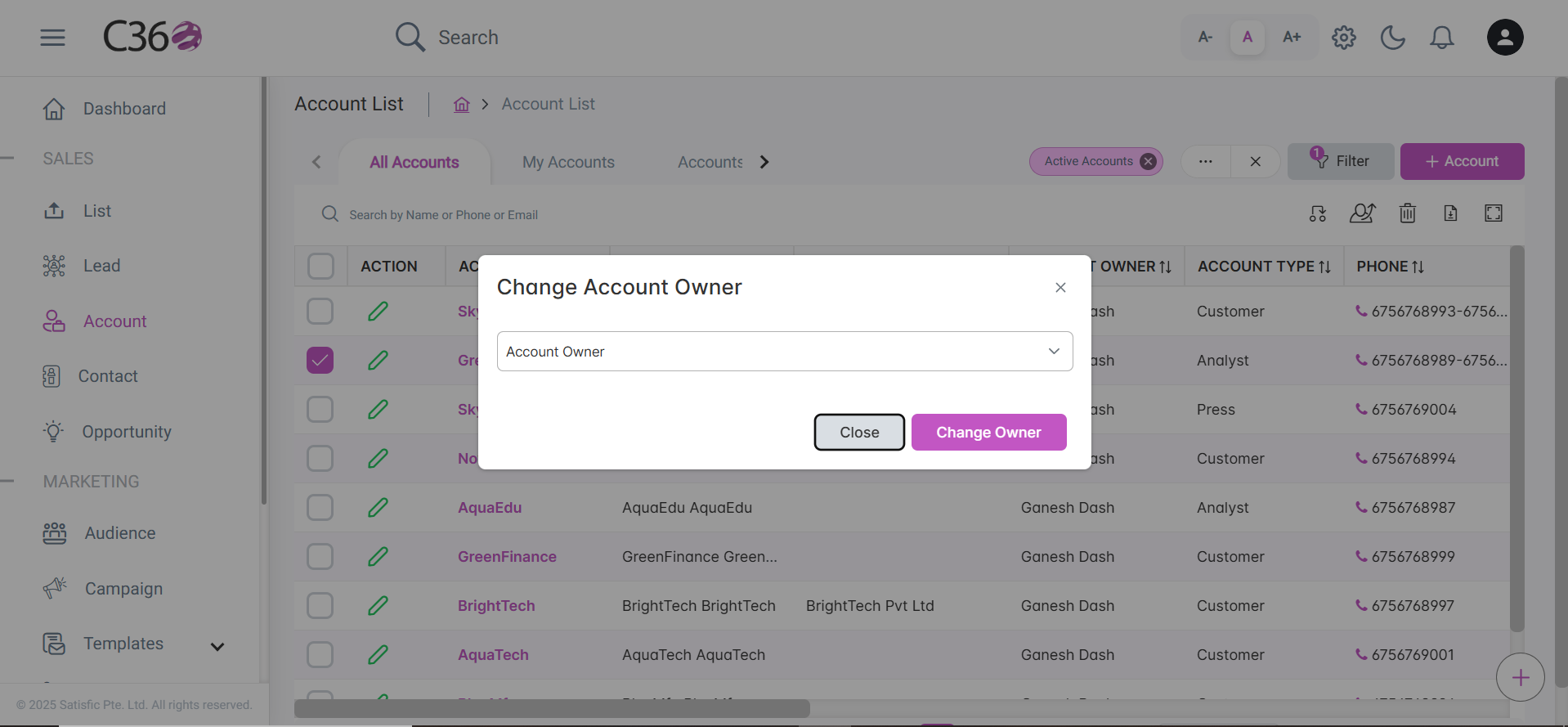
👥 Assigning / Changing Account Owner
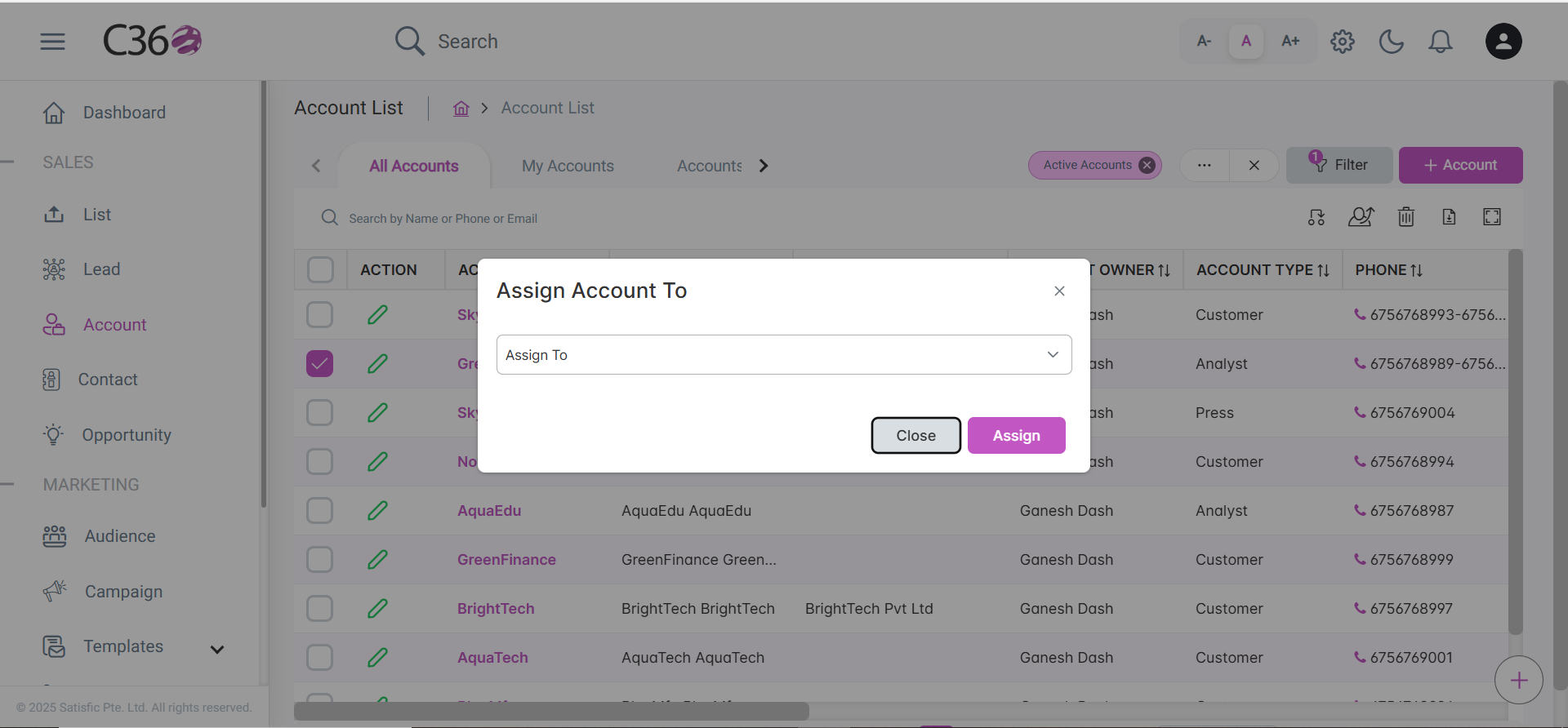
- Assign Account
- Change Owner
- Select Accounts from the list.
- Click Assign To → choose a user → click Assign.
- Select Accounts from the list.
- Click Change Owner → select user → click Confirm.
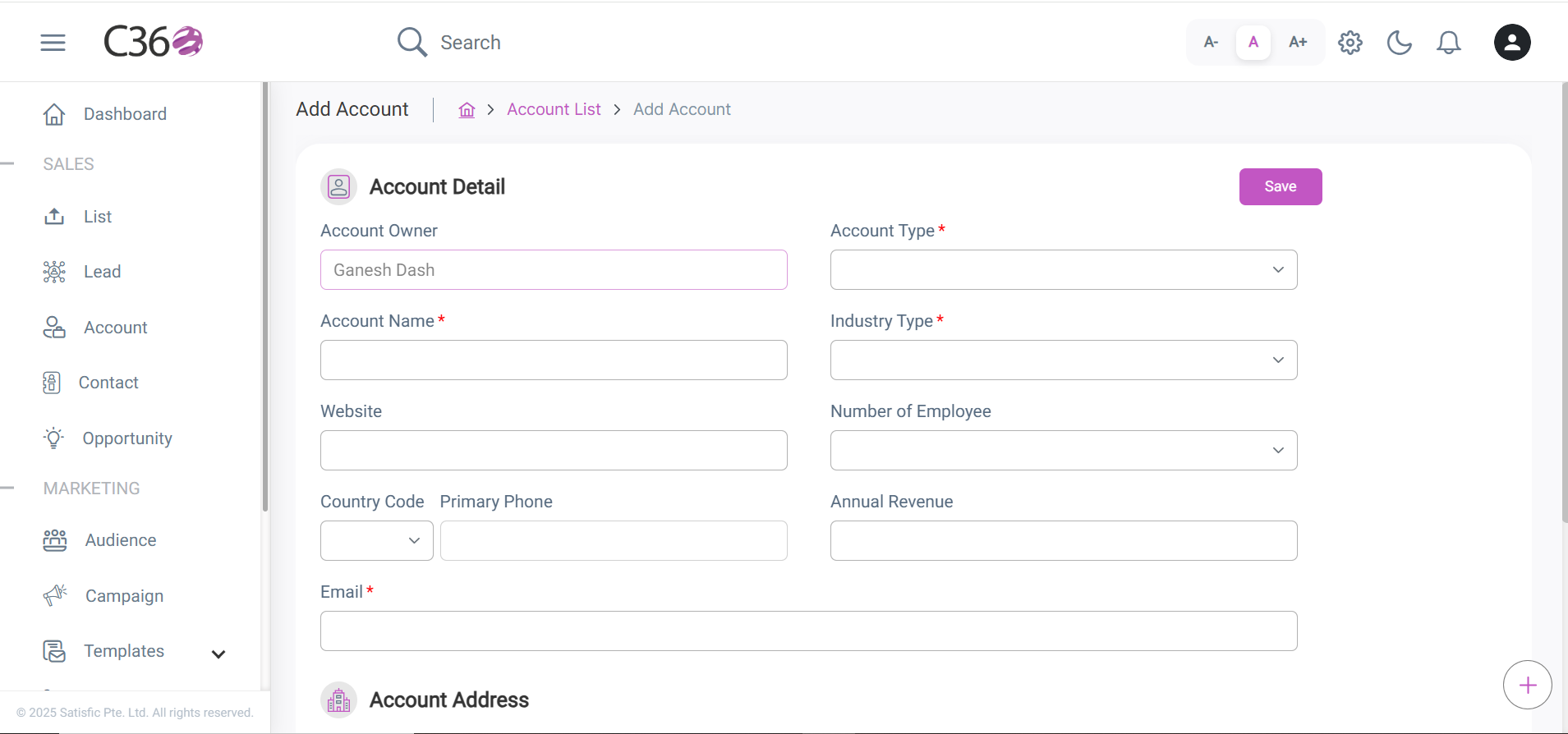
✏️ Add / Edit Accounts
- Add → Click Add Accounts → Fill mandatory fields (marked
*) → Save. - Edit → Click the pencil (inline) or open details → Edit → Save.
Account can be generated or added using three ways:
- Normal Addition from list Page.
- Via Import Account.
- During Lead Conversion(if new).
Click to see Account Upload
- To upload accounts, click on Account Upload.