📡 Social Monitoring
The Social Monitoring section in C360 helps you manage your connected social channels, monitor posts, and analyze performance through reports — all in one place.
To access it:
➡️ Go to Marketing → Social → Social Monitoring from the Top Bar.
📑 Tabs in Social Monitoring
Social Monitoring is divided into three key areas:
- Channels – Manage and connect social profiles.
- Posts – View, create, and manage social media posts.
🌐 Channels
The Channels tab lets you connect, view, and manage your social accounts.
- Supported Platforms: Facebook, LinkedIn, Twitter/X, Instagram, YouTube.
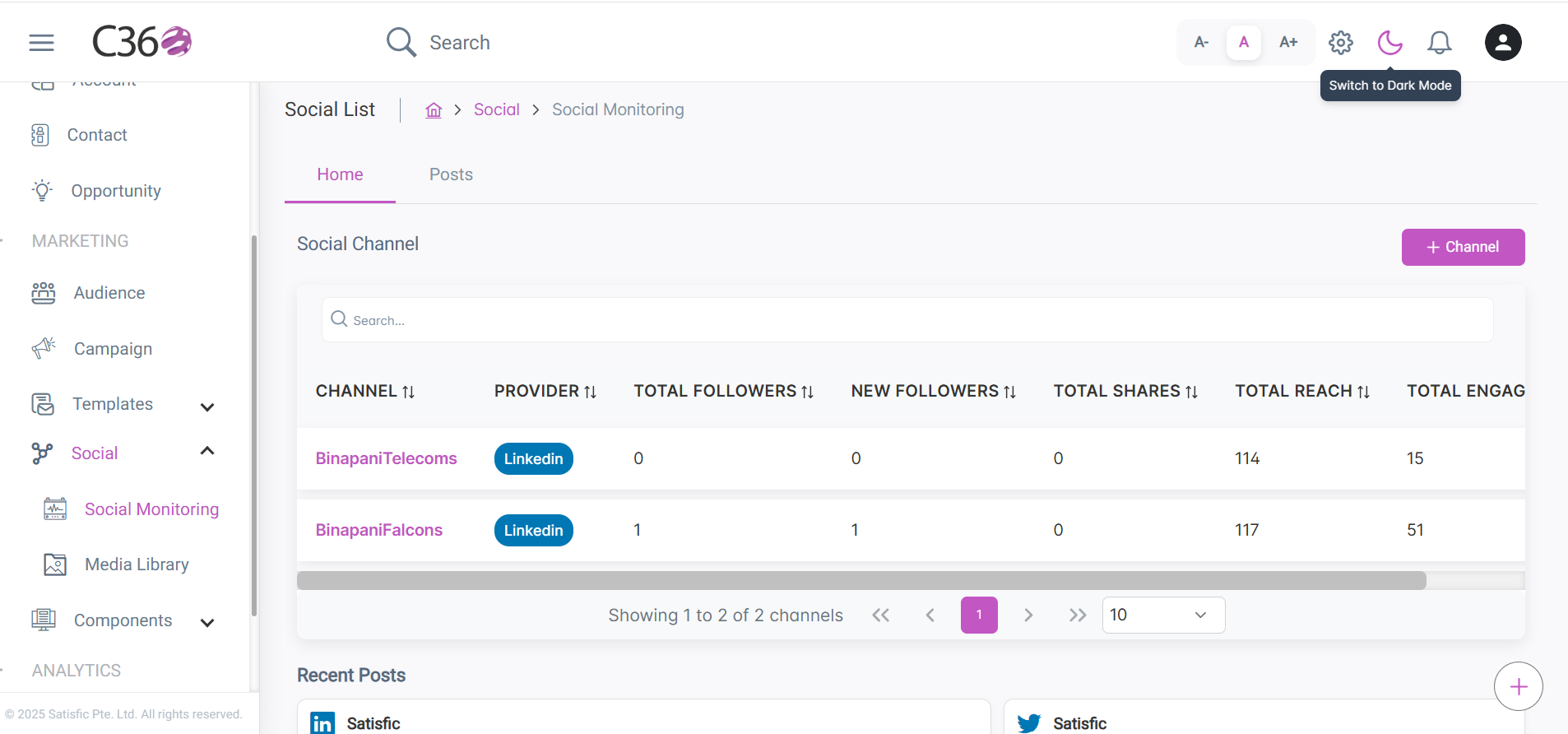
📊 Channel Listing Overview :
The Channel List provides an overview of Social Channel Profile Details.
It includes columns such as:
| Column Name | Description |
|---|---|
| Channel Name | The name of the social media or marketing channel (e.g., Facebook, Instagram, LinkedIn). |
| Provider | The platform or service provider that manages the channel (e.g., Meta, Microsoft, X Corp). |
| Total Followers | The cumulative number of followers or subscribers for the channel. |
| New Followers | The number of followers gained within a specific reporting period. |
| Total Shares | The total count of times content from the channel has been shared. |
| Total Reach | The total number of unique users who have seen the content. |
| New Engagements | The number of new interactions (likes, comments, clicks, etc.) during the reporting period. |
You can sort columns ascending/descending and expand to fullscreen using the maximize button beside the search bar.
Additionally, you will find recent post at the bottom.
⚡ Actions:
➕ Add Channel
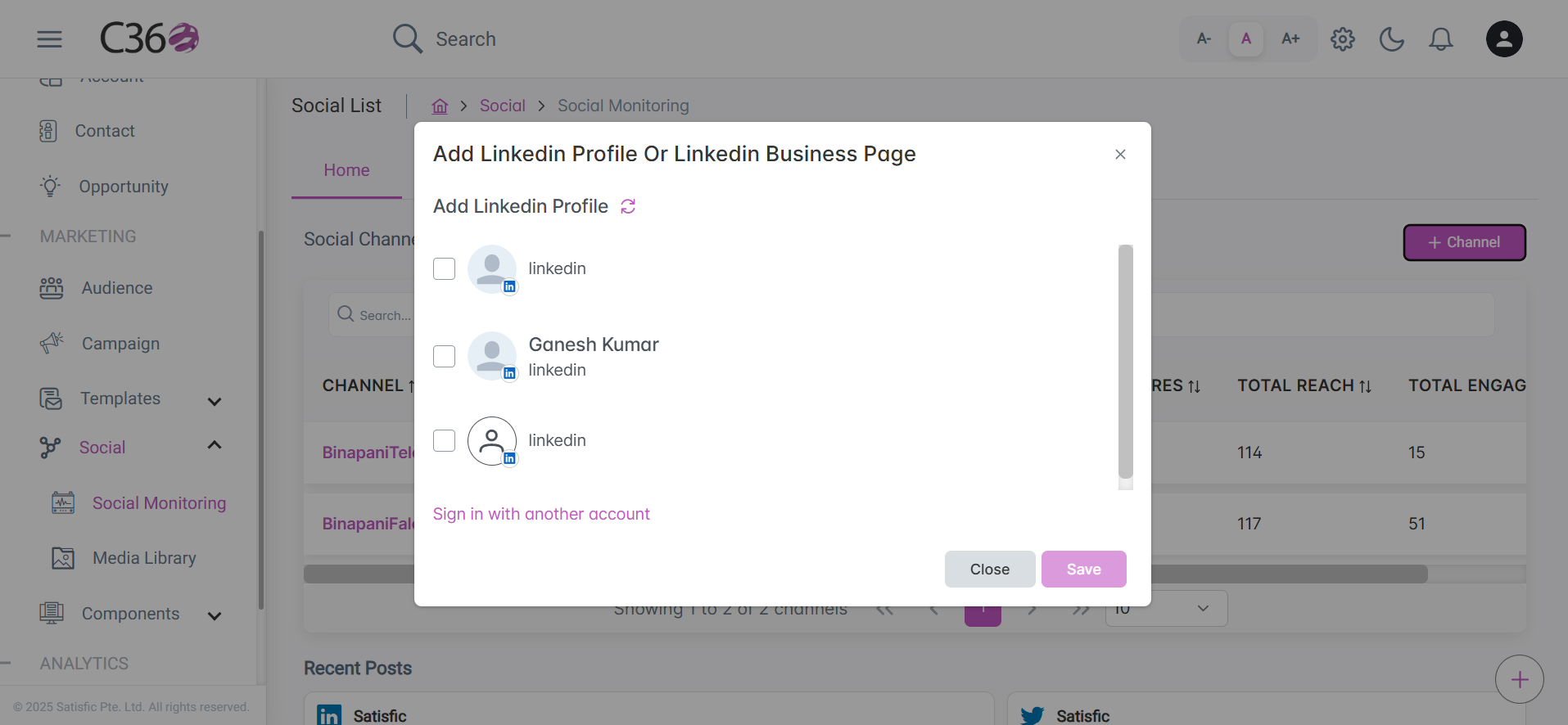
You will find different actions under Add Channel Pop-Up Page.
- 🔁 Sign In with another Account
- 🔗 Remove/Disconnect
- 🔄 Refresh
Allows users to switch to another account without logging out completely.
- Click on Add Channel
- Select And Connect to the Social Platform
- Sign In with the social account by providing the Credentials
Lets users remove or disconnect an existing linked account.
Enables users to manually sync or update data from the connected account.
🔍 Search
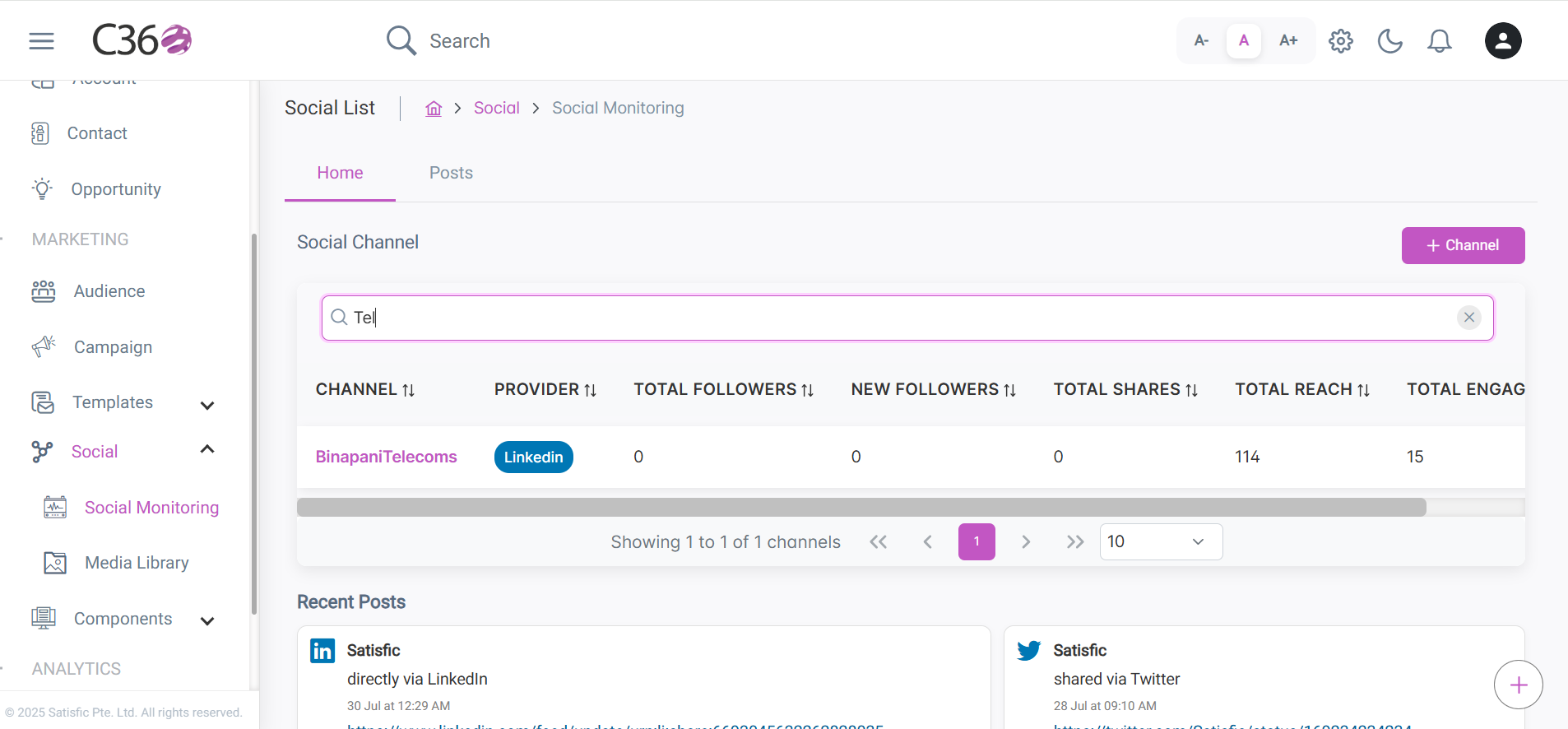
- Enter keywords in fields like Name.
- According to your Inputs you will get your Result.
👁️ View Social Account Details
- To view the social account details page, click on Channel Name.
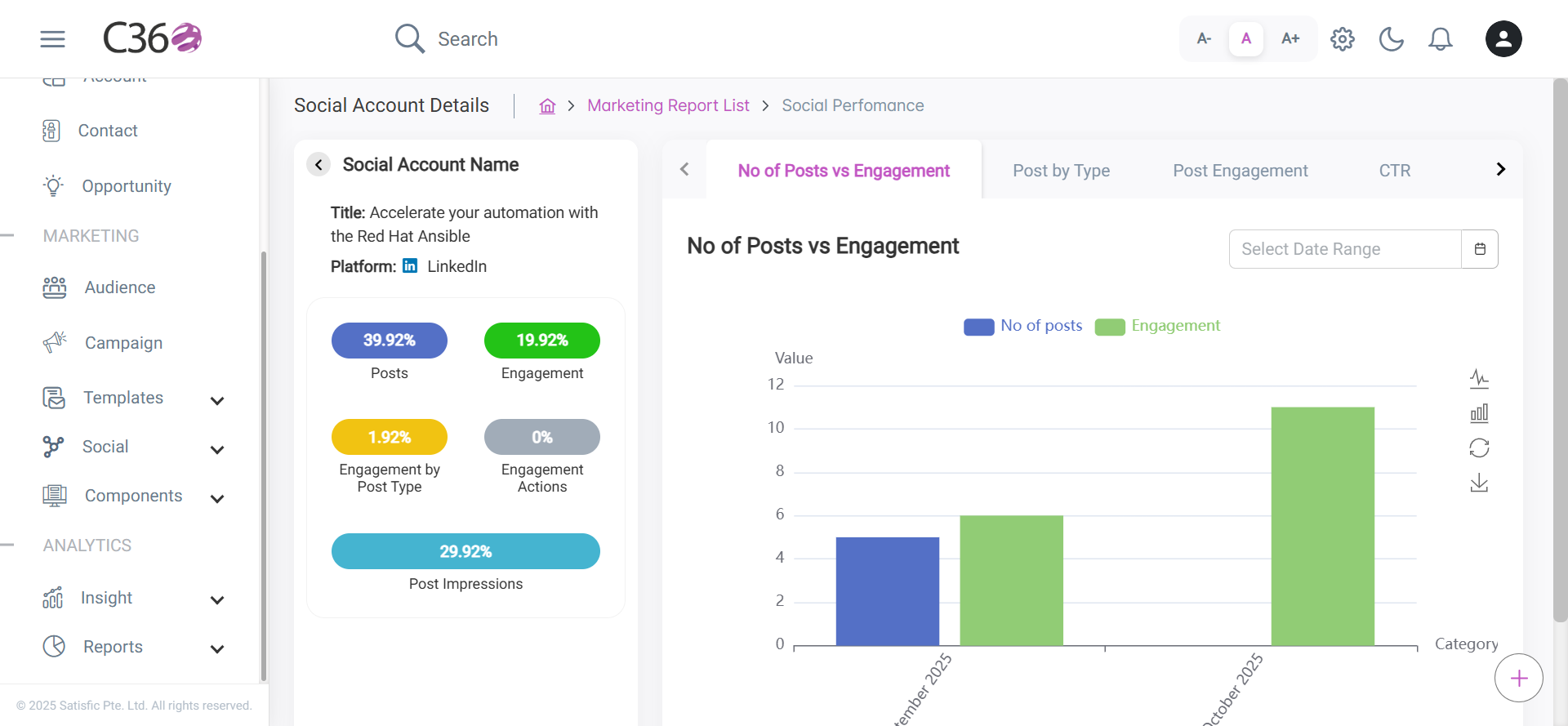
Viewing Social Account Details Page
Make sure you refresh or re-authenticate your social profiles periodically to avoid connection expiry.
📝 Posts
The Posts tab consolidates all posts from your connected channels.
To access it:
➡️ Go to Marketing → Social → Social Monitoring → Post from the Top Bar.
📊 Post Listing Overview
- By default You will find published post accociated with the social profiles .
- You can create, schedule, and manage posts with multiple status-based views.
You can filter the post's based on Status Or Linked Profile/Pages.
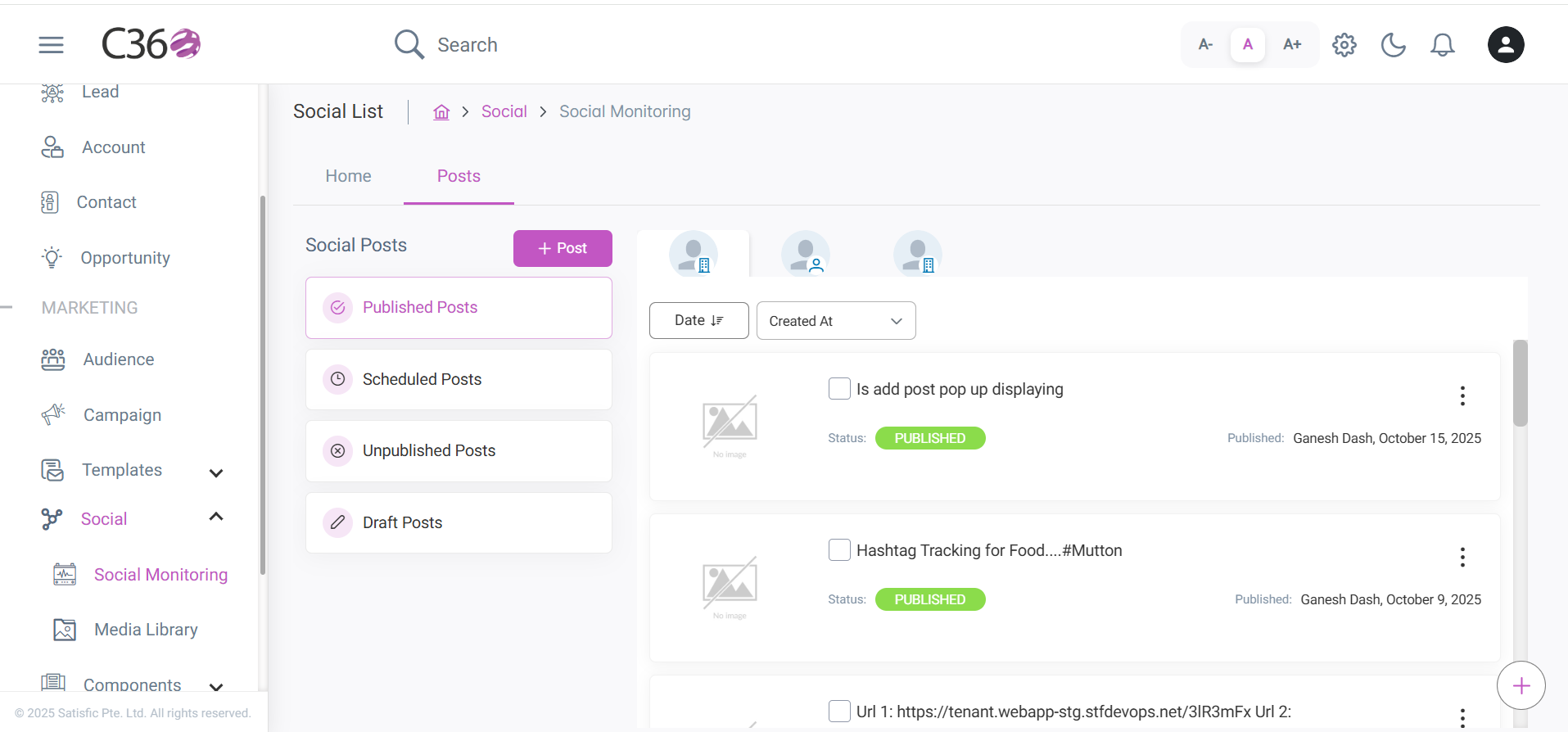
⚡ Actions:
➕ Add Post
- To Create a Post Click on Add Post.
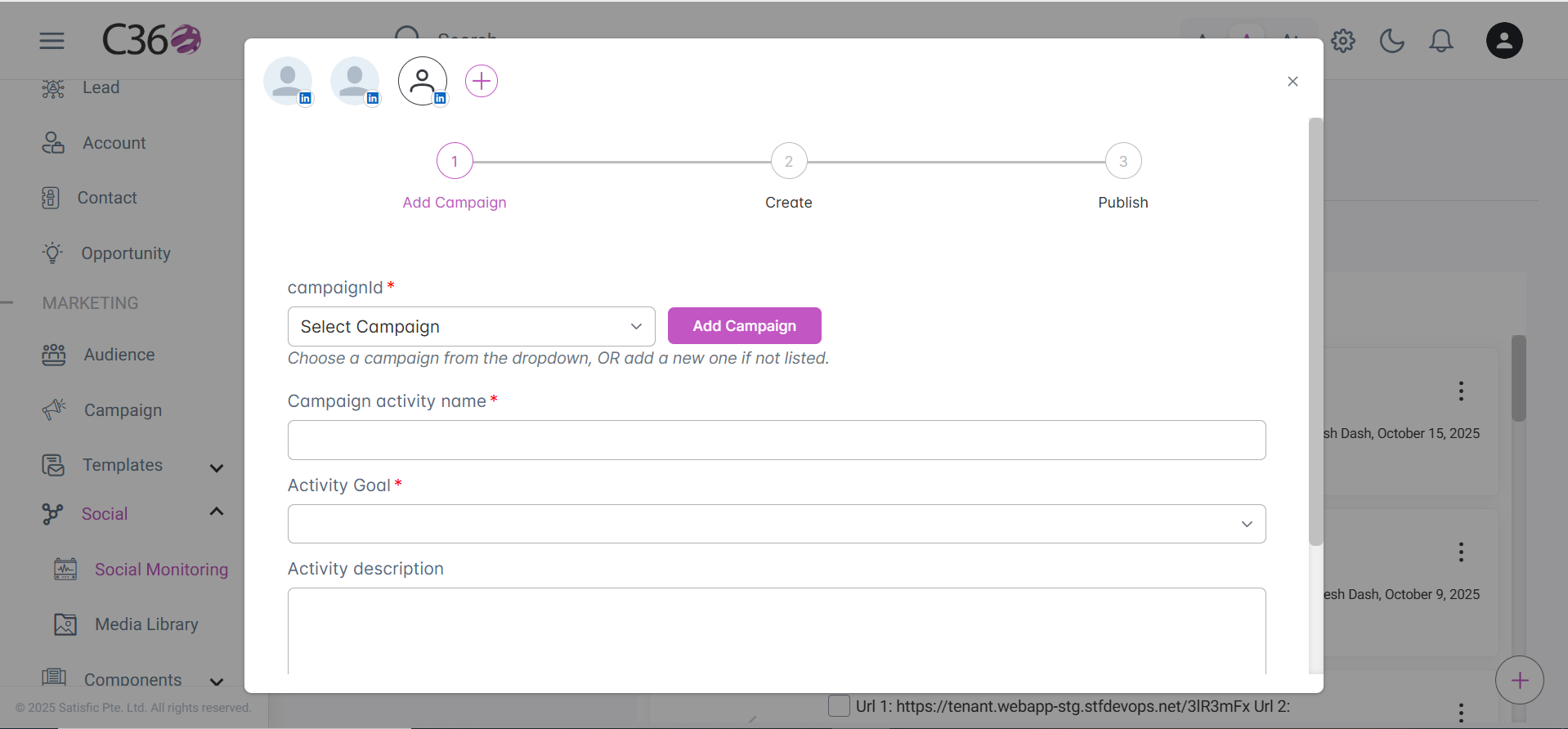
- ➕ Add Campaign
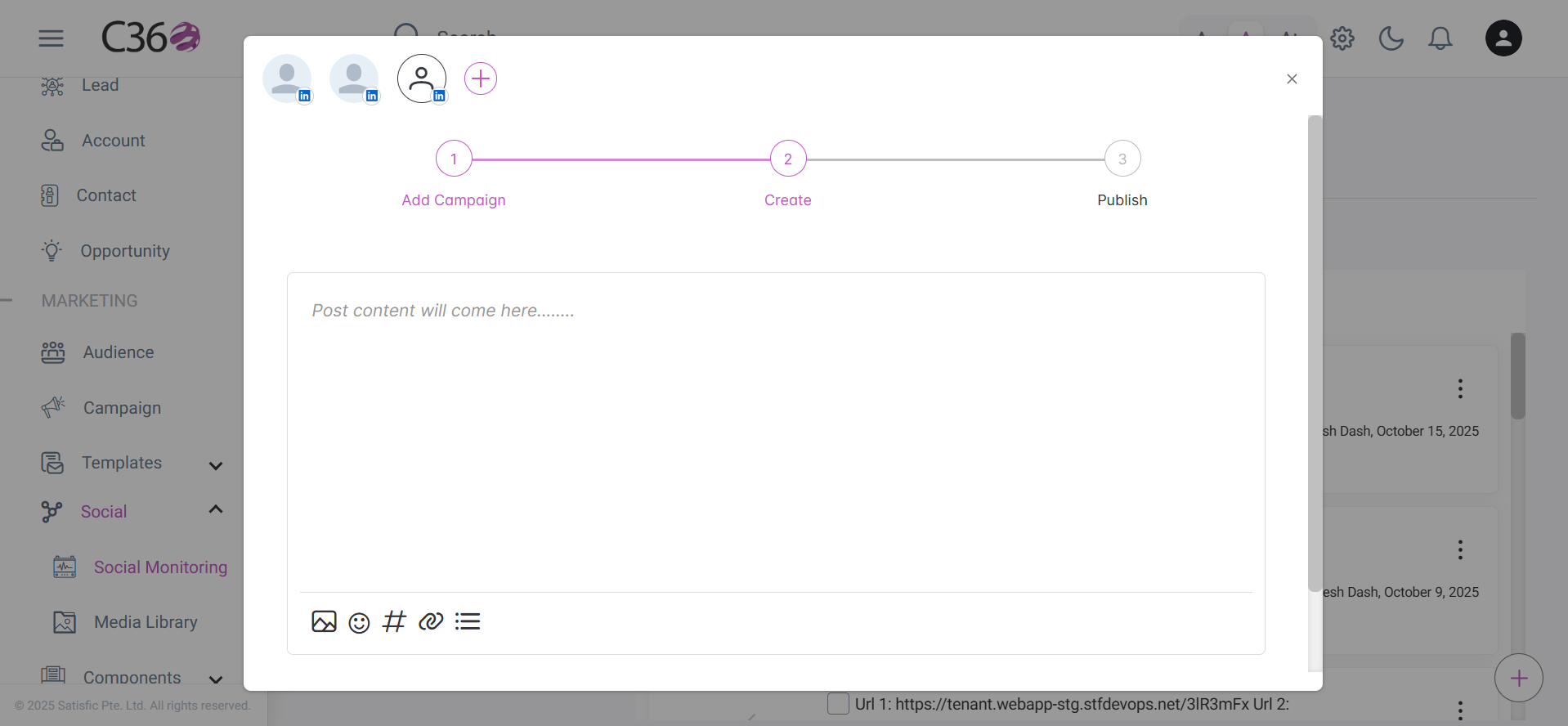
- ✏️ Create
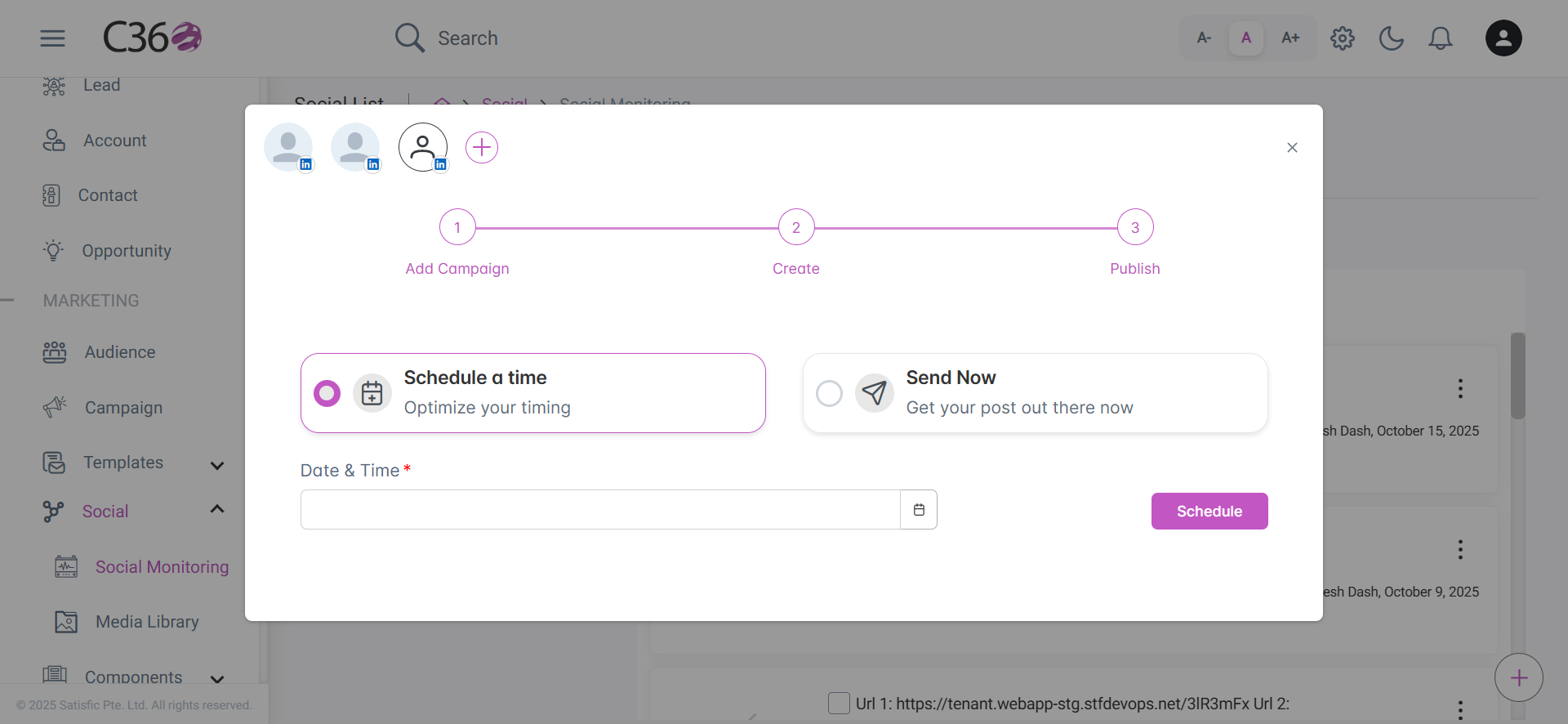
- 🚀 Publish
- Enter Details(Select Campaign Name, Activity Name, Activity Goal, Activity Description)
- Or you can add a campaign id not listed in the dropdown.
- Click on next.
- Enter the Post Content(Text,Image,Link,Emoji,Hashtags,Poll Request).
- Additionally You can short the Large Links using URL shortening Functionality.
- Click on Next
After finalize the Post Content :
- 🕒 Schedule a time
- 🚀 Send Now
- Choose schedule a time radio button.
- Select / Set a time.
- Click on schedule.
- Select Send Now.
- Click on Send
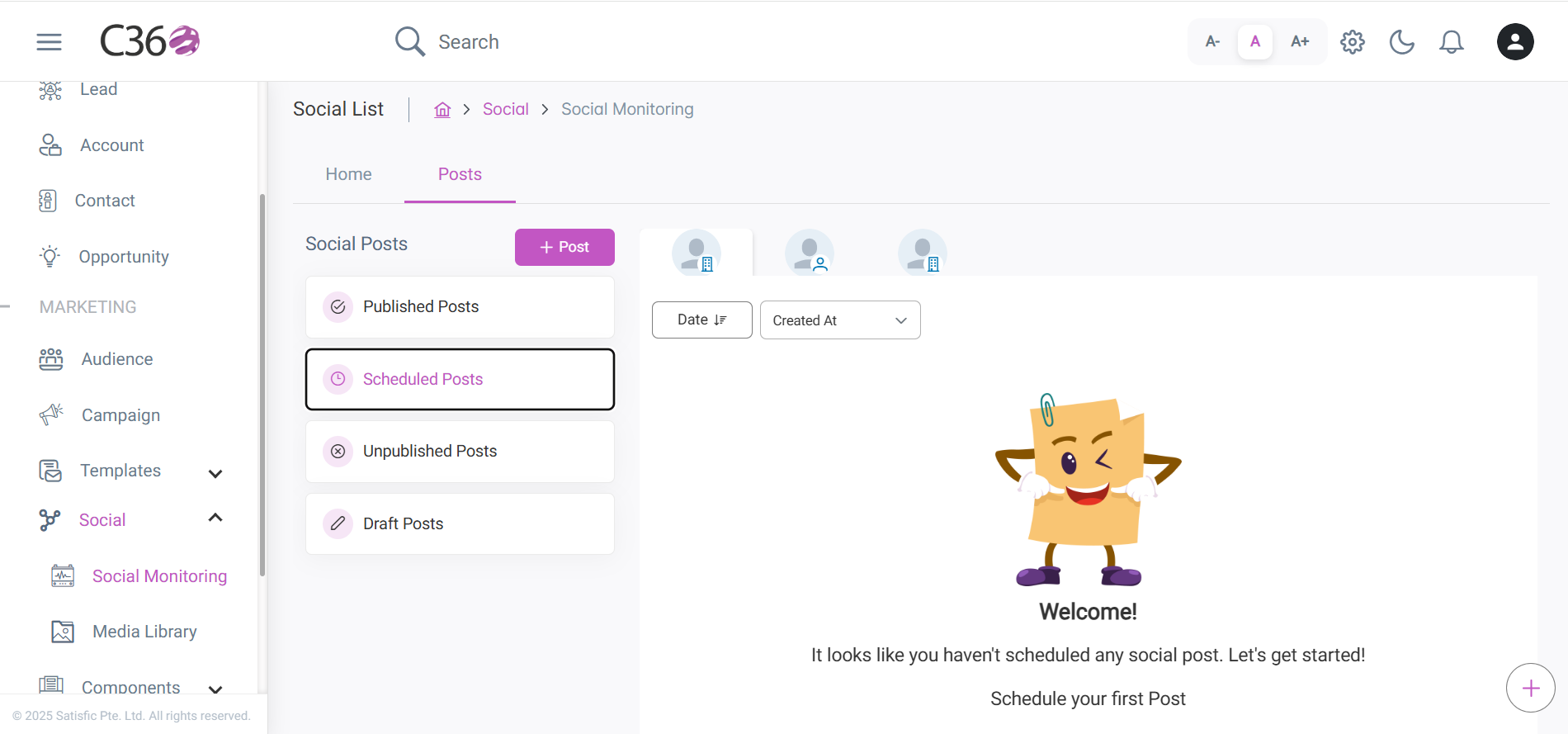
🎛️ Filter
You can filter Posts by:
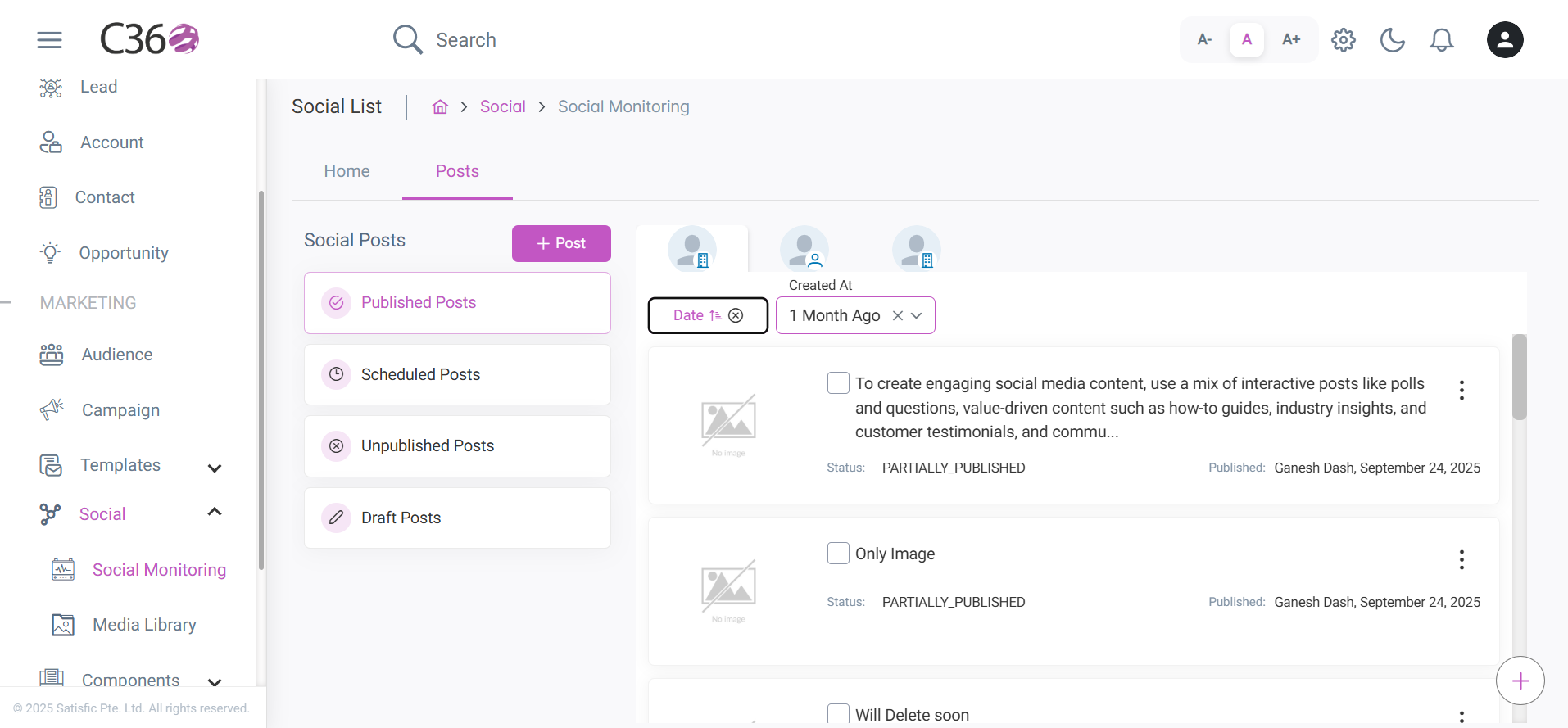
Click to See Available Filter
- Date : Using Date Filter you can short the post records.
- Created At : Selects a specific time period(Today, 1 week ago,1 month ago,1 year ago) or you can Costumize the your time period for analysis.
🧮 Filter Based on Status
- ✅ Published
- 🚫 Unpublished
- 📝 Drafts
- ⏰ Scheduled
- Displays posts already published on selected channels.
- Shows metrics like reach, engagement, likes, and comments.
- Option to boost/promote a post.
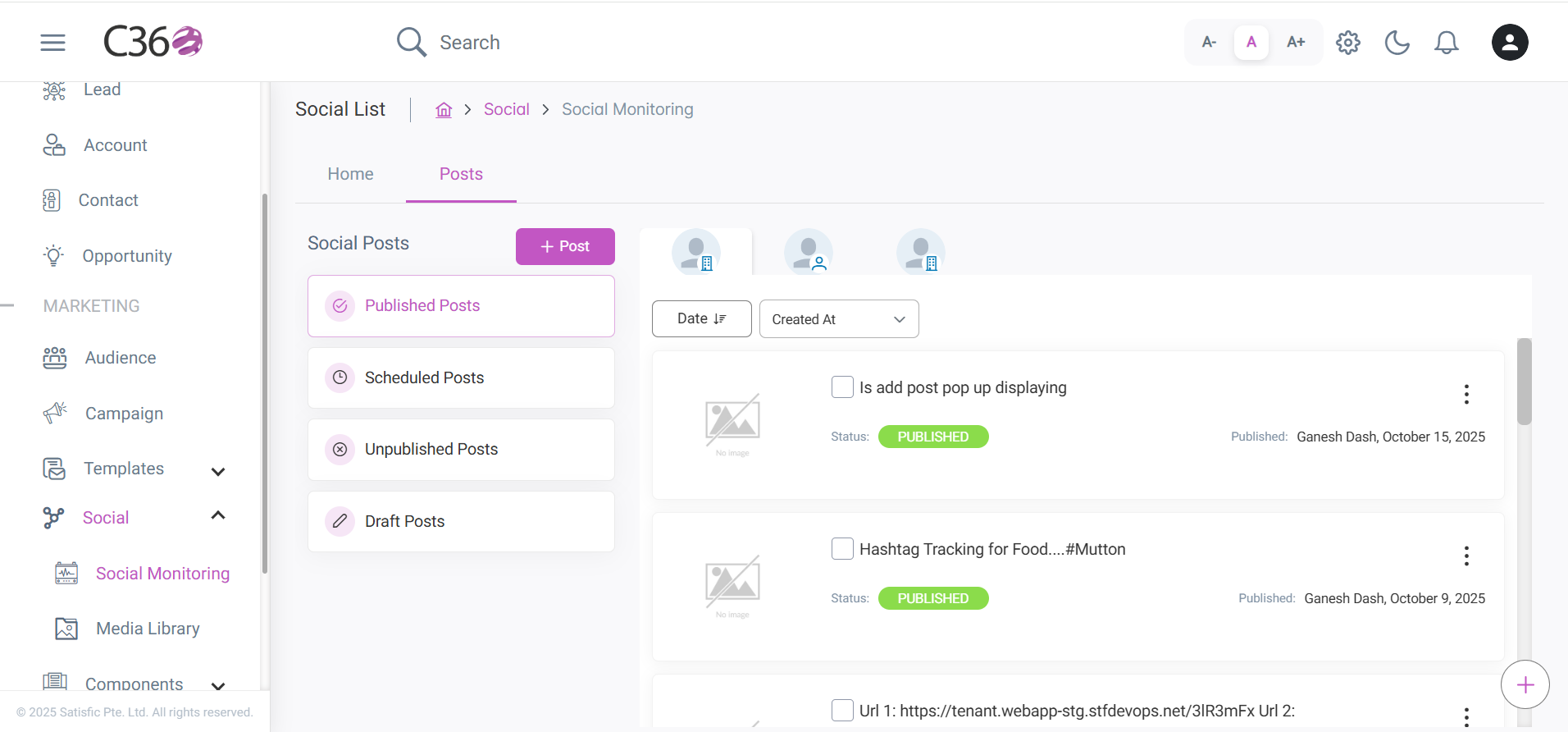
- Posts that were not successfully published due to errors.
- Shows error logs and reasons (e.g., expired token, missing permissions).
- Allows retry after fixing the issue.
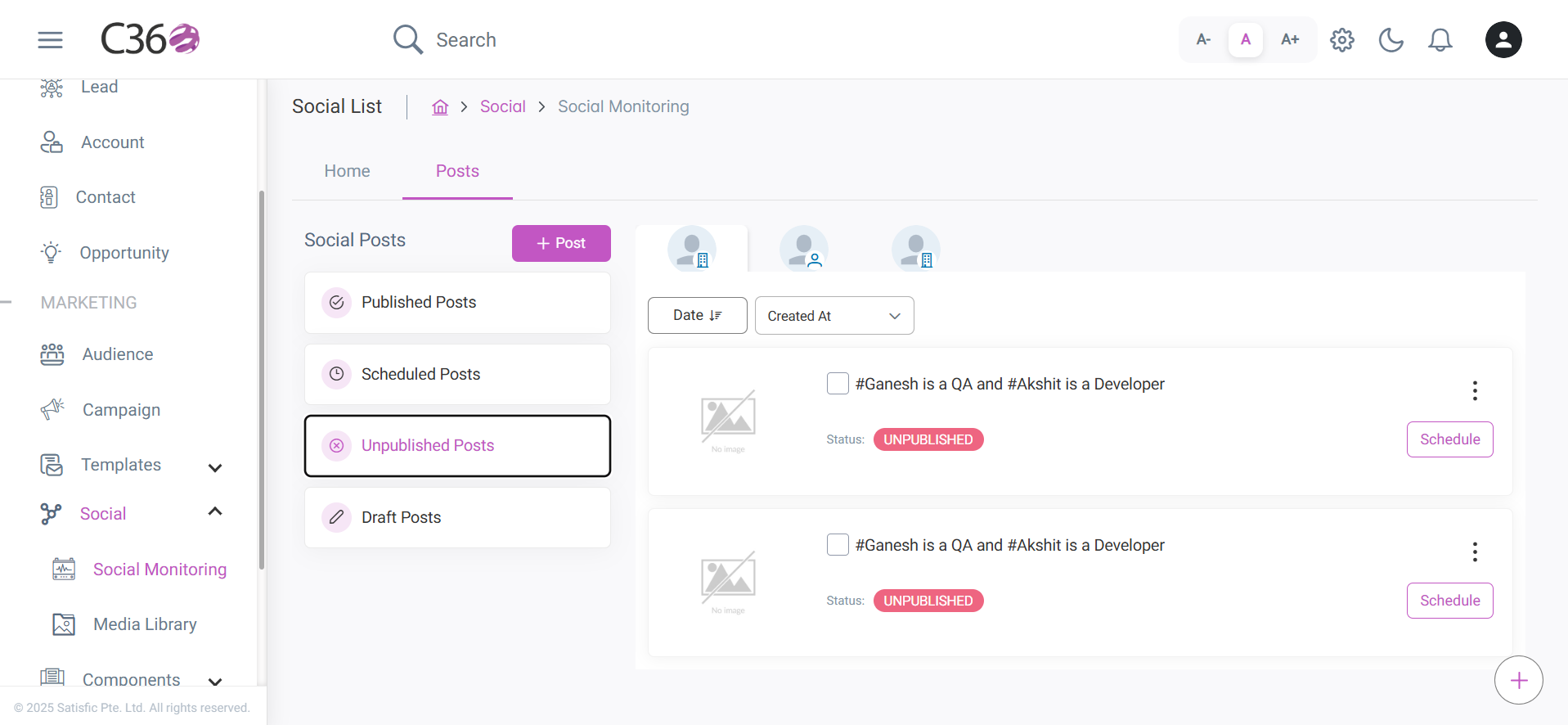
- Posts saved as drafts for later editing.
- Option to edit & publish or schedule.
- Drafts can be shared with teammates for review.
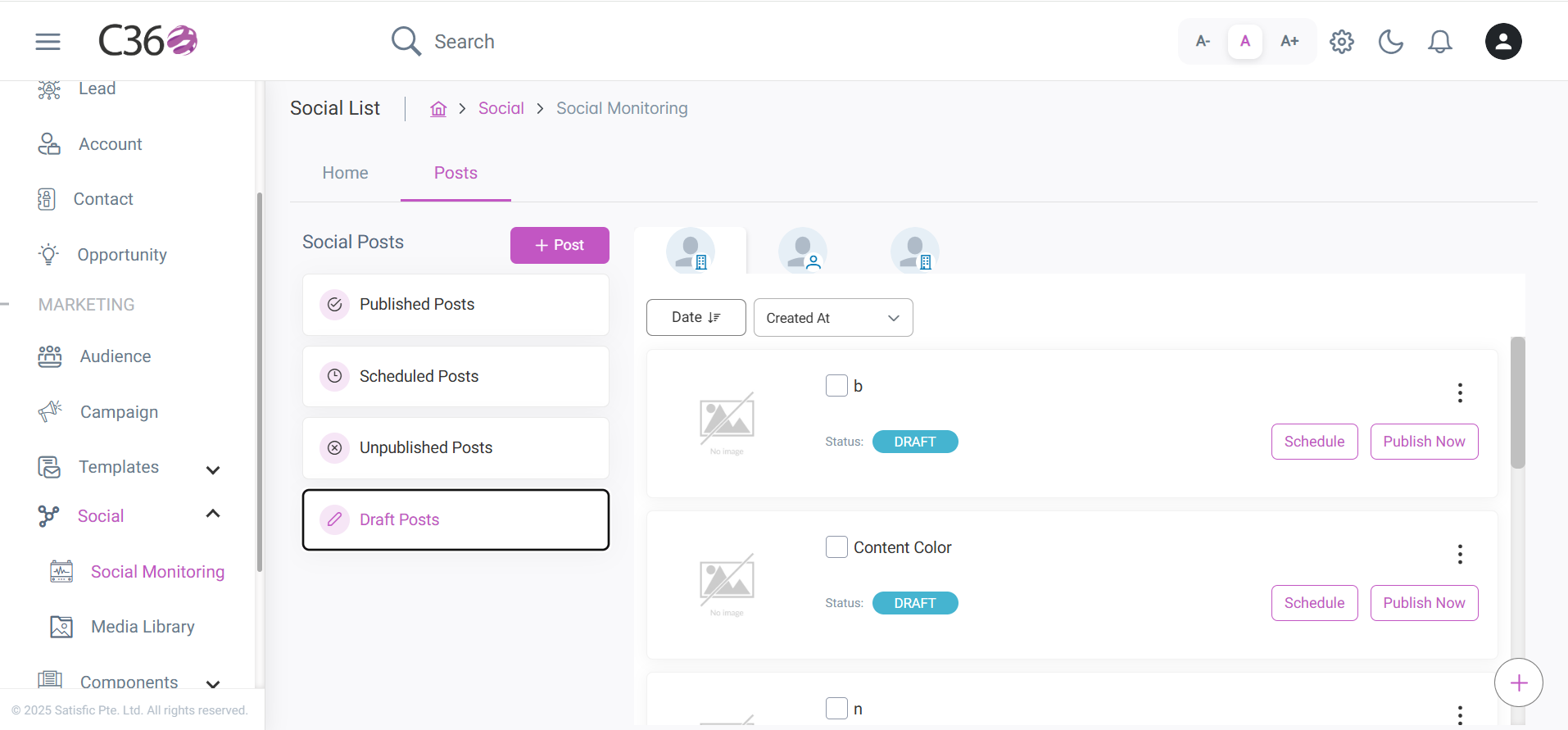
- Shows all upcoming scheduled posts.
- Displays date/time and channel details.
- Option to reschedule or cancel before publishing.
📋 Clone
✏️ Edit
🗑️ Delete
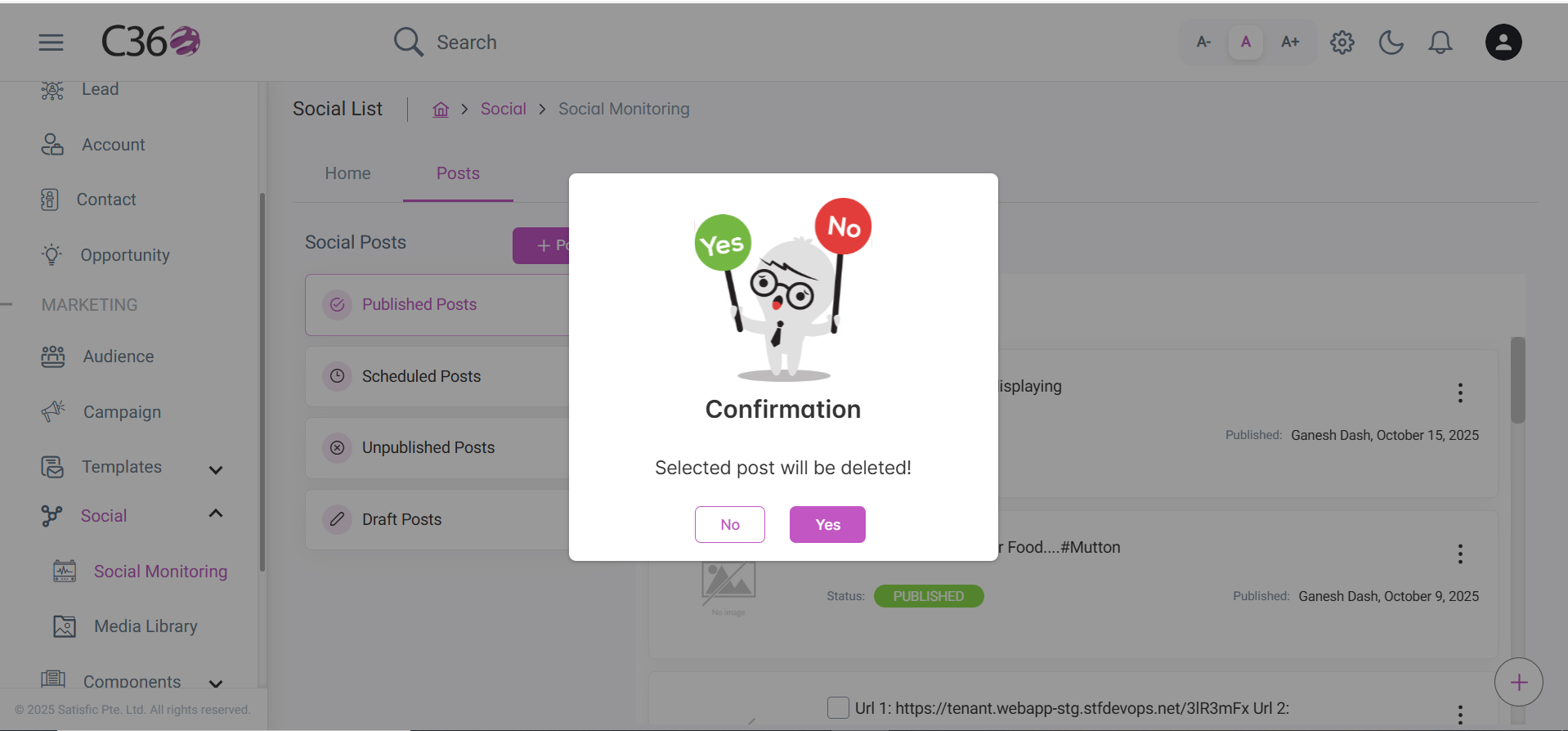
- Click on the three vertical dots for the particular post you want to delete.
- Click the Delete Button .
- Click on Yes from the confirmation pop up to delete successfully.
📊 Post Details Overview
- 🗞️ Post Details
- 📊 Post Statistics
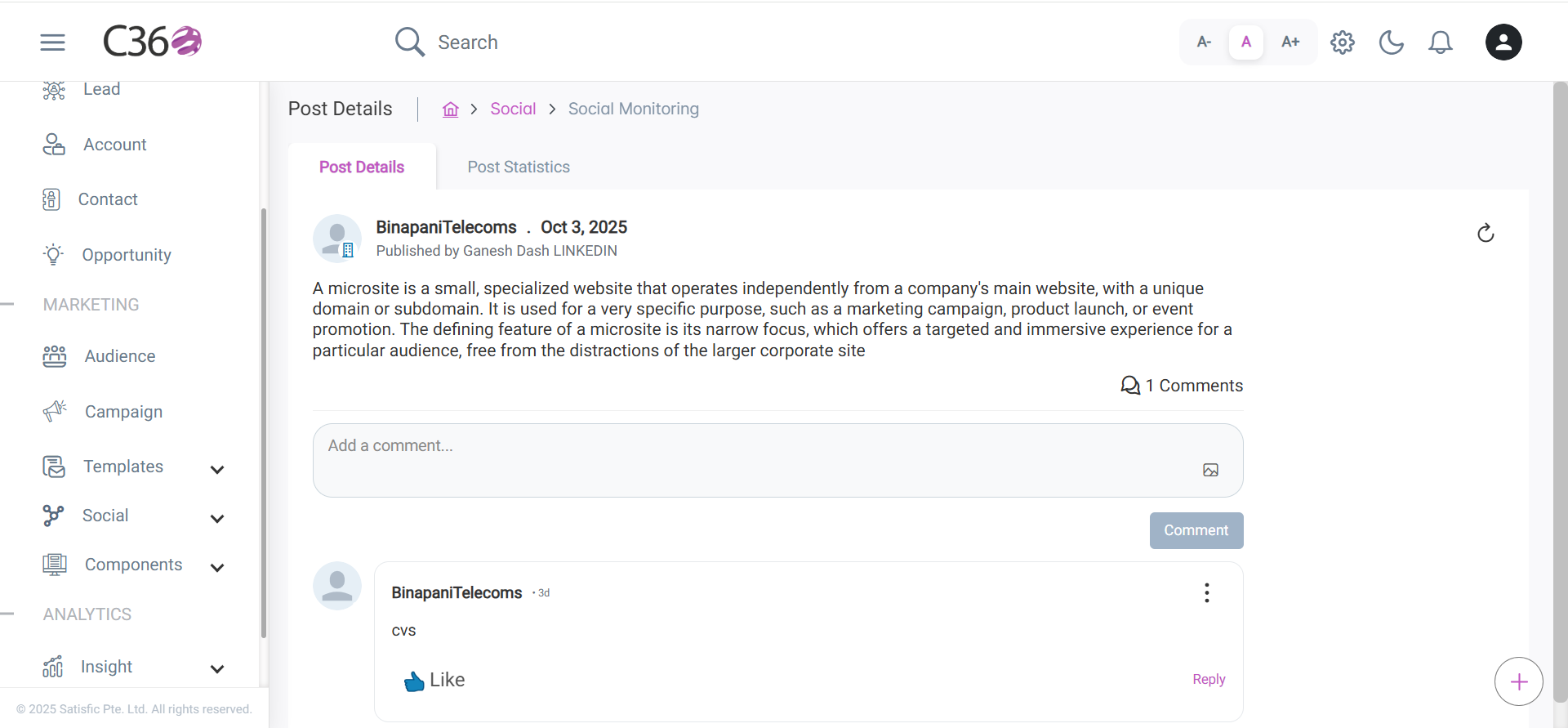
- Post Details refer to the complete information and attributes related to a specific post .
- It includes all the content, metadata, and engagement-related data associated with that post.
Key Elements Incude in Post Details:
- Post Content - The main text, image, video, or link shared in the LinkedIn post.
- Author / Page - The user or company page that created or published the post.
- Reactions - Total likes, celebrates, supports, etc. received on the post.
- Comments - Number and type of comments or discussions generated.
- Date - On which date post got published.
- Additionally You can Reply and Give Reactions for the Comments.
- You can Refresh the post Details Page to see the Current Data.
- You can Edit and Delete Your Comments.
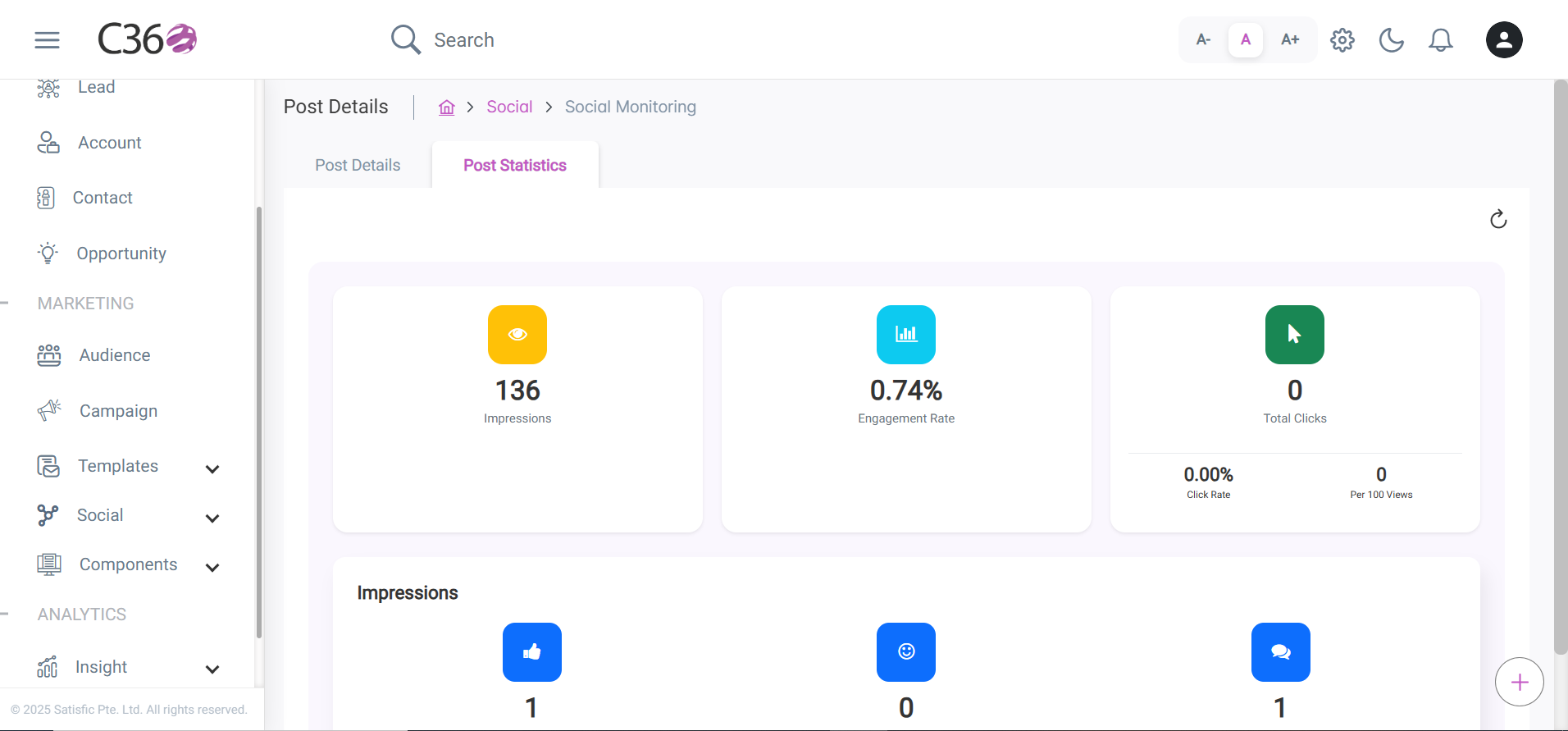
Post Statistics refer to the set of analytical metrics that measure the performance, engagement, and overall reach of a post shared on any platform (e.g., LinkedIn, Facebook, or internal CRM campaigns).
- Impression : The total number of times the post was displayed to users.
- Engagements Rate : Percentage showing total interactions (likes, comments, shares) relative to reach.
- Total Clicks : Total Clicks represent the total number of times users have clicked on any interactive element within a social post.
This includes clicks on:
- Links within the post (e.g., website URLs)
- Media attachments (images, videos, PDFs)
- Profile or page mentions
- Engagements : Total Engagements represent the cumulative interactions users have performed on a social post.
This includes:
- Likes, reactions, or emoji responses
- Comments or replies
- Shares or reposts
- Clicks (links, media, or call-to-action)
- Reactions : Total count of reactions (likes, supports, celebrates, etc.).
- Comments : Number of user comments or responses to the post.
- Additionally, you can refresh the page to view fresh data.
🎯 Why Use Social Monitoring?
- Centralized control of all social media activity.
- Streamlined content publishing & scheduling.
- Data-driven insights with performance reports.
- Improved team collaboration and faster responses.