🎥 Video Management
The Video Management feature in C360 allows you to upload, organize, and share videos with your team — making it easier to distribute learning material, product demos, and recorded meetings.
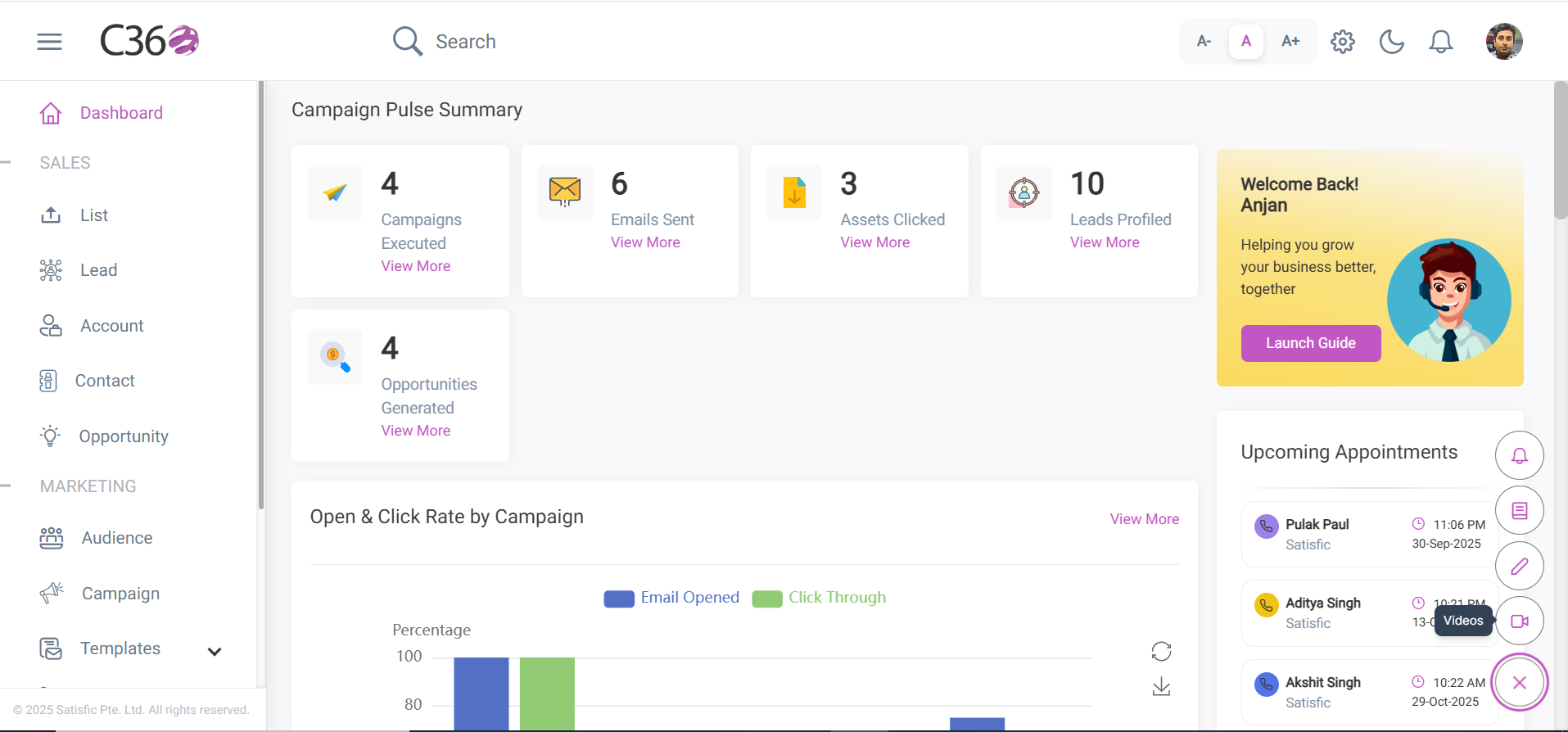
To access Videos:
Click the “+” icon in the bottom-right corner and select Videos from the menu.
📂 Viewing Videos
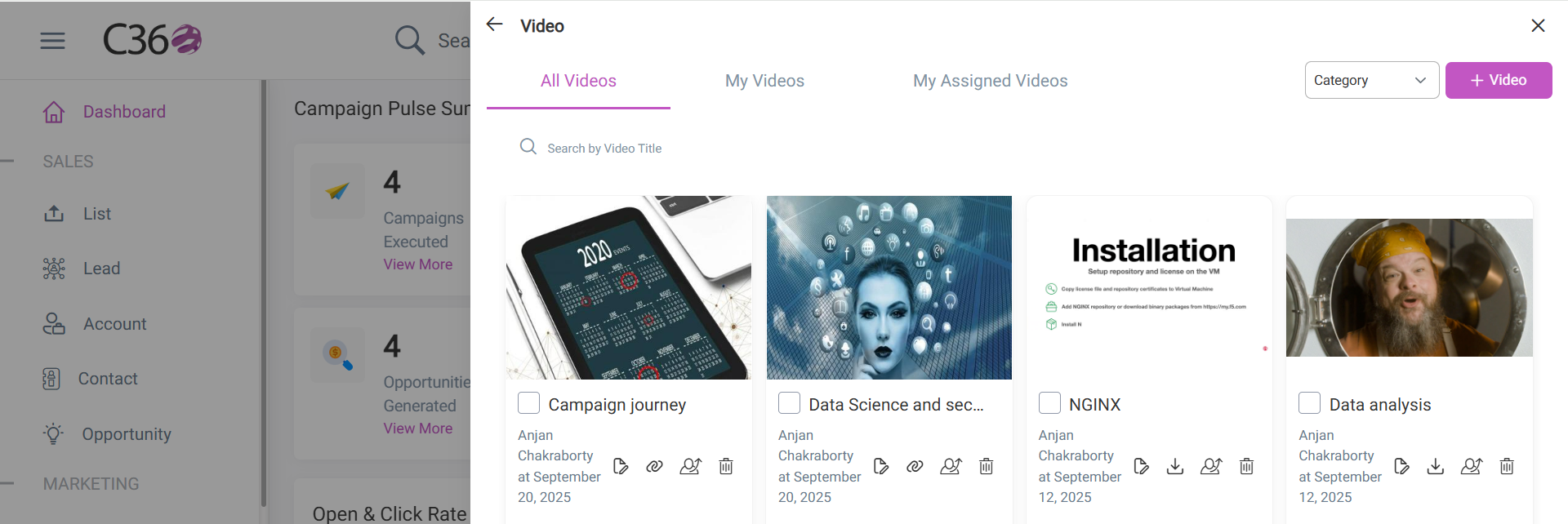
From the Video List page, you can manage all uploaded and assigned videos.
- Click Add Video to upload a new file.
- Click a video thumbnail or name to play it.
- Use the trash icon to delete a video.
Each video provides the following actions:
- ✏️ Edit → Modify video details.
- 🔗 Copy Link → Copy the video URL for sharing.
- ⬇️ Download → Download the attached video file.
- 👥 Assign to Users → Share the video with specific users.
- 🗑️ Delete → Permanently remove the video.
- ☑️ Checkbox → Select multiple videos for bulk actions.
➕ Adding a Video
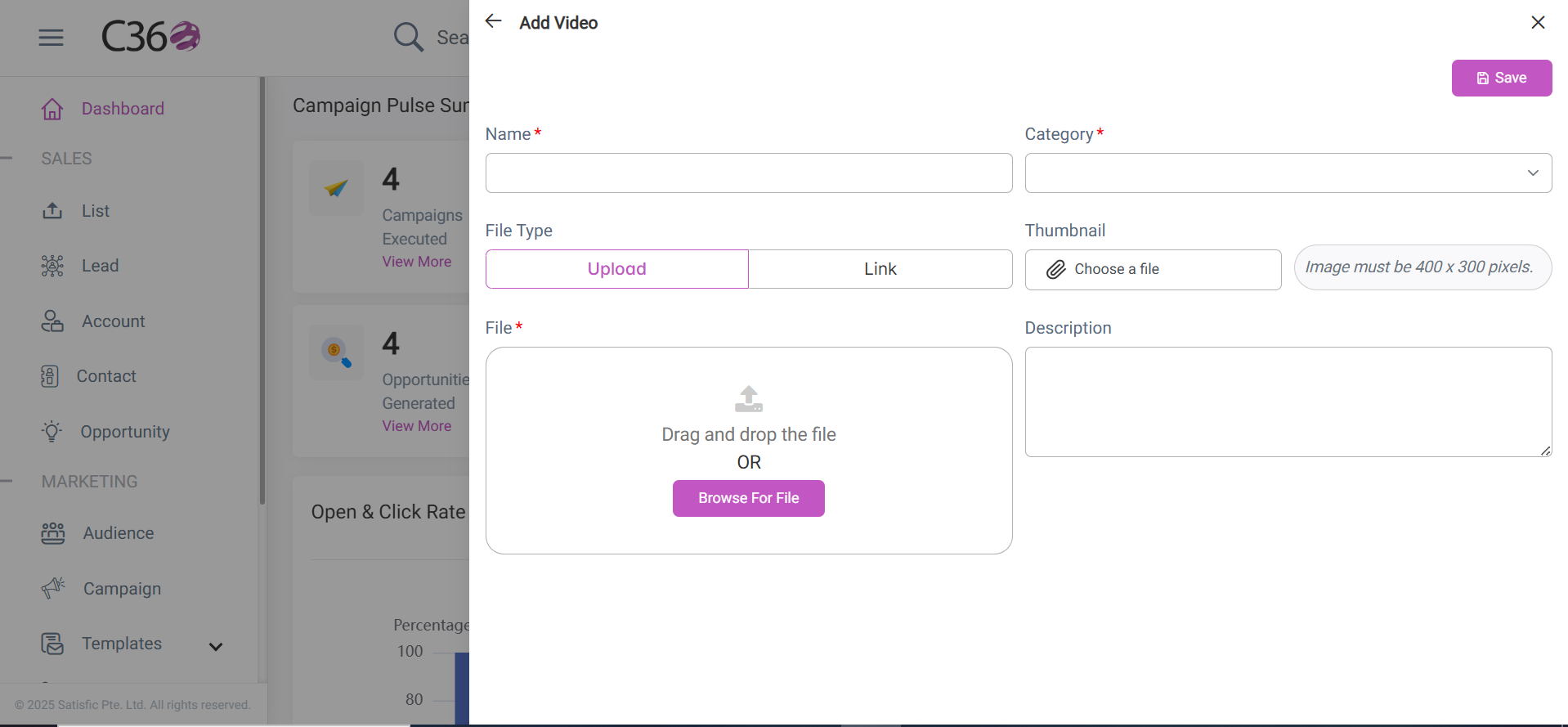
To upload a new video:
- Click Add Video (top-right).
- Fill in the required fields (e.g., title, description, category).
- Upload your video file from your system.
- Click Save to complete the upload.
🔎 Organizing Videos
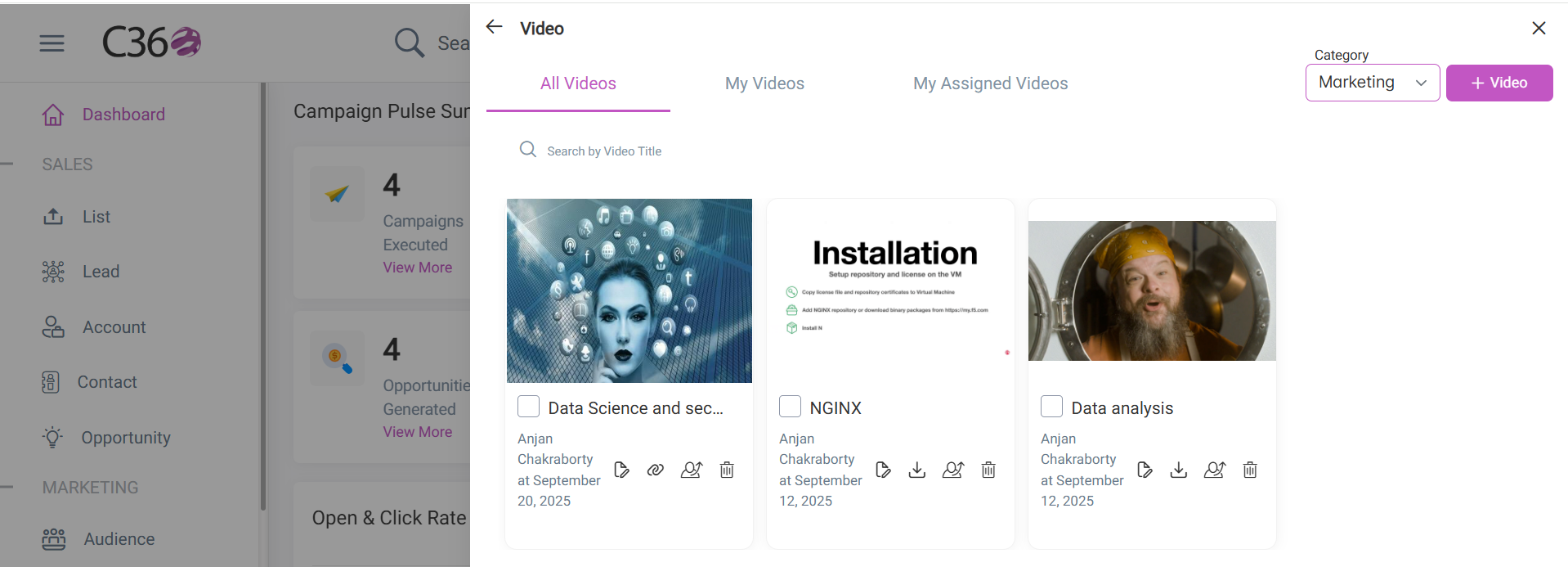
At the top of the Video List, you’ll find additional tools to help organize content:
- My Videos → Videos uploaded by you.
- My Assigned Videos → Videos you have assigned to others.
- Filters → Narrow down by category.
- Search bar → Quickly locate videos by name.
✅ Key Benefits
- Upload and manage all training and reference videos in one place.
- Assign videos directly to users or teams.
- Use filters and search to quickly find what you need.
- Share videos instantly with copyable links.